

Pyxus HD Setup Manual
Assemble the Pyxus HD trainer and connect the camera via USB.
Welcome to the step-by-step assembly guide for the Pyxus HD. Whether you prefer step by step instructions or a video demonstration, this guide will walk you through the assembly process.
Before you begin, take a moment to review the package's contents and acquaint yourself with the included components. The following content has been crafted to provide you with all the insights required to transform individual parts into a functional and invaluable tool for honing your surgical skills.
Step 1
Begin the assembly by taking out parts 00001213 and 00001212.
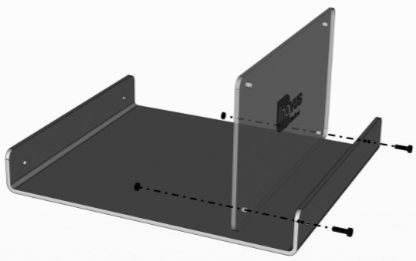
Step 2
Using 2 x 00000640 bolts and 2 x 00001159 nuts, secure the rear panel 00001458.
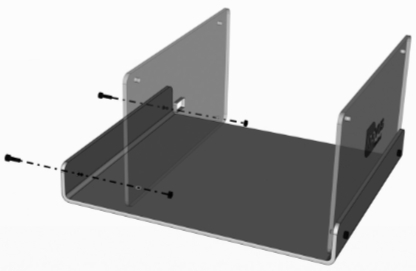
Step 3
Your simulator should now look like this, with both upright panels securely in position.
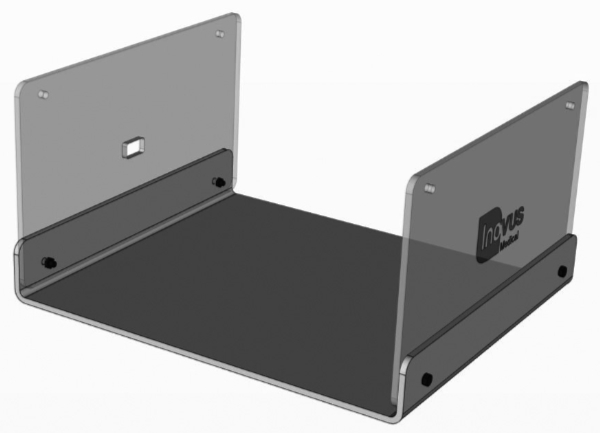
Step 4
You may now start the top panel sub-assembly. Taking 00000171, 00000170 and 00001204, secure as shown using 4 x 00000640 bolts and 4 x 00001159 nuts.
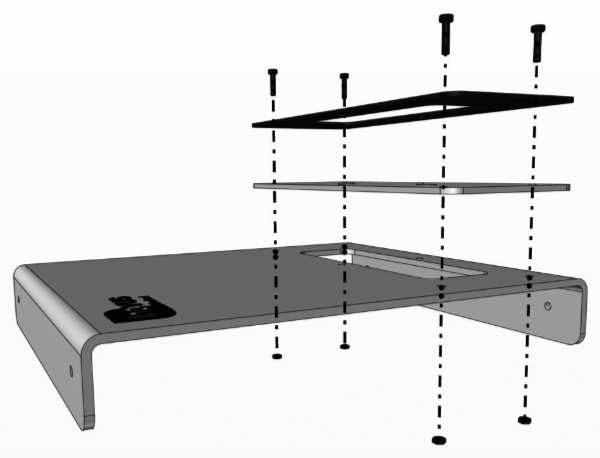
Step 5
For the moment, leave the two centre holes free.
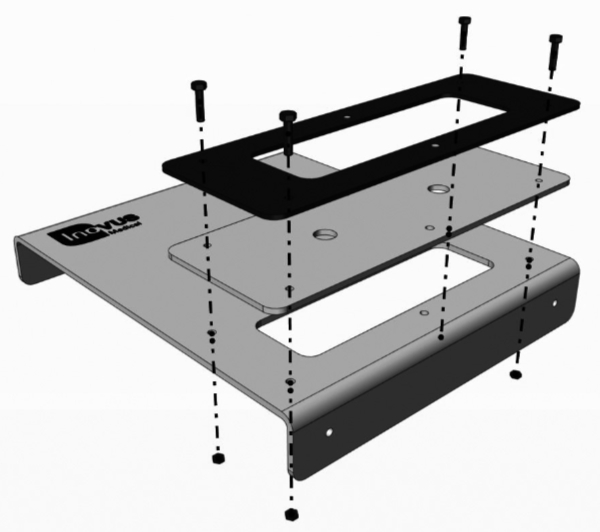
Step 6
You have now completed the top panel sub-assembly.
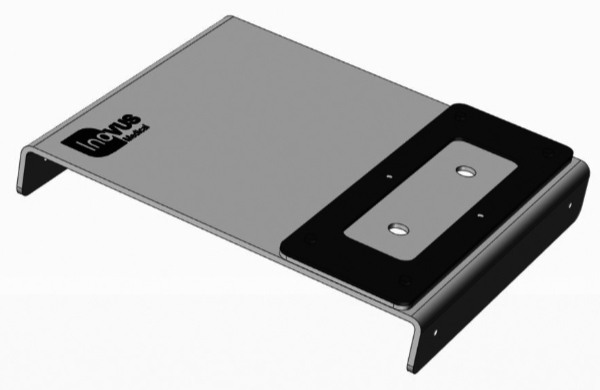
Step 7
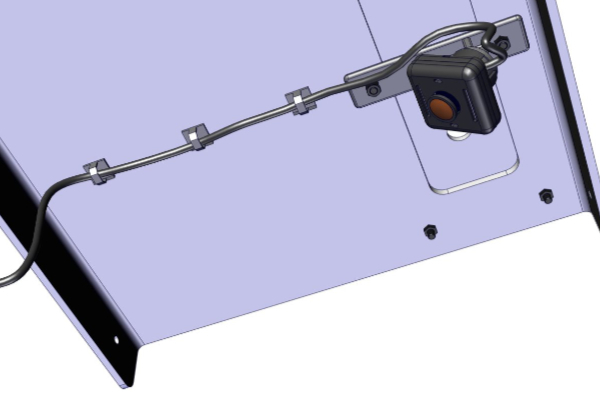
Use the remaining 00000640 bolts and 2 00001159 nuts to secure the camera unit to the underside of 00001204.
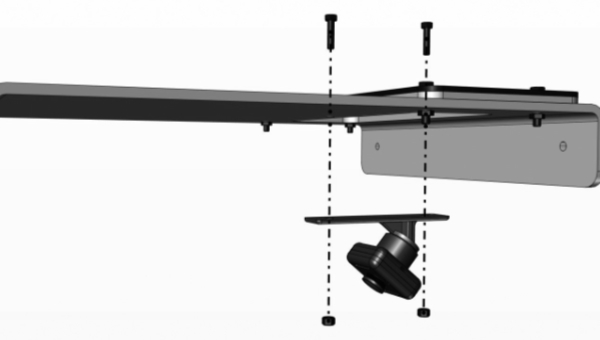
Step 8
Position the adhesive wire clips in line with the camera unit on the underside of 00001204.
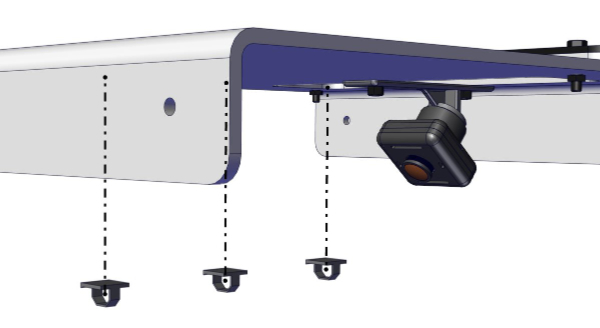
Step 9
You may now run the wire as shown and clip it into position.
Step 10
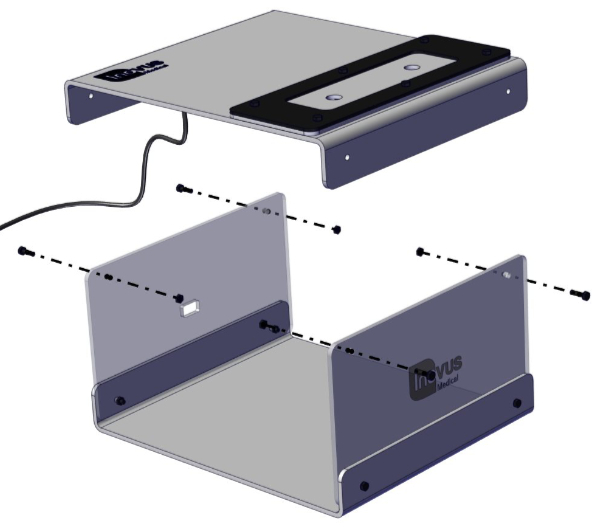
Having already completed the TPB01 sub-assembly, you may now use 2 x 00000640 bolts & 2 x 00001159 nuts to secure it to the upright panels.
Step 11
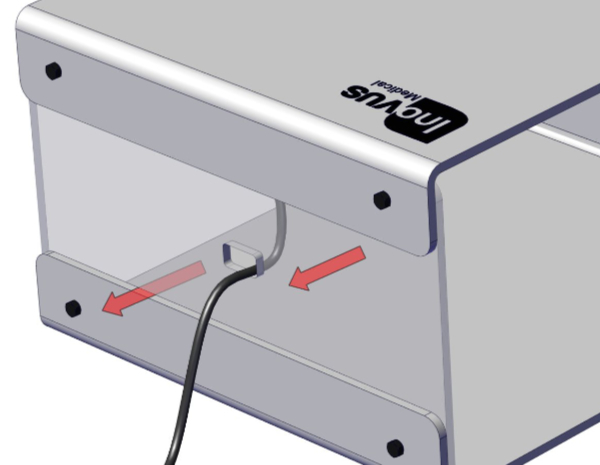
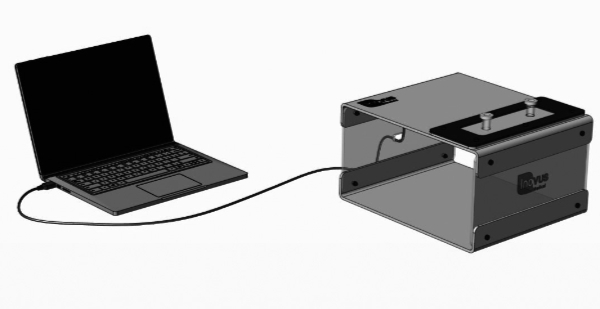
Feed the USB cable through the aperture in the rear panel as shown.
Step 12
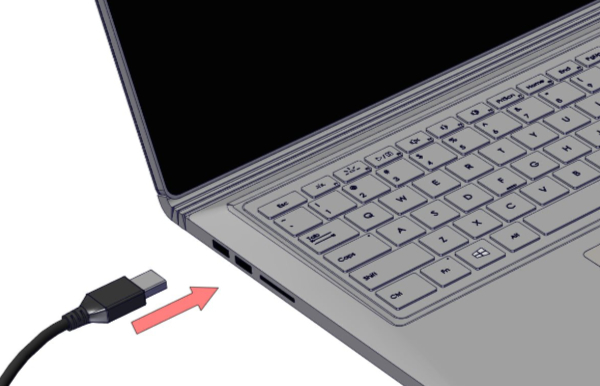
Connect the USB cable to your laptop or PC.
Step 13
The setup should now look similar to this image. The lights on the camera should now be illuminated.
Using the simulator camera
Windows 8/10
- Open the Start menu and search for "Camera".
- Open the Camera app.
- If the computer's default camera appears, use the switch-camera control to select the simulator camera.
- You can then begin using the simulator.
macOS
- Open Spotlight Search and search for "QuickTime Player".
- Open it, then choose File > New Movie Recording.
- If the Mac's default camera appears, open the menu beside the Record button and select "USB 2.0 Camera".
- You can then begin using the simulator.
Related articles
I've purchased a Pyxus HD or Pyxus HD Move simulator but can't access or log on to LapSkills, what should I do?
LapSkills has been discontinued — how to operate your simulator without it.
I've purchased a Pyxus HD or Pyxus HD Move simulator and cannot get the camera to work (Mac and Windows users)
Fix a non-working camera on your Pyxus HD or Pyxus HD Move using your computer's built-in camera app (Windows or Mac).
Community Discussions (0)
Real-world experiences from other users around this article.
Did this solve your problem?