

Activity Search
Search and filter recorded activity by product, procedure and date range.
1. Go to Activity – Totum
2. Click on the search field
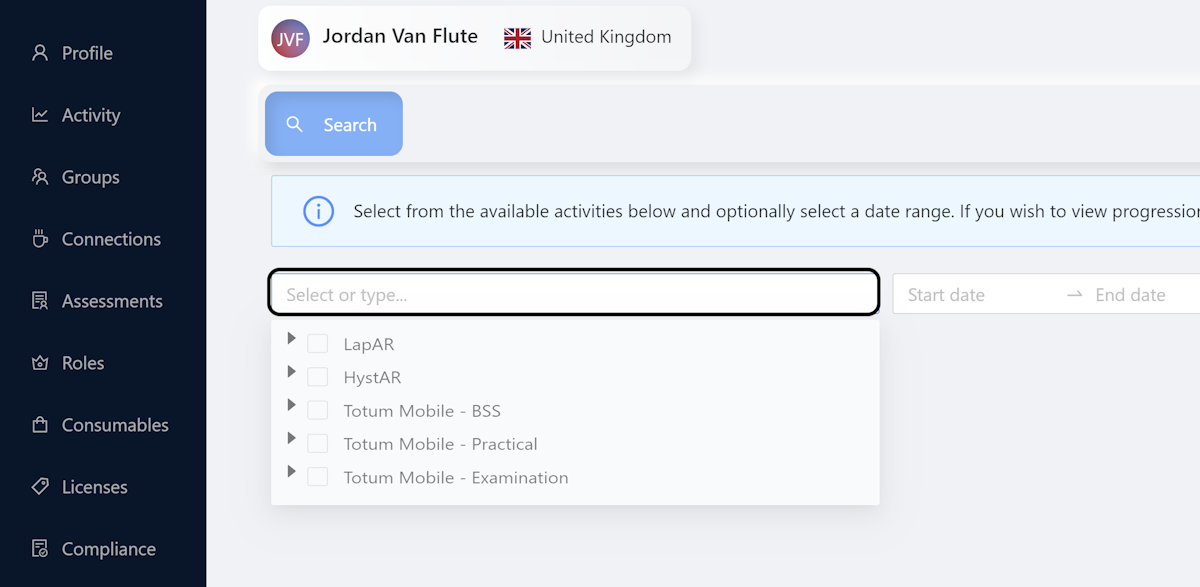
3. Select Products
Select a caret-down for any or multiple products
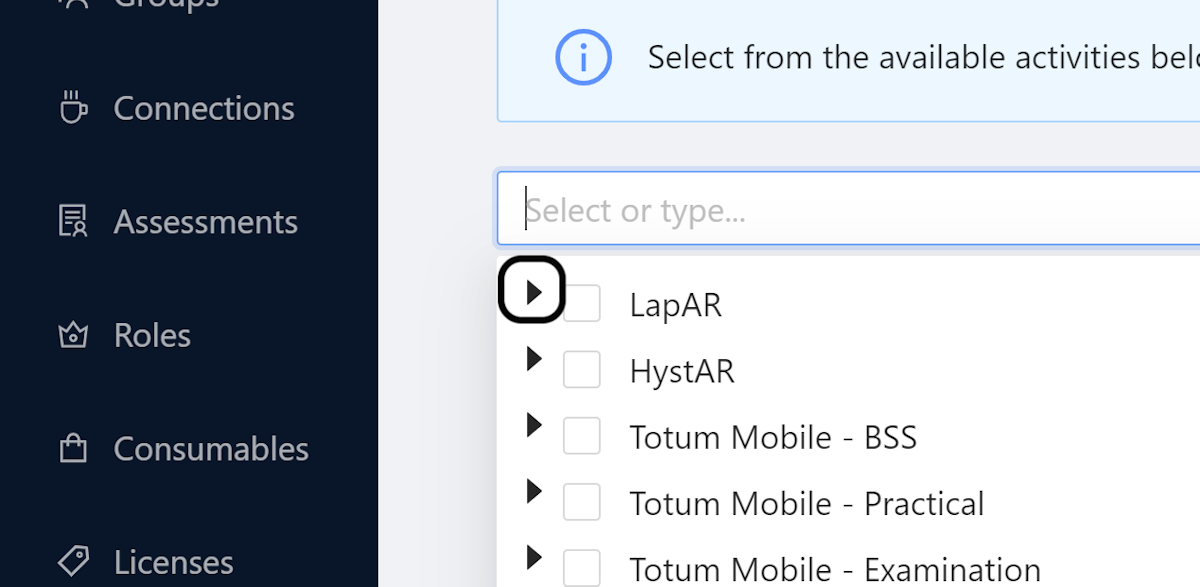
4. Select Specialty Procedures
Click on the specialty caret-down to reveal individual procedures
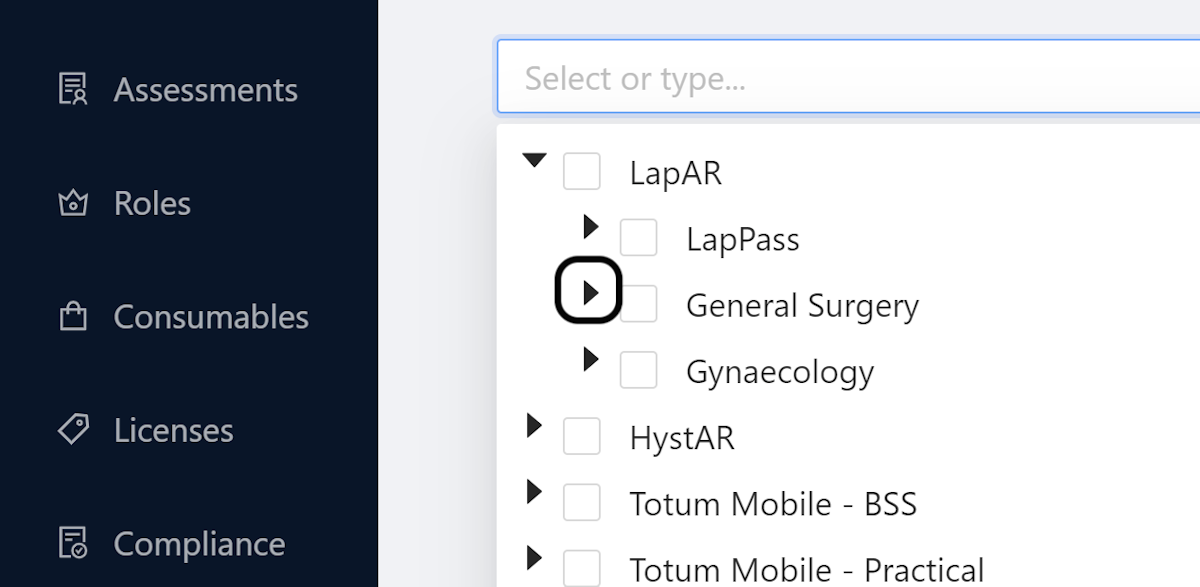
5. Select any procedure
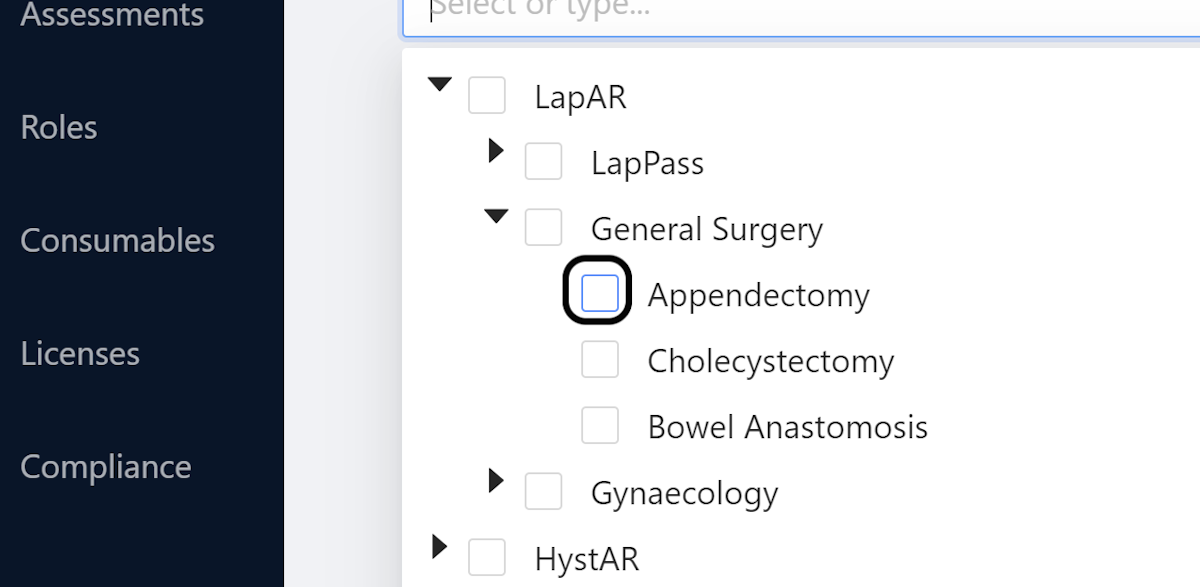
6. Click on Start date
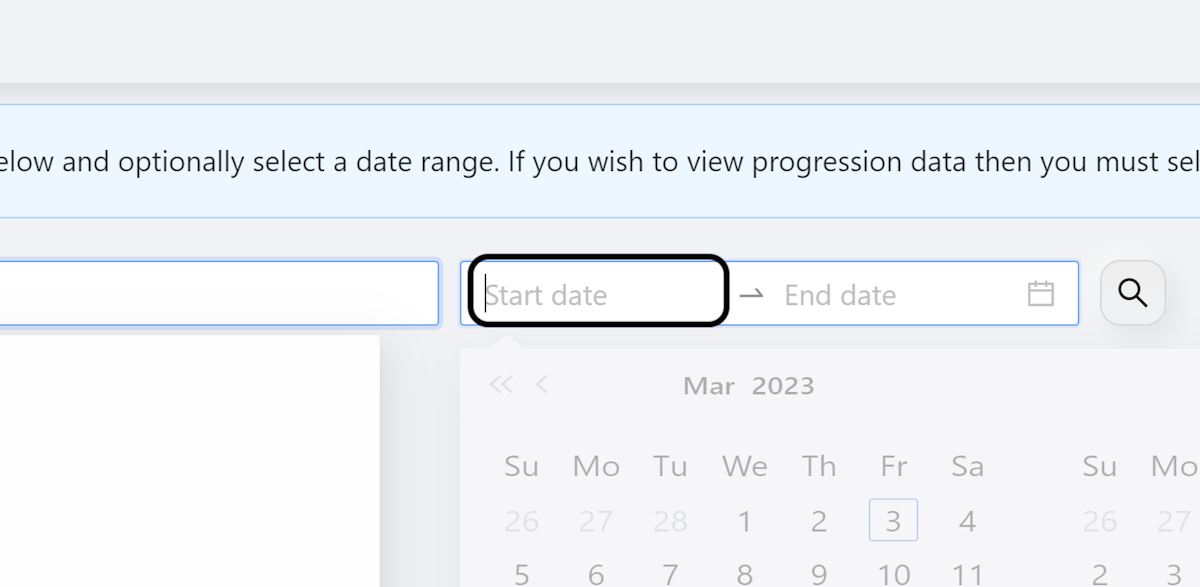
7. Cycle Dates
Cycle through the years, months, and days
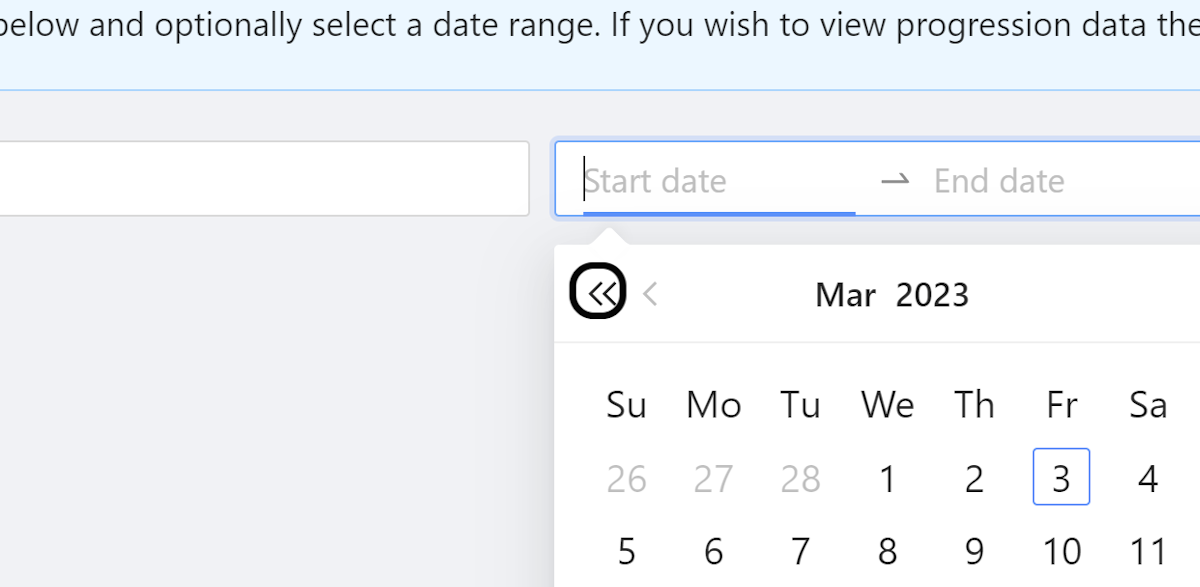
8. Click Start Date
Click on the desired start date for the search
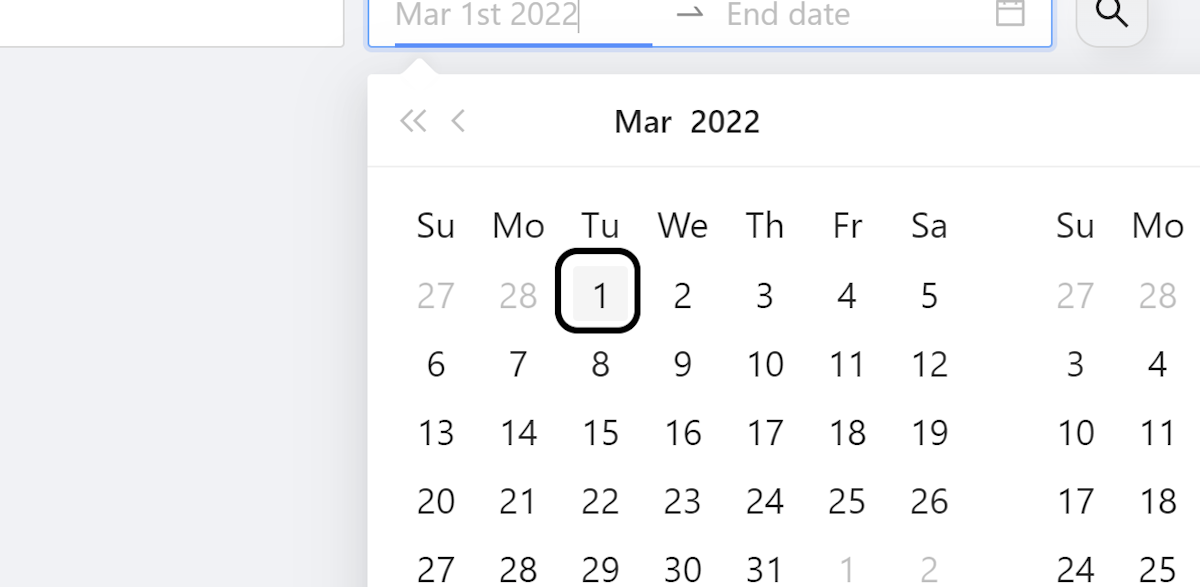
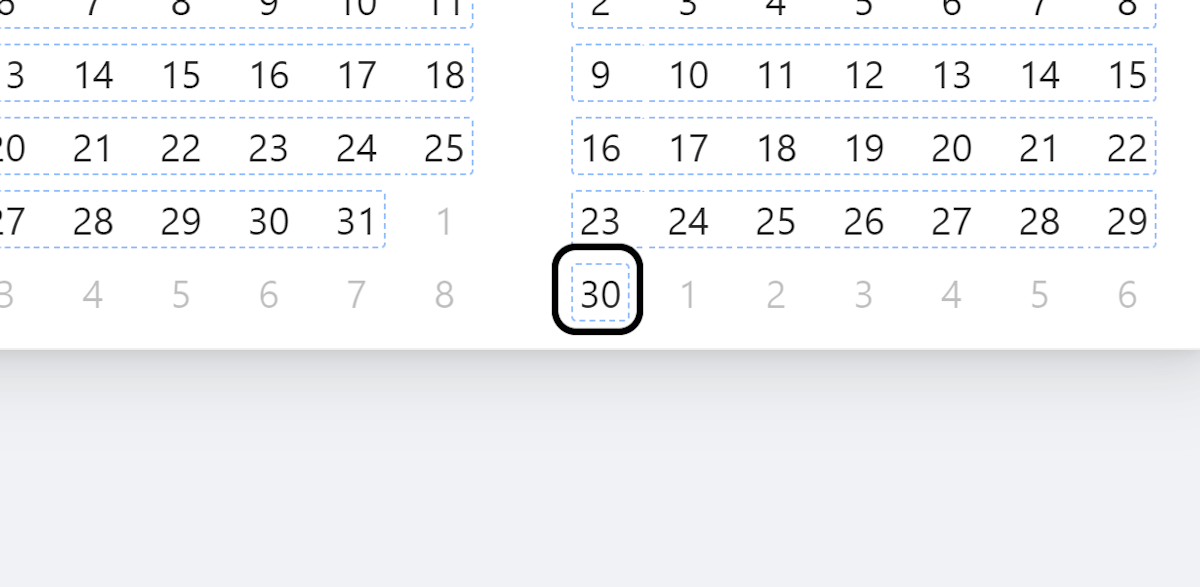
9. Now select an End date
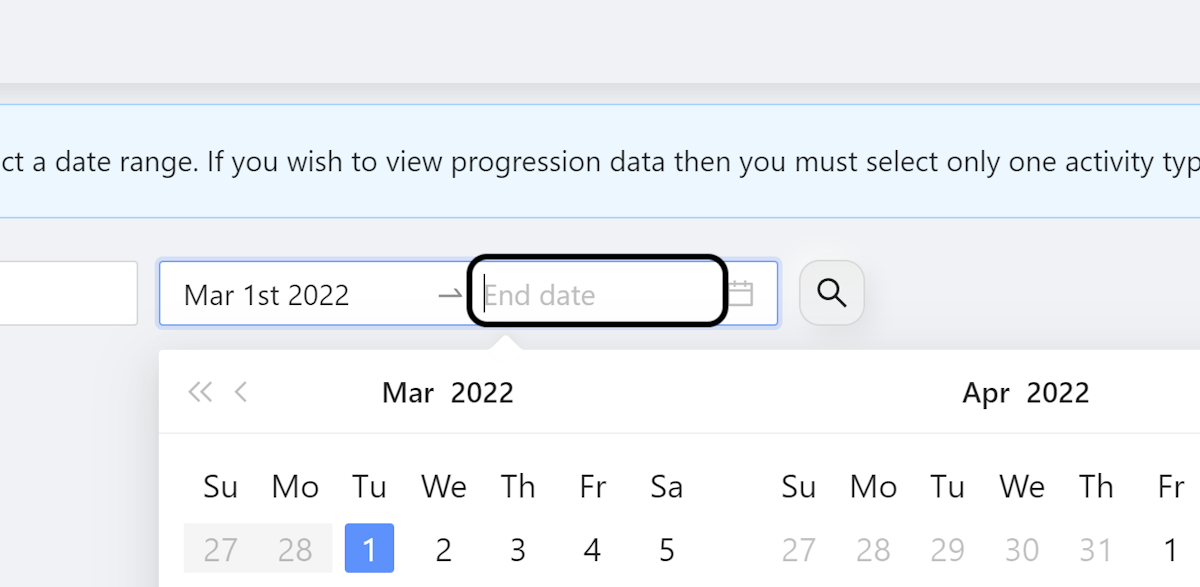
10. Click End Date
Click on the desired end date
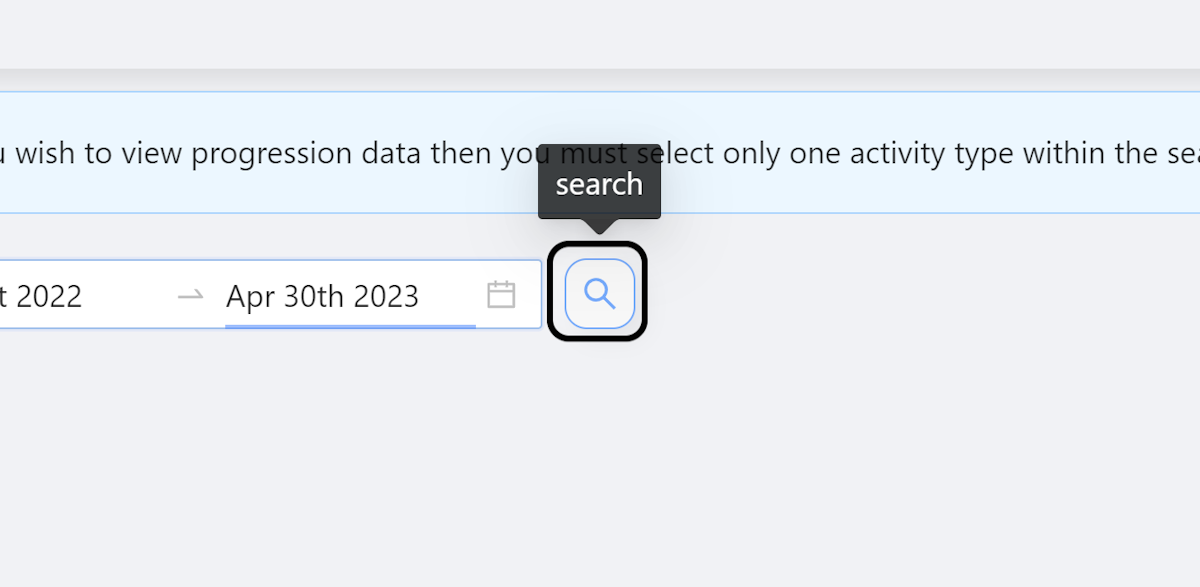
11. Click Search
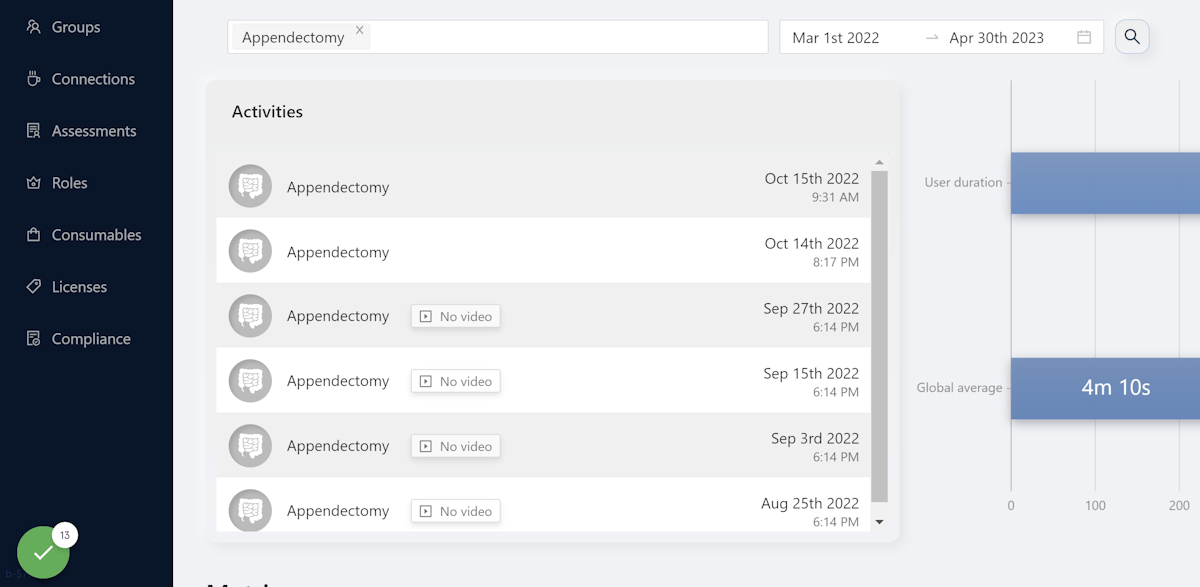
12. View Search Results
Your search results will now appear below. It may take several seconds to return search results for a large amount of data. To view a specific activity, click any of the list items. Note: Those that have been uploaded without a video will say ‘No Video’.
13. Procedure Data Display
Depending on the procedures selected, your data may appear differently.
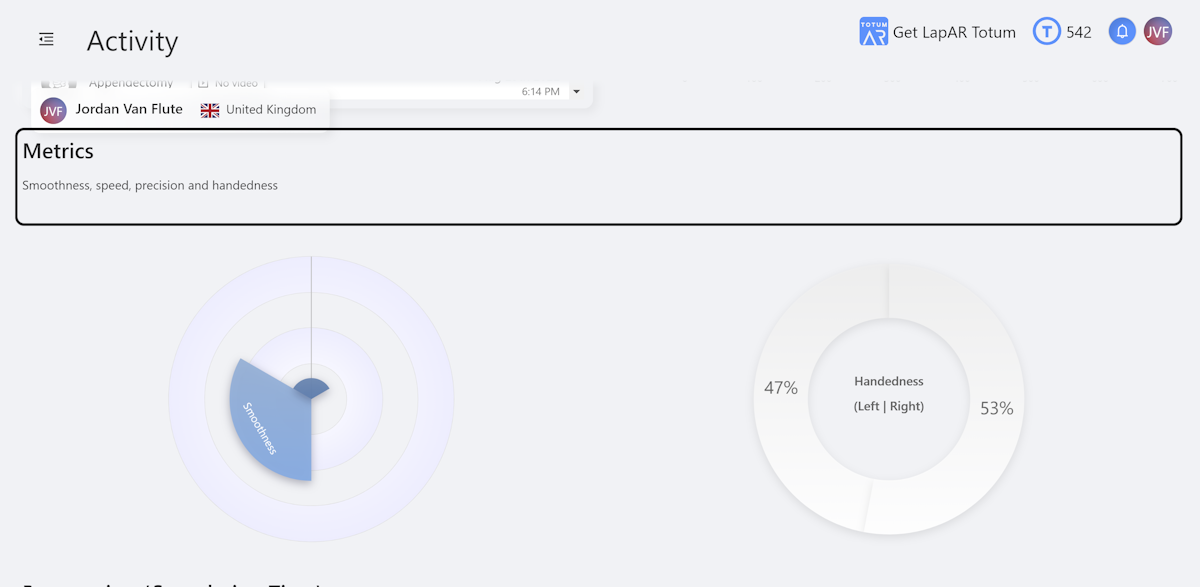
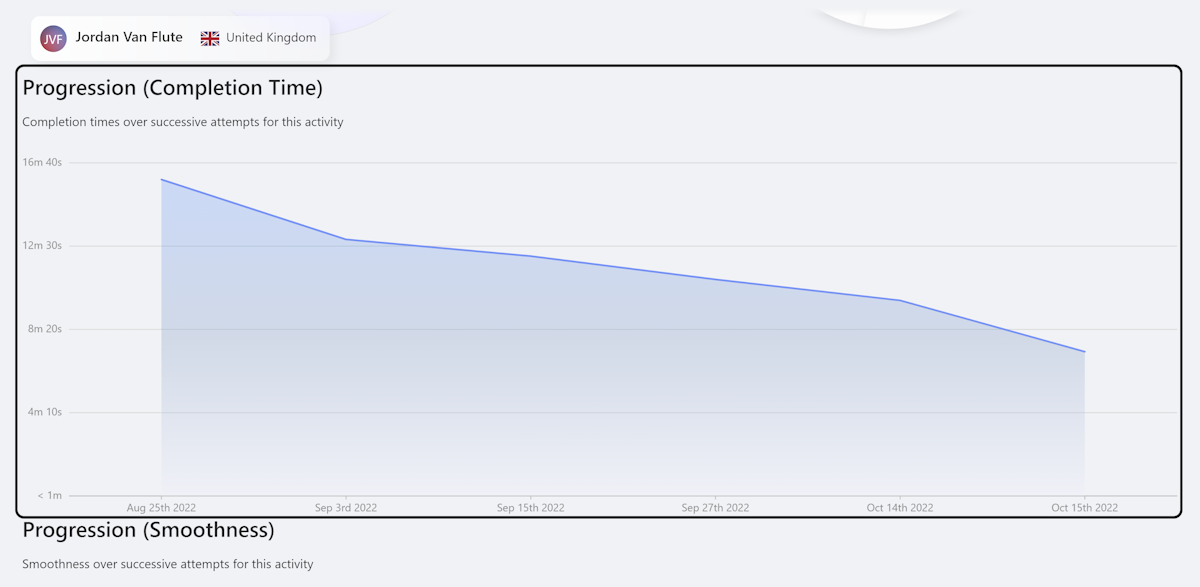
14. Progression Charts Display
Progression charts are only displayed when a single procedure is selected.
Community Discussions (0)
Real-world experiences from other users around this article.
Did this solve your problem?