

EndoAR Pro Setup Manual
Assemble the EndoAR Pro box simulator, reconfigure it for BEST Box tasks, and build the institutional cart system with monitor, shelf, and control unit.
Welcome to the step-by-step assembly guide for the EndoAR Pro.
Before you begin, take a moment to review the package's contents and acquaint yourself with the included components. The following content has been crafted to provide you with all the insights required to transform individual parts into a functional and invaluable tool for honing your surgical skills.
Step 1
Configuration for LAB Range Colon Models
Place 00002203 base plate on a secure, flat surface.
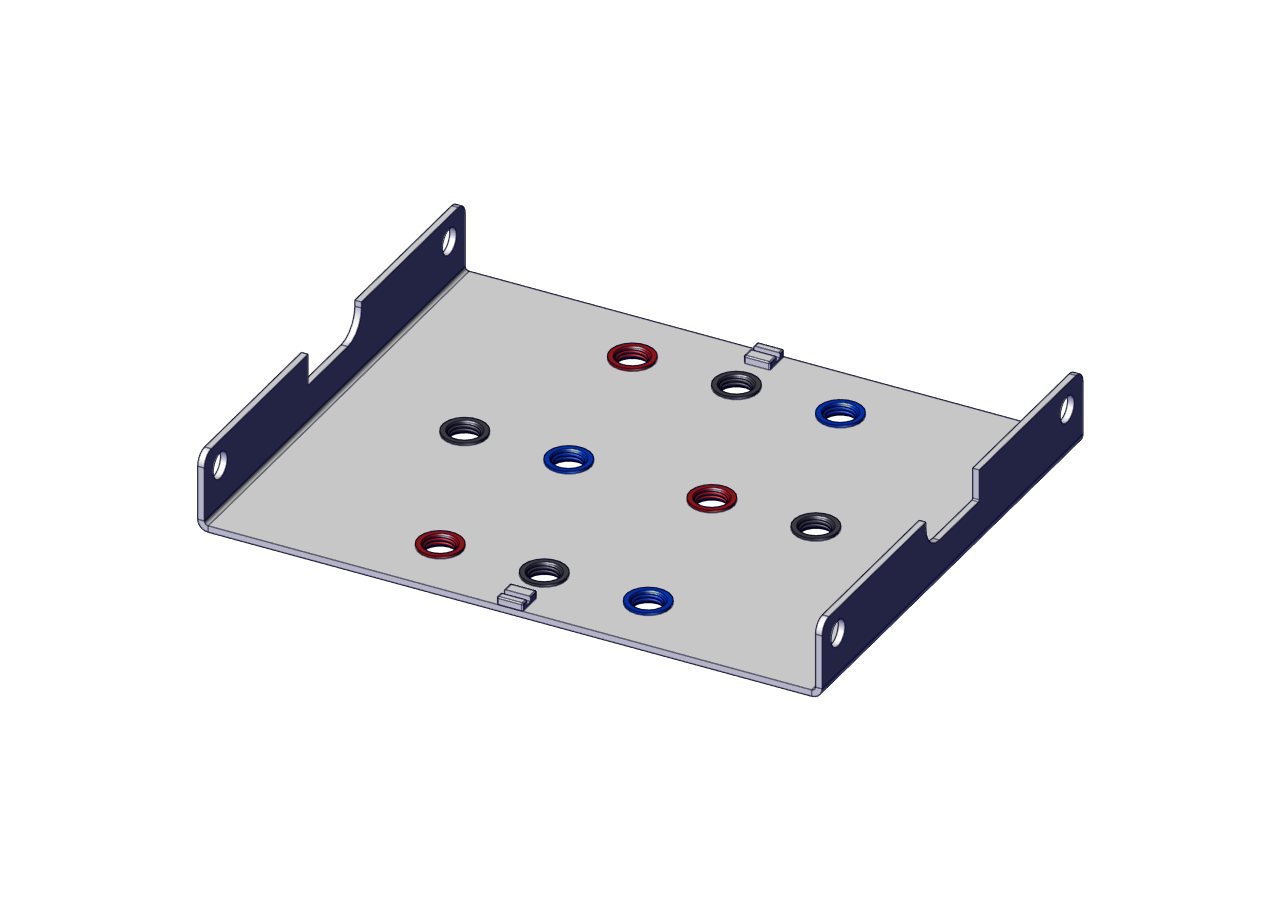
Step 2
Using the image as a guide, attach 00002609 front panel with 2x 00000546 Lock nuts.
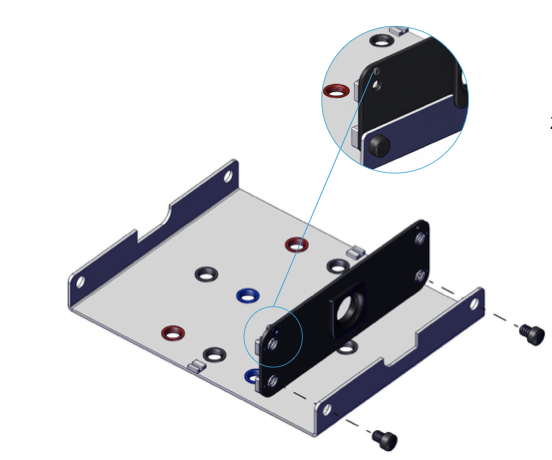
Step 3
Ensure 2x 00000546 Lock nuts are hand tightened.
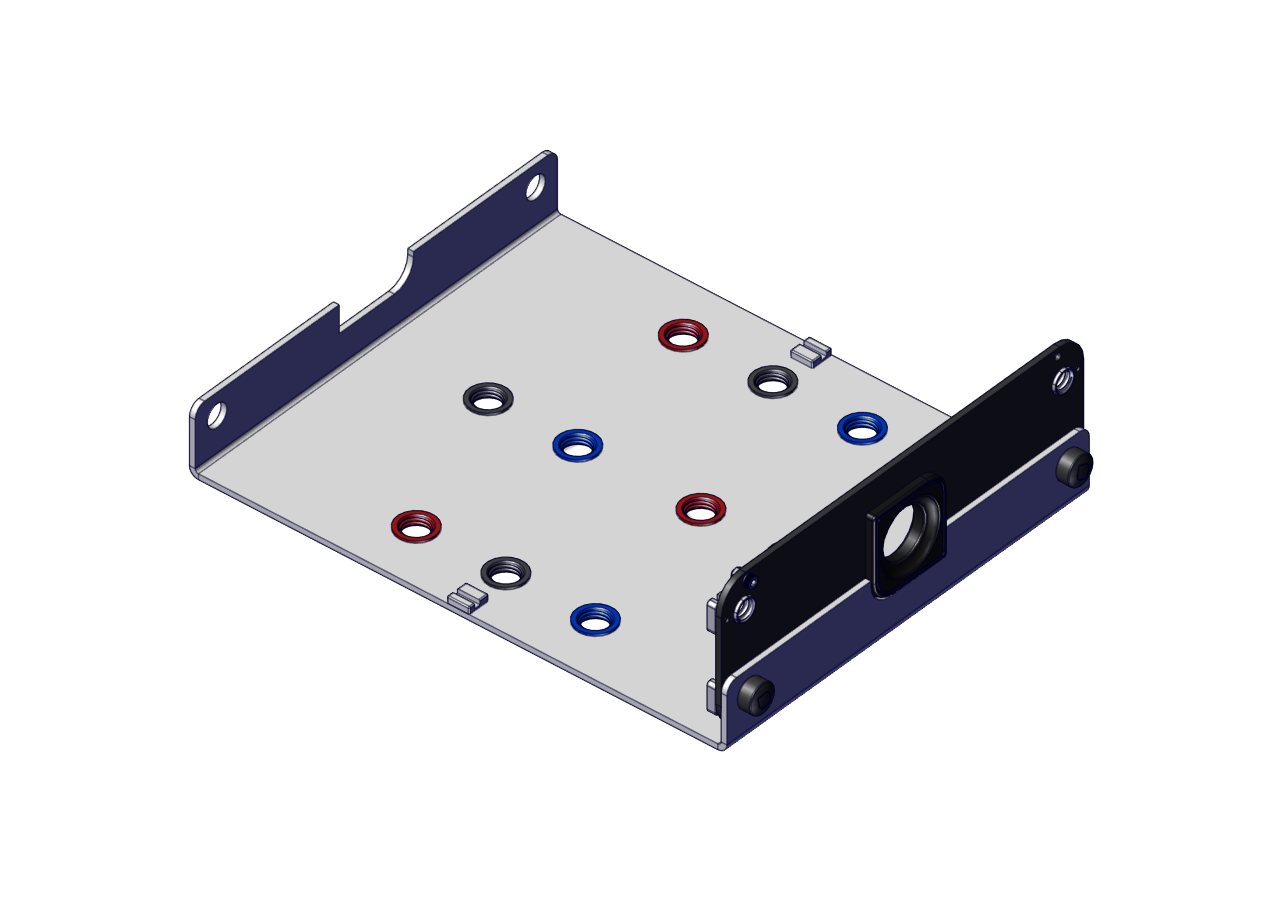
Step 4
Repeat steps 2 and 3 with 00001785 Rear panel as shown in the image.
Ensure the cap screw is at the top of the panel.
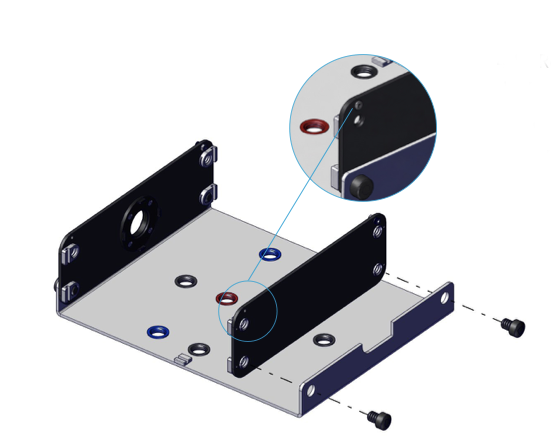
Step 5
Once the base elements are secure move onto the 00002890 Pillars.
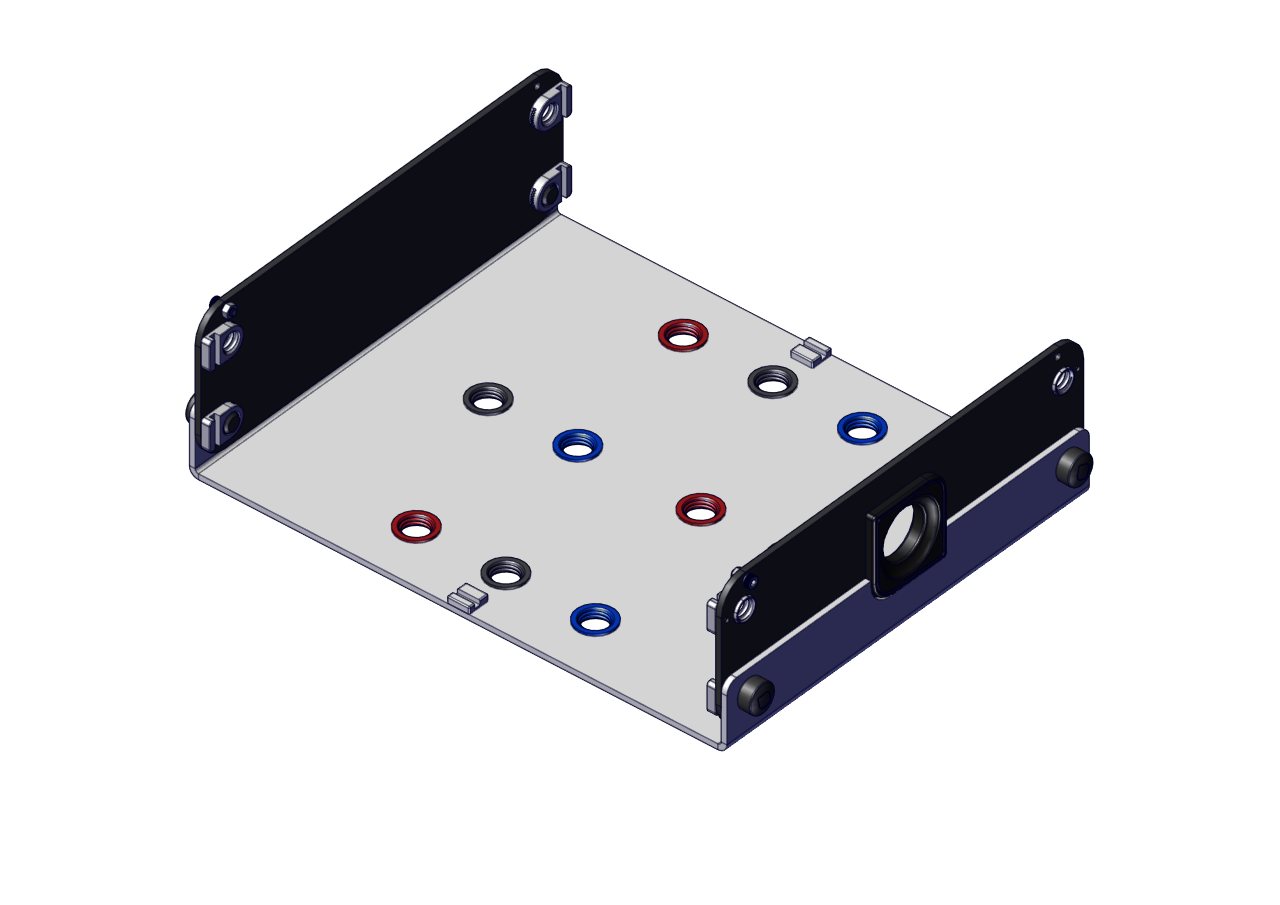
Step 6
Insert the 4x 00002890 Pillars and twist lock in place as shown.
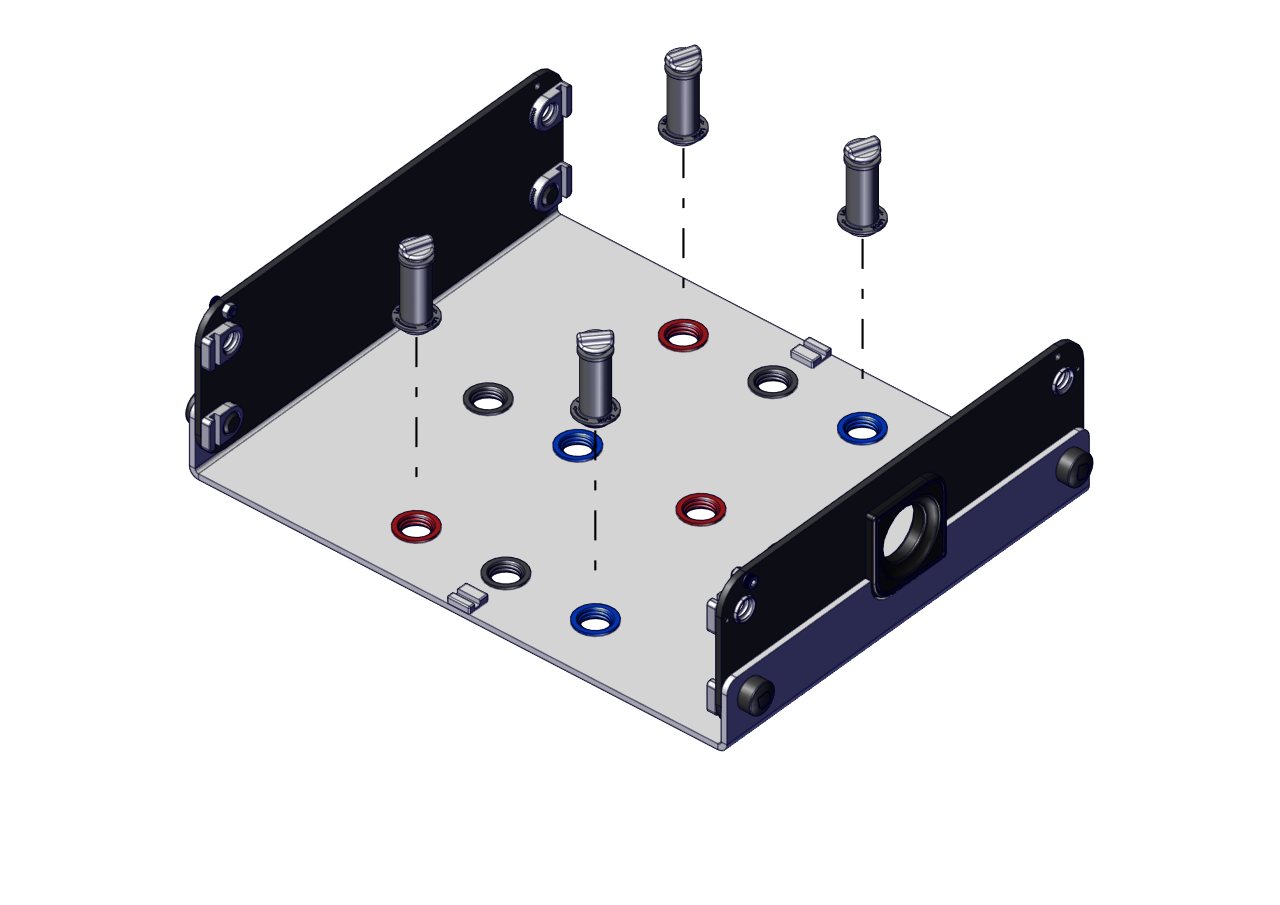
Step 7
Screw the 00002890 Pillars hand-tight to ensure they are secure.
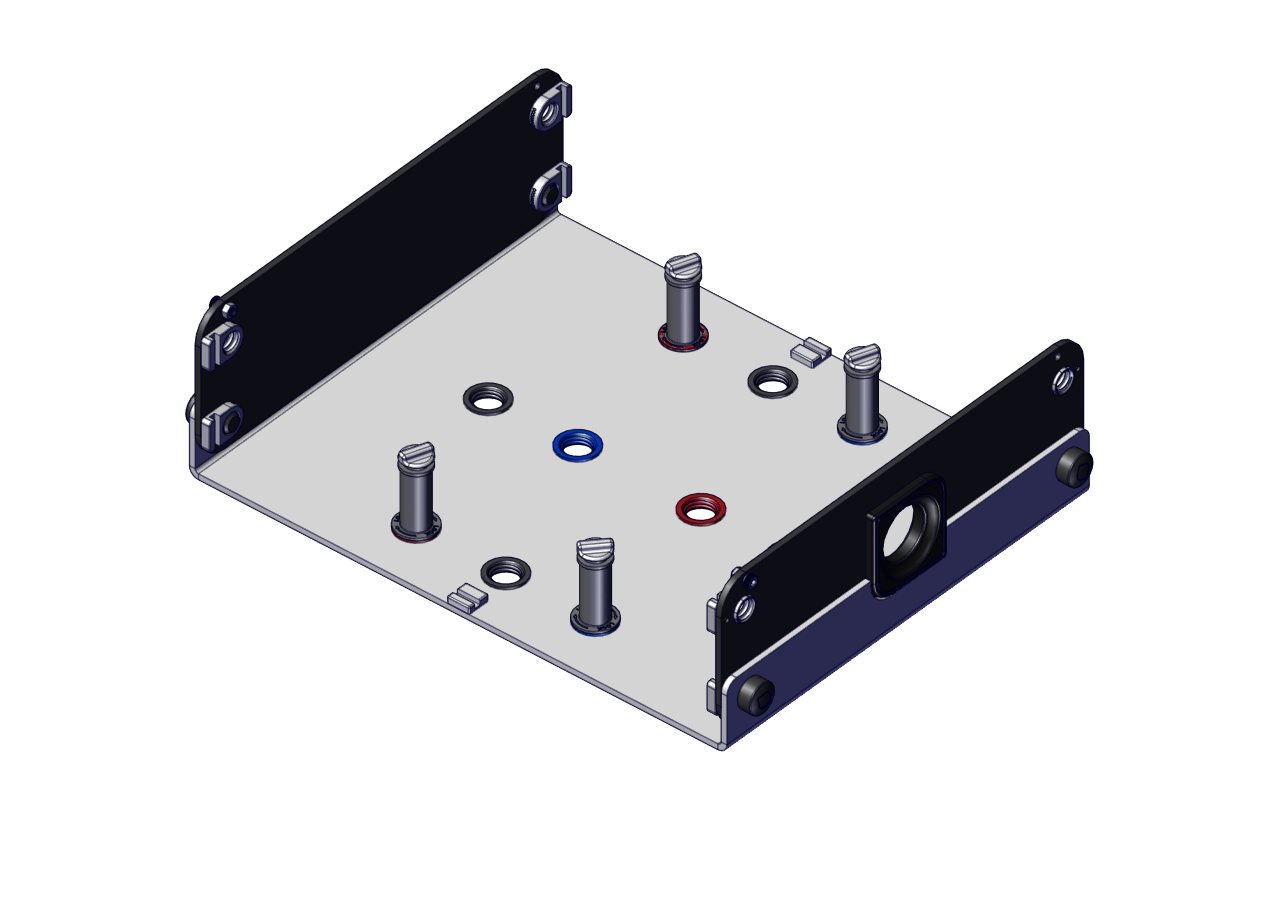
Step 8
Unscrew and remove the 4x 00002884 Pillar thumbscrews. Position the 00002828 Modular tissue mounting plate over the 4x 00002890 Pillars, aligning the pillars indicated, then refit the Pillar thumbscrews.
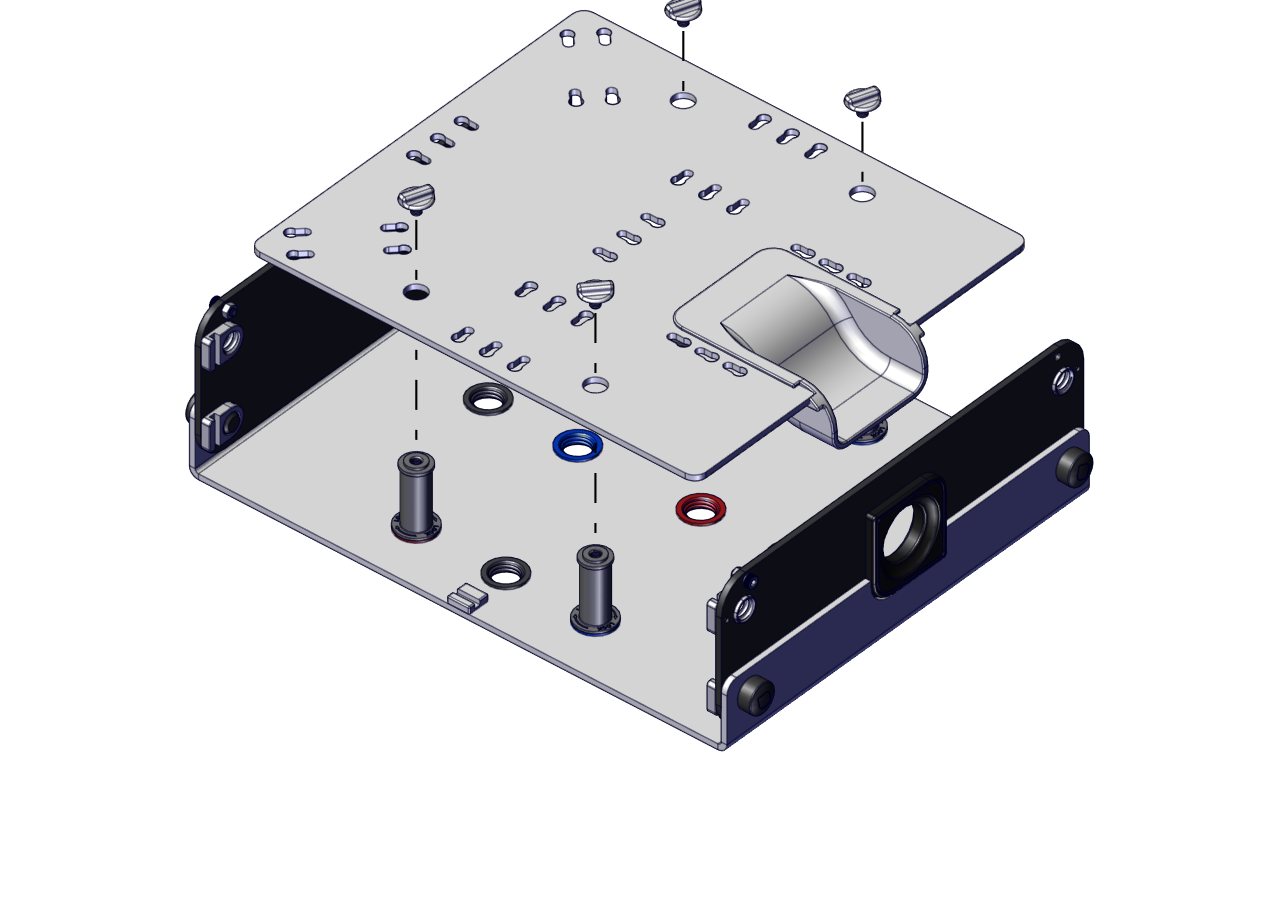
Step 9
Hand tighten the 00002884 Pillar thumbscrews to secure the model plate.
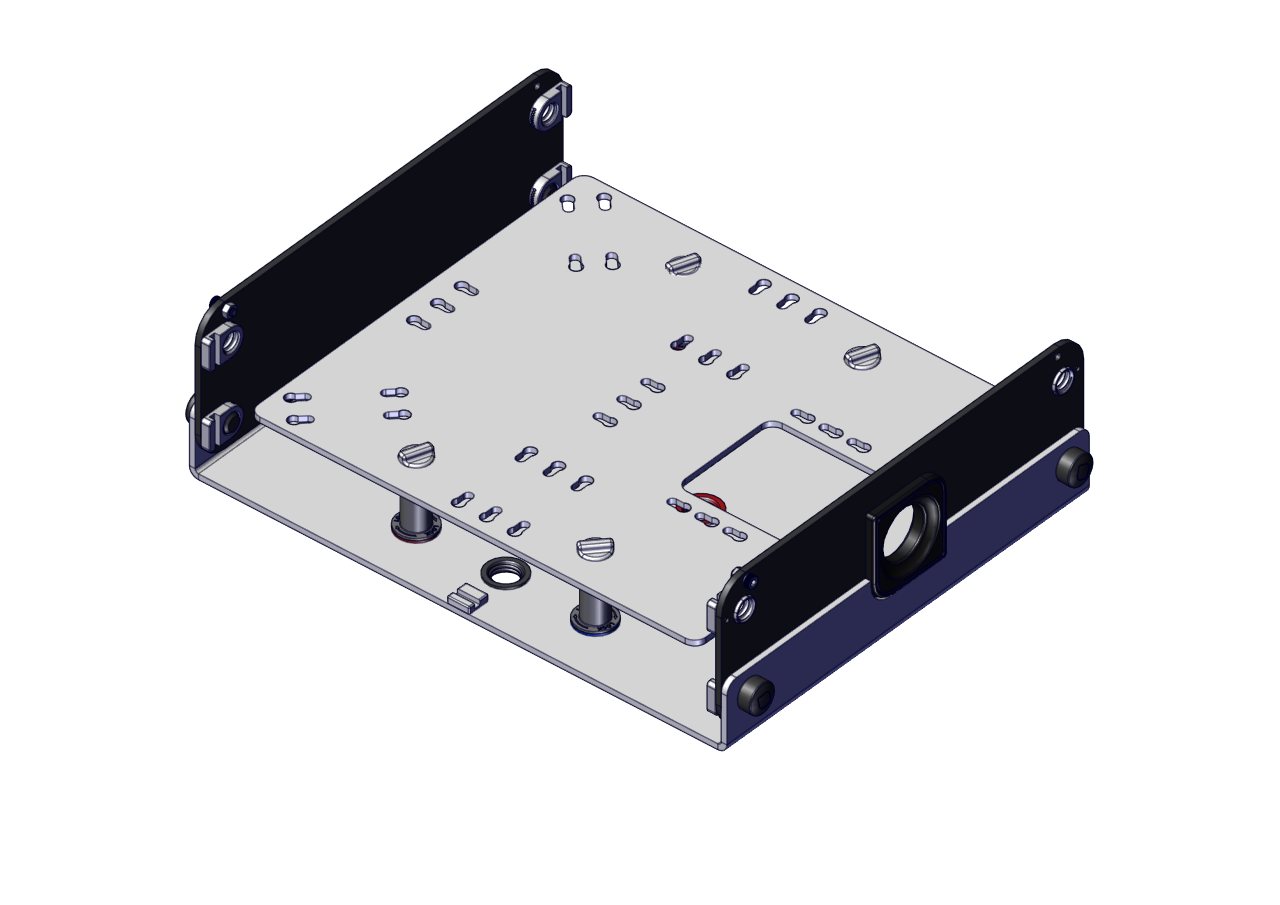
Step 10
Align the 1x 00002946 Pelvic bridge brim above the 6 slots as shown.
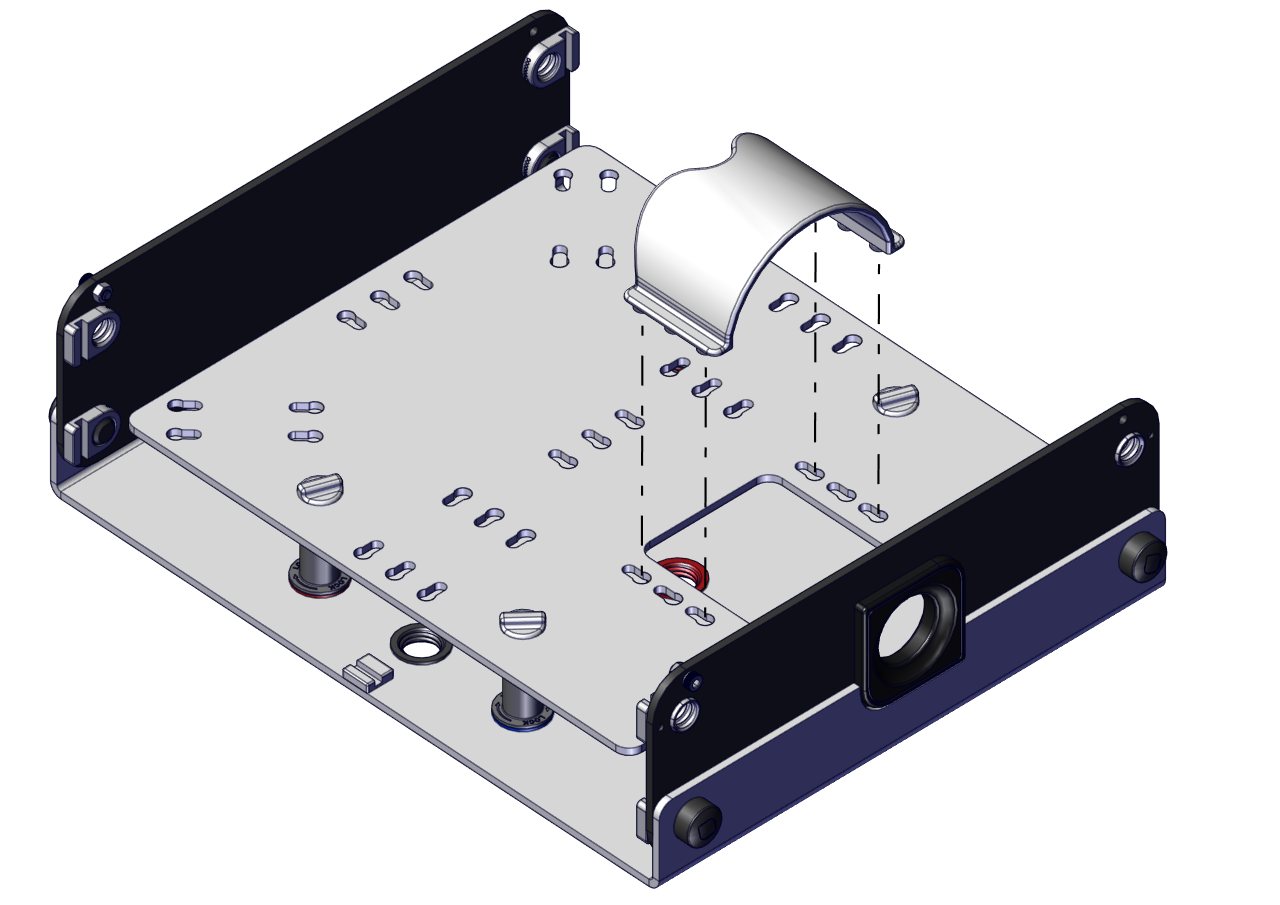
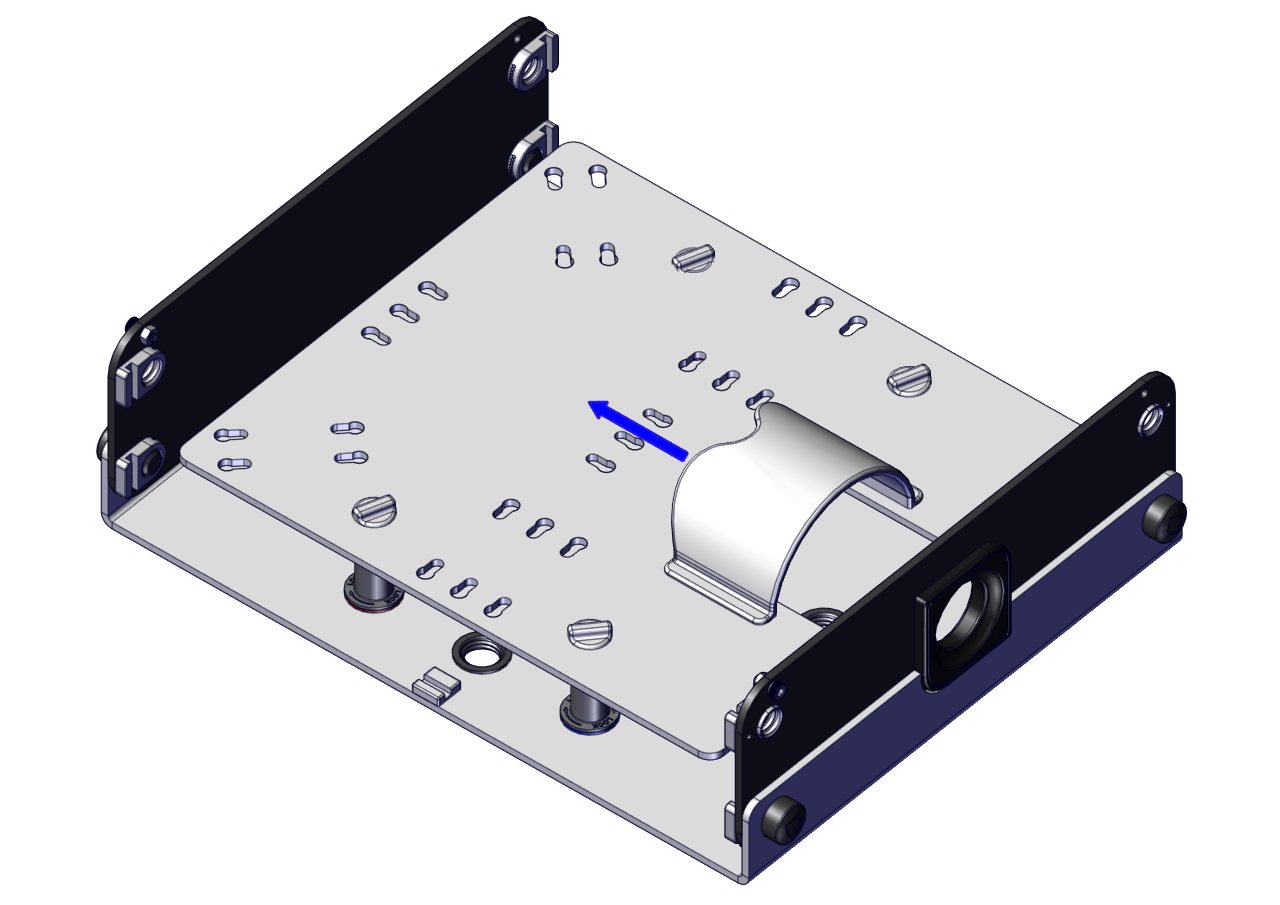
Step 11
Insert the 00002946 Pelvic bridge brim and push to lock it in position and attach the 2x 00002945 Mag lock for pelvic brim on the underside of the 00002828 Modular tissue mounting plate.
Step 12
The next few sections will show you how to attach the colon straps to the model mounting plate. Be sure to place each colon strap in the correct position as shown in the diagram.
The colon straps can be fitted with the model mounting plate in position or it can be removed to make assembly easier.
Just unscrew the thumbnail screws and lift the plate out.
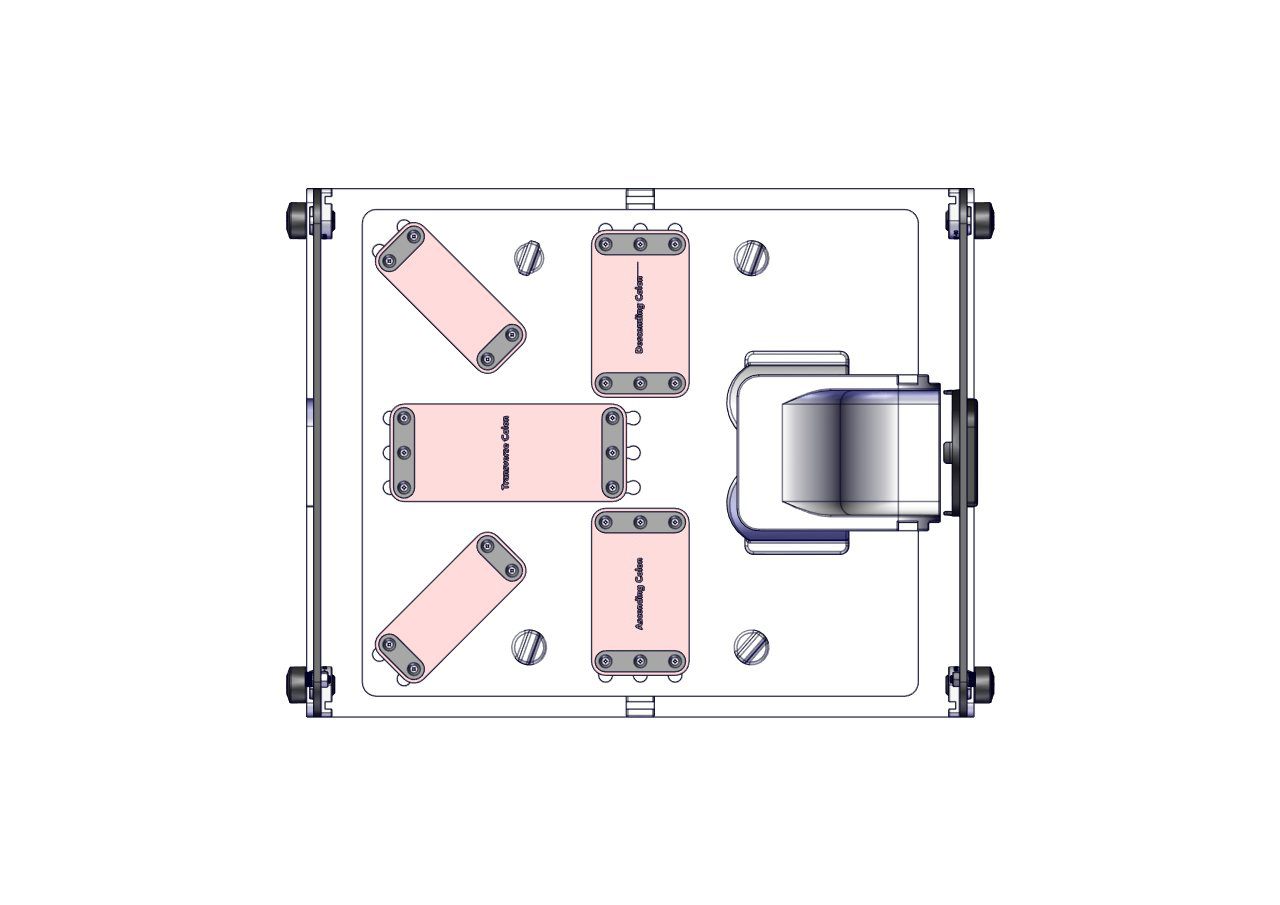
Step 13
Referring to the diagram in step 12, insert the 00002857 Transverse colon strap in the correct position.
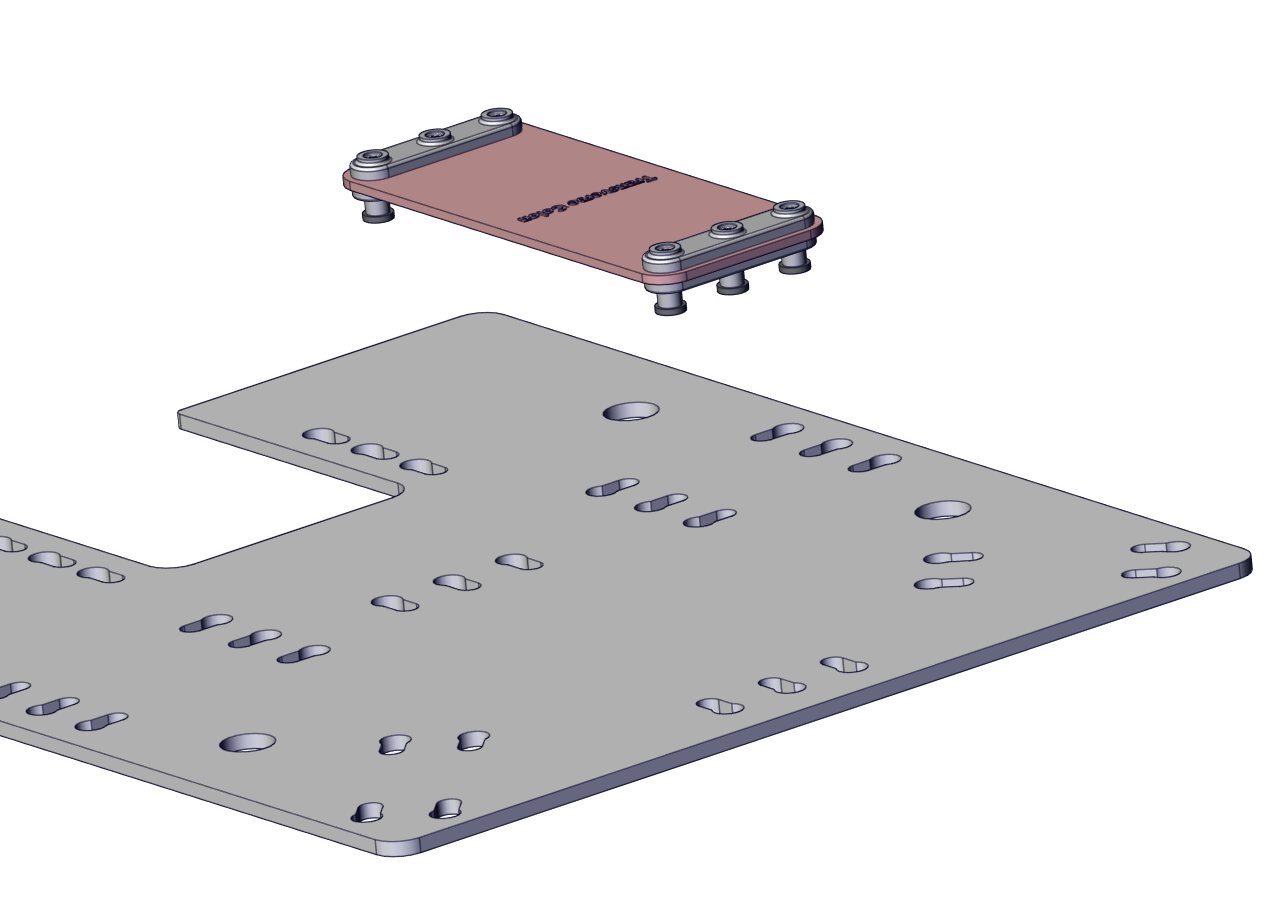
Step 14
Align the magnetic probes on the underside of the 00002857 Transverse colon strap with the correct holes in the 00002828 Modular tissue mounting plate.
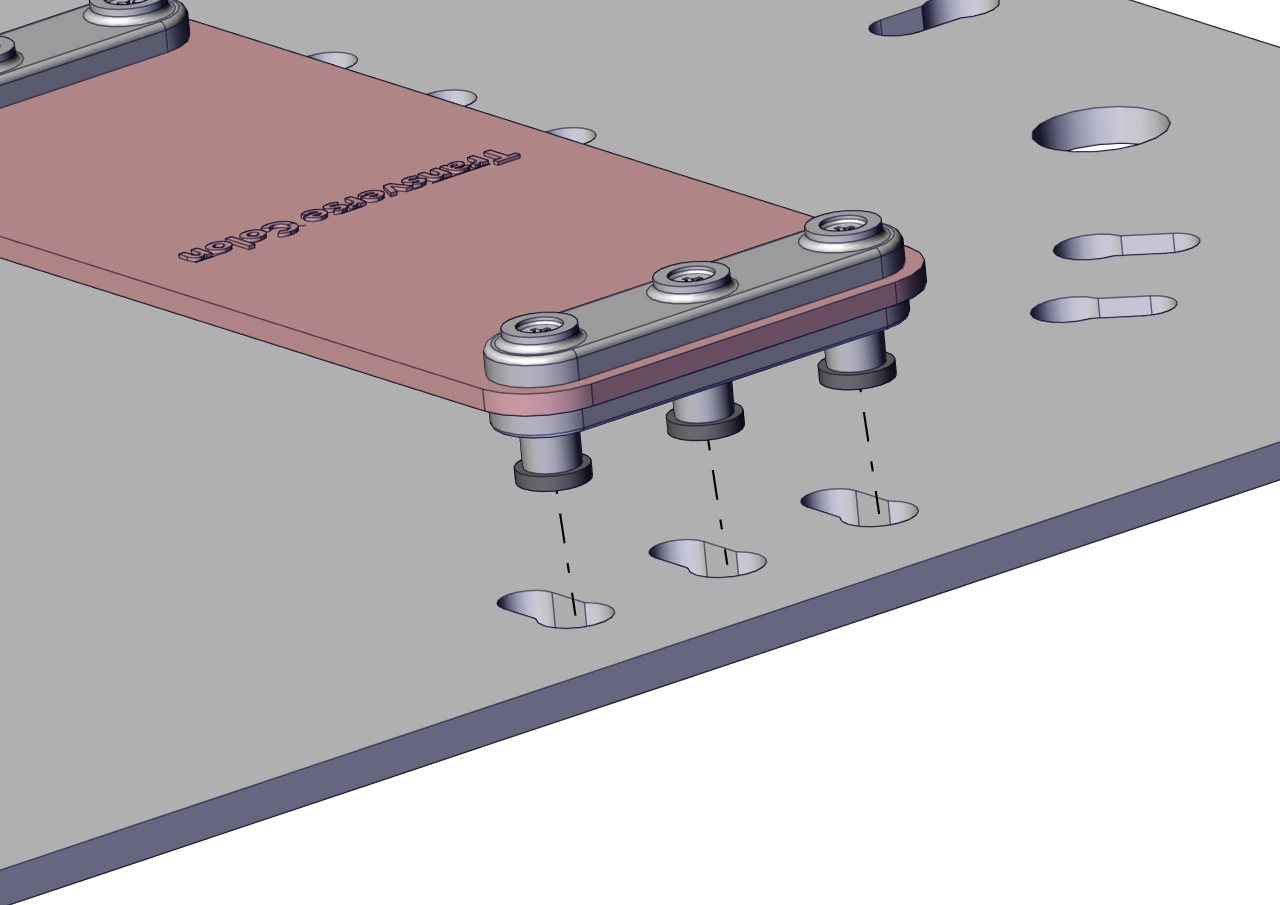
Step 15
Slide the magnetic probes til the lock in position. Then attach a 00002945 Mag lock from the underside of the 00002828 Modular tissue mounting plate.
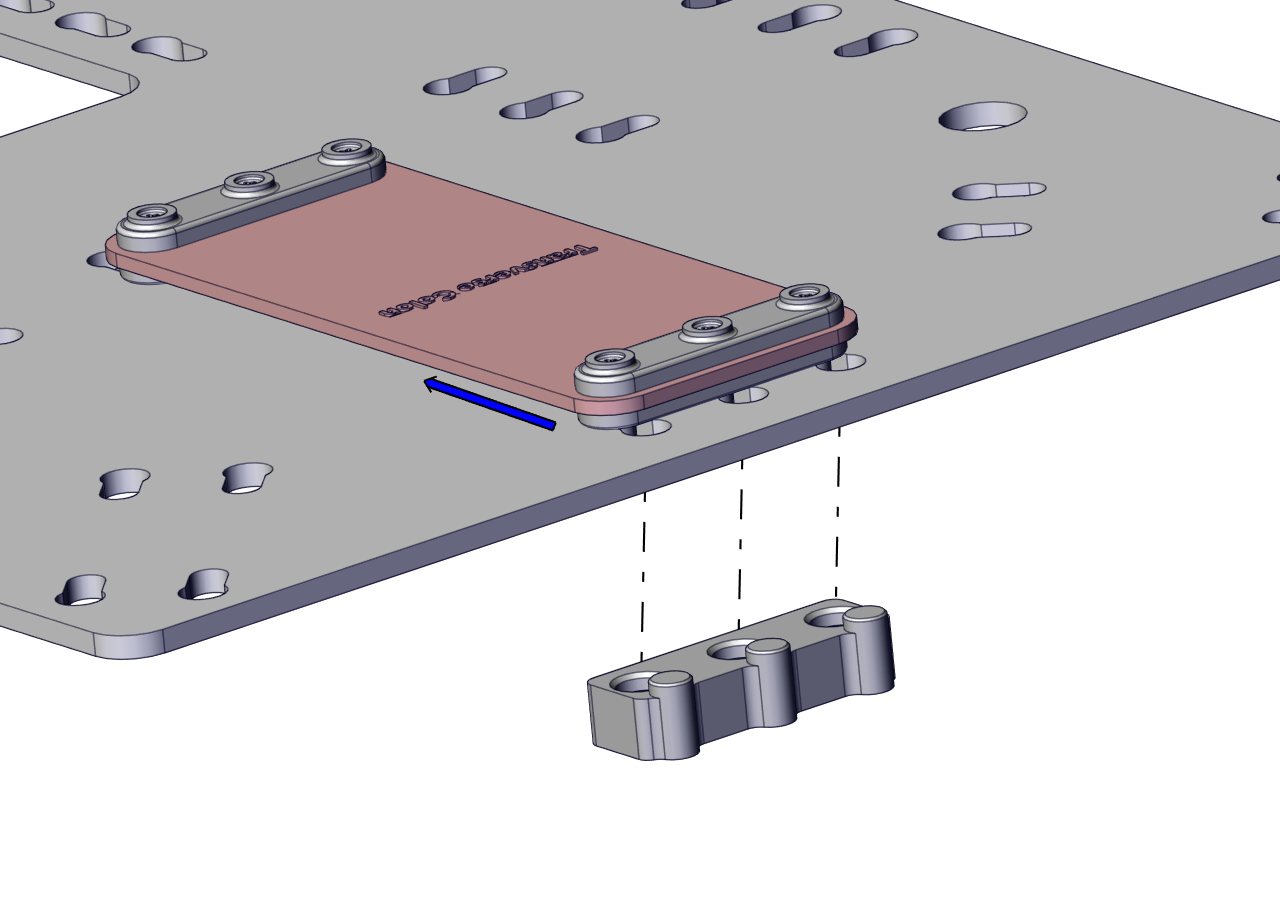
Step 16
Repeat step 15 with the other end of the 00002857 Transverse colon strap.
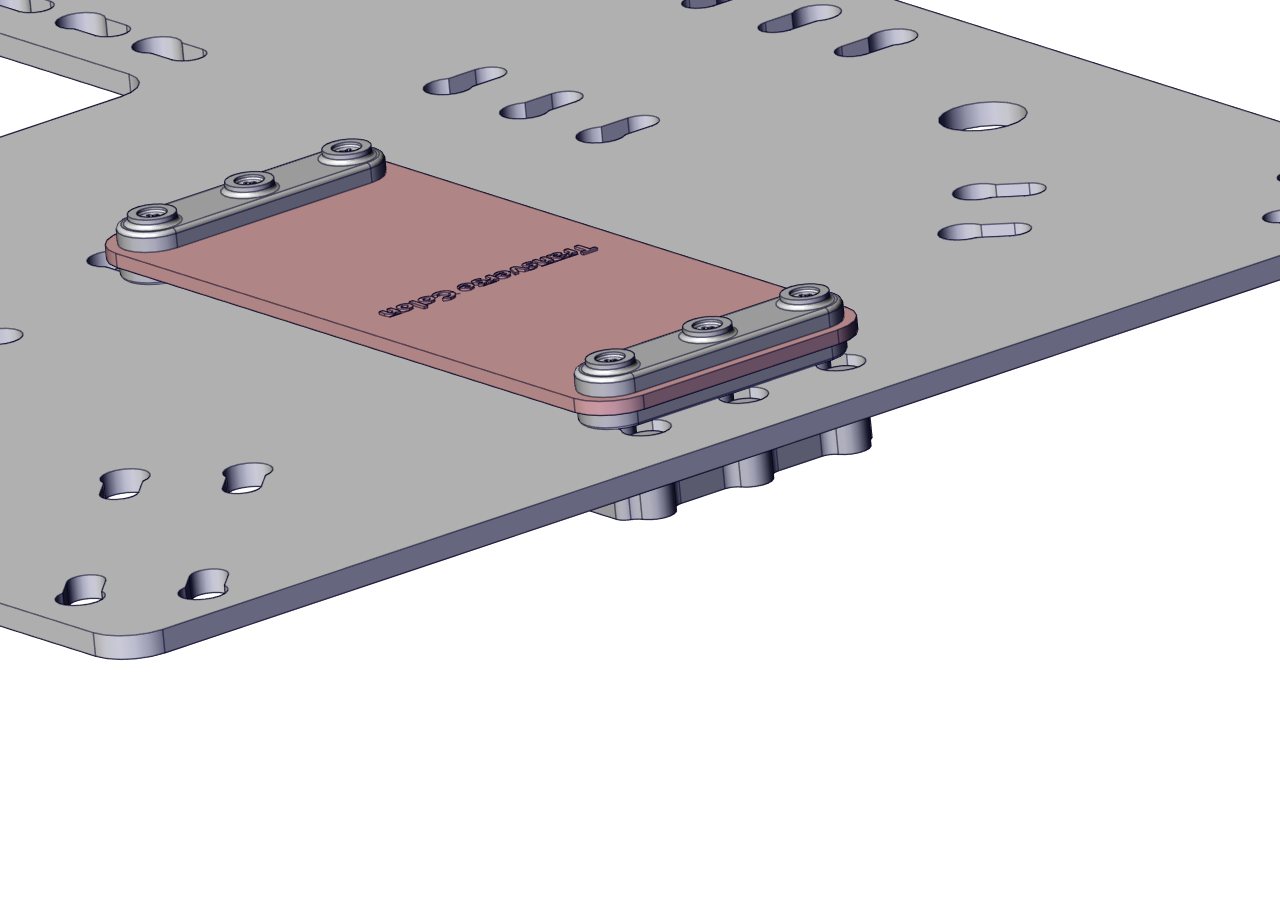
Step 17
Then repeat steps 13 -16 with each of the following items:
00002858 1x Descending colon strap
00002859 1x Ascending colon strap
00002877 1x Corner colon Strap
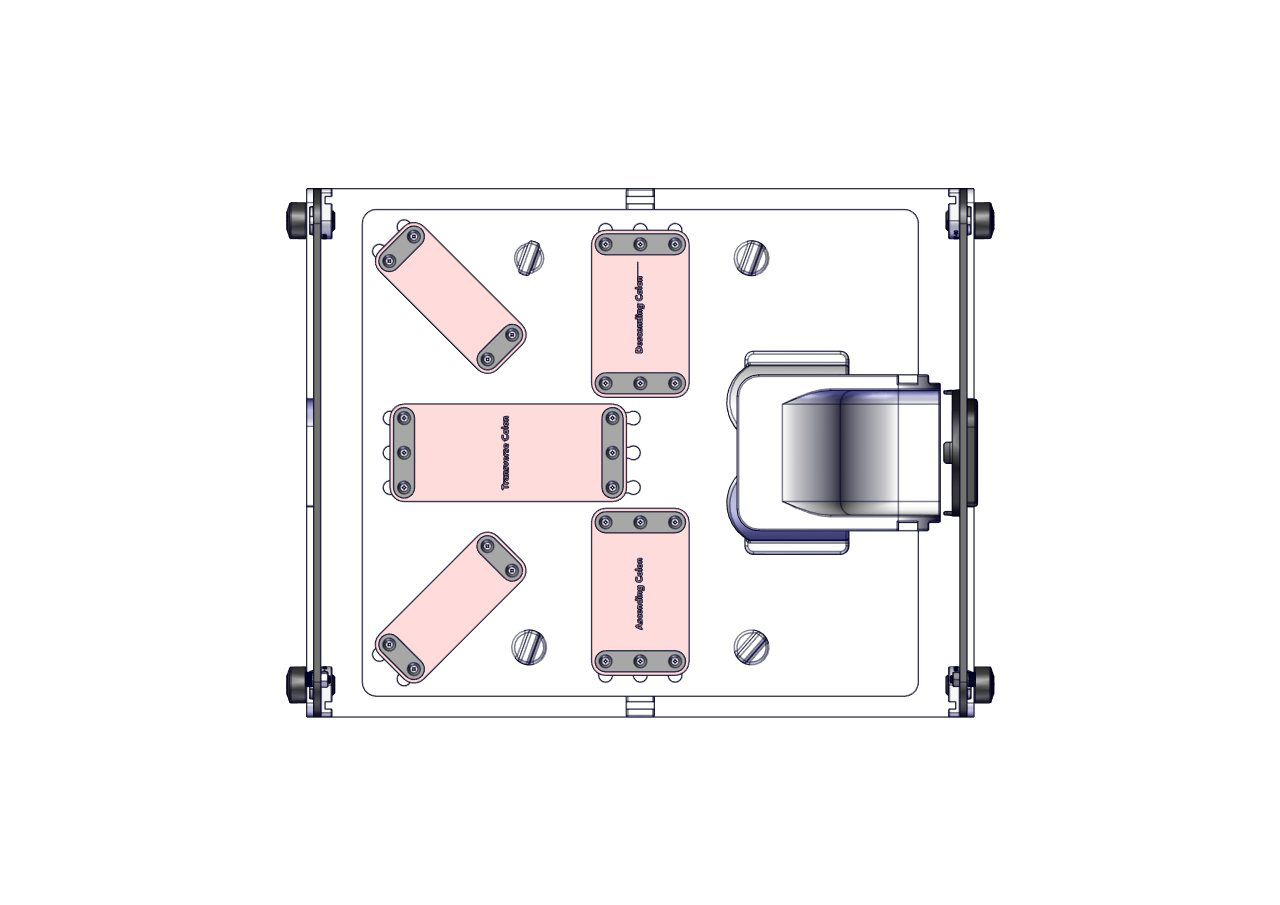
Step 18
The 00002828 Modular tissue mounting plate is now fully assembled and can be reattached to the inside of the simulator.
Following steps 8 and 9.
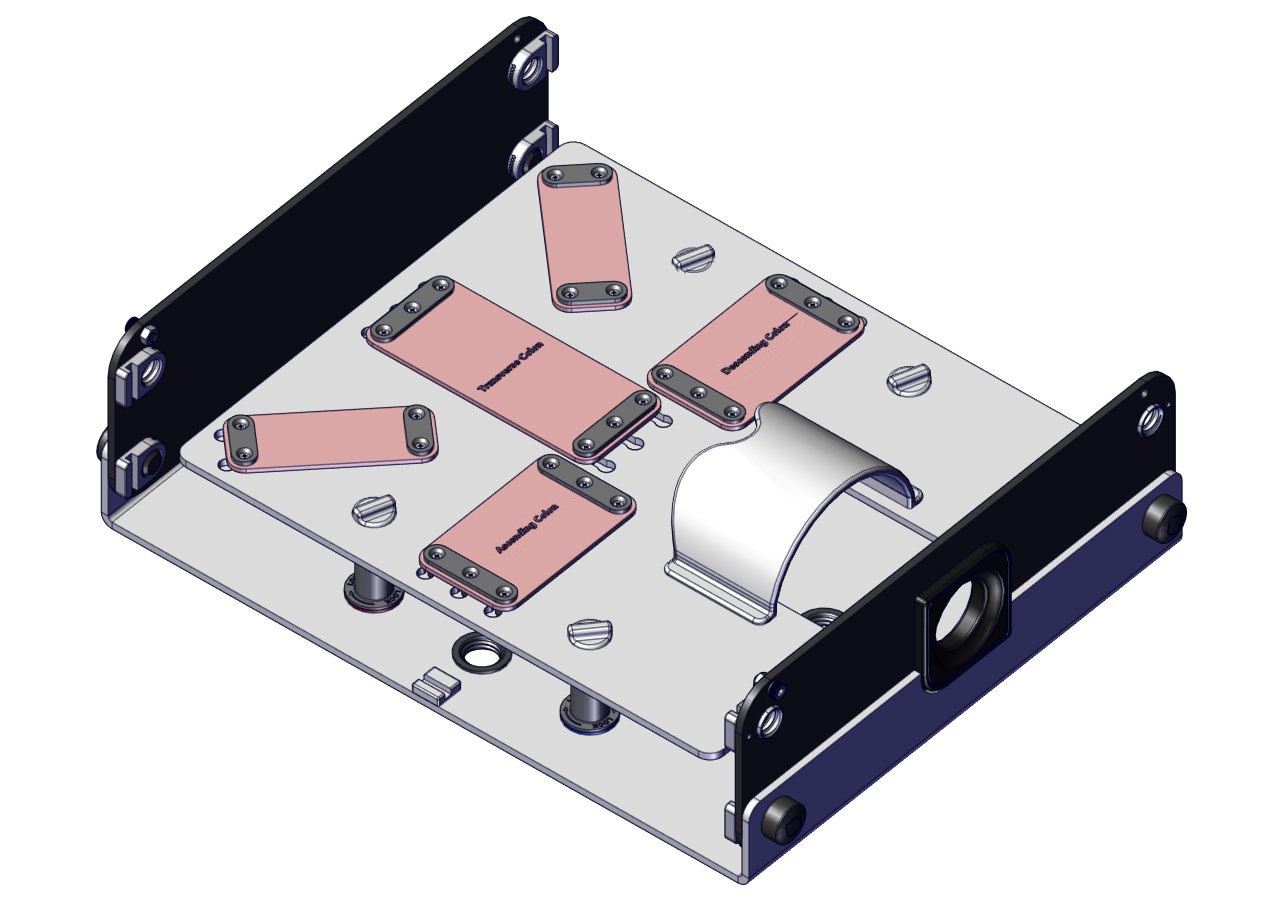
Step 19
Slot the side 2x 00002756 side panels in place.
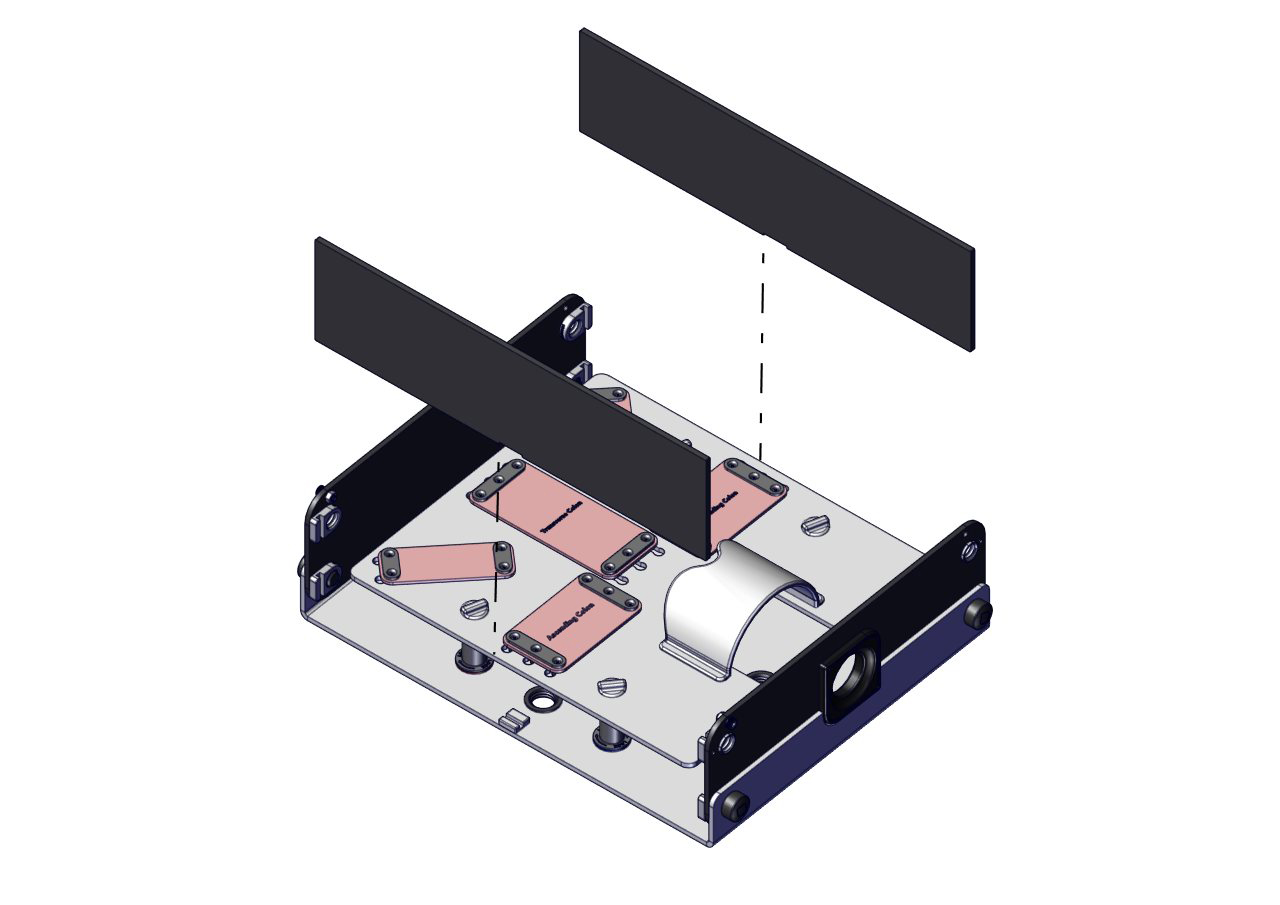
Step 20
The side panels do not require any bolts to hold them in place.
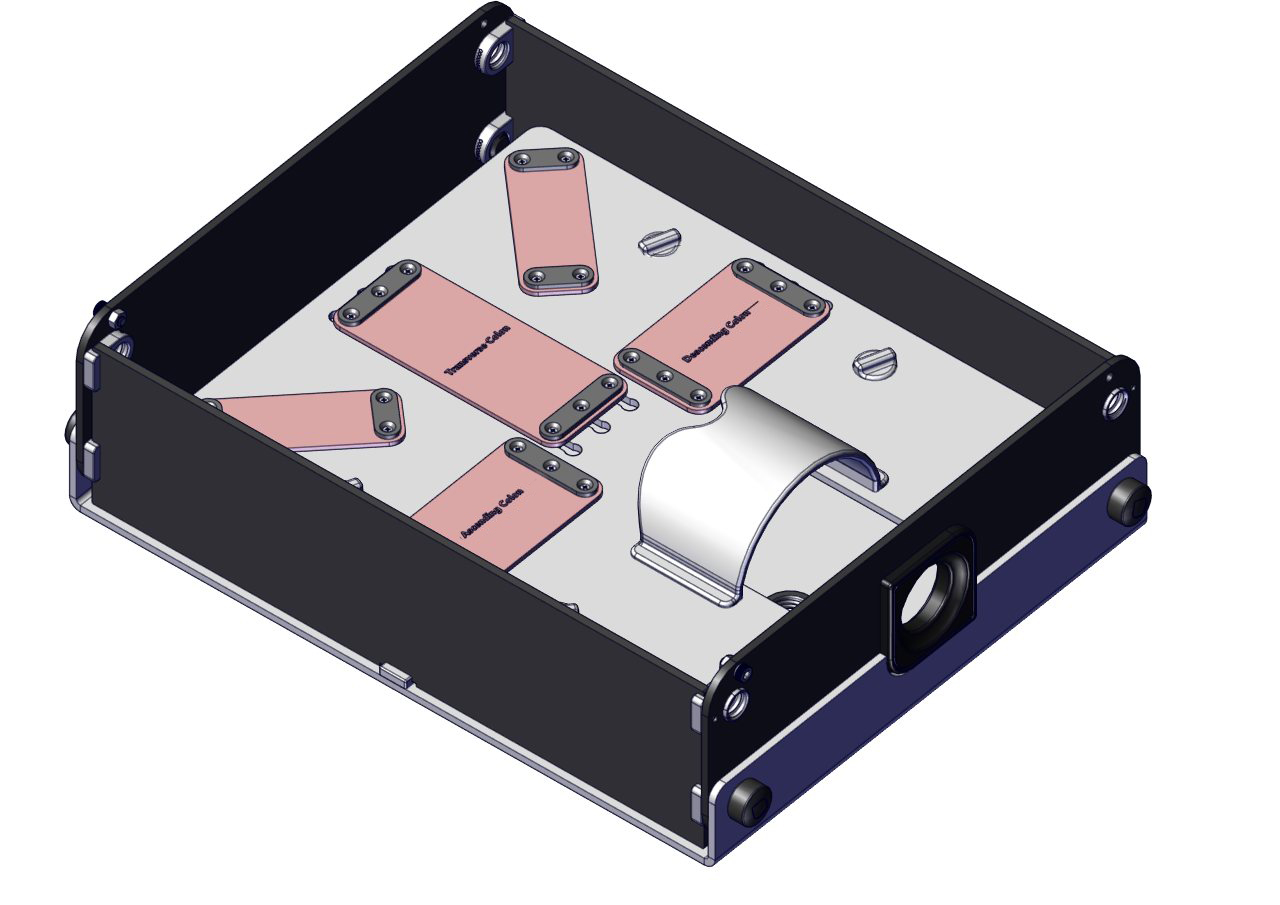
Step 21
Align the 00002603 Top cover over the base of the simulator ensuring the bolt on the front and rear panel is inserted into the cut-out-arc on the lid.
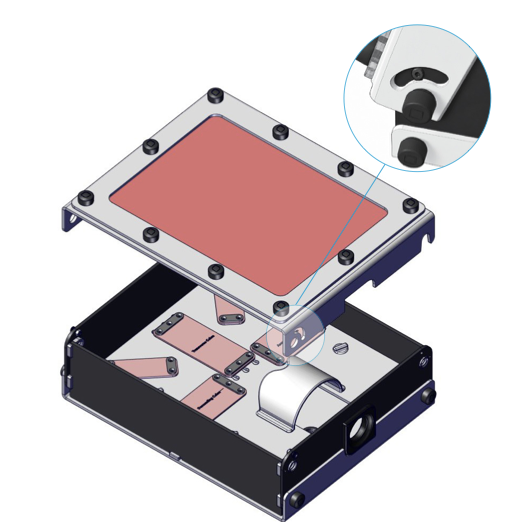
Step 22
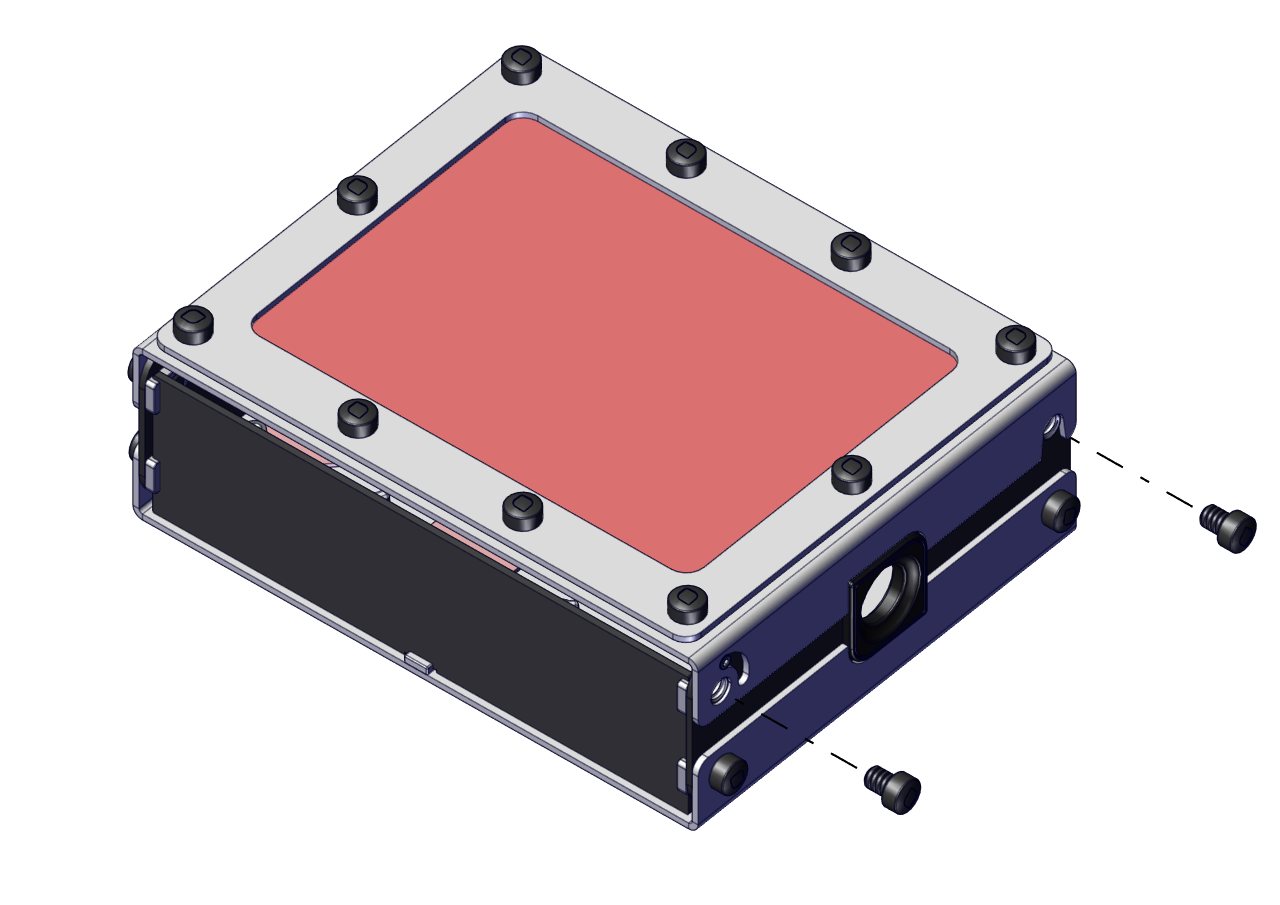
Insert the 4x 00000546 Lock nuts (2x in the front 2 x in the rear) to secure the top cover.
Hand-tighten only. Do not over tighten, as you will need to lift the cover to insert the colon models.
Step 23
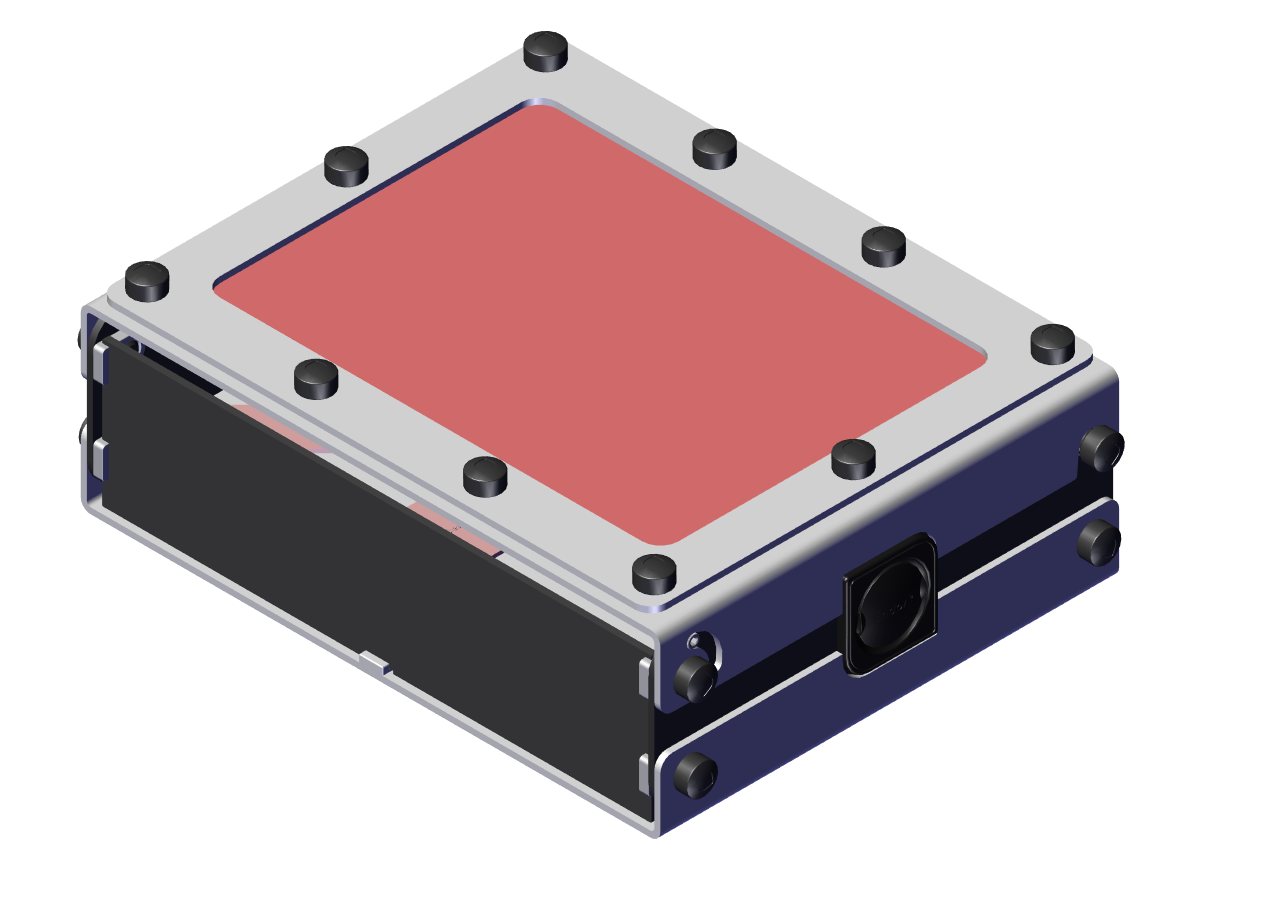
The EndoAR box simulator is now ready to be used with your choice of Lab Range colon models from Inovus Medical.
Setup complete.
Step 24
Preparing EndoAR Basic for BEST tasks
EndoAR Basic can also be configured for BEST Box skills training.
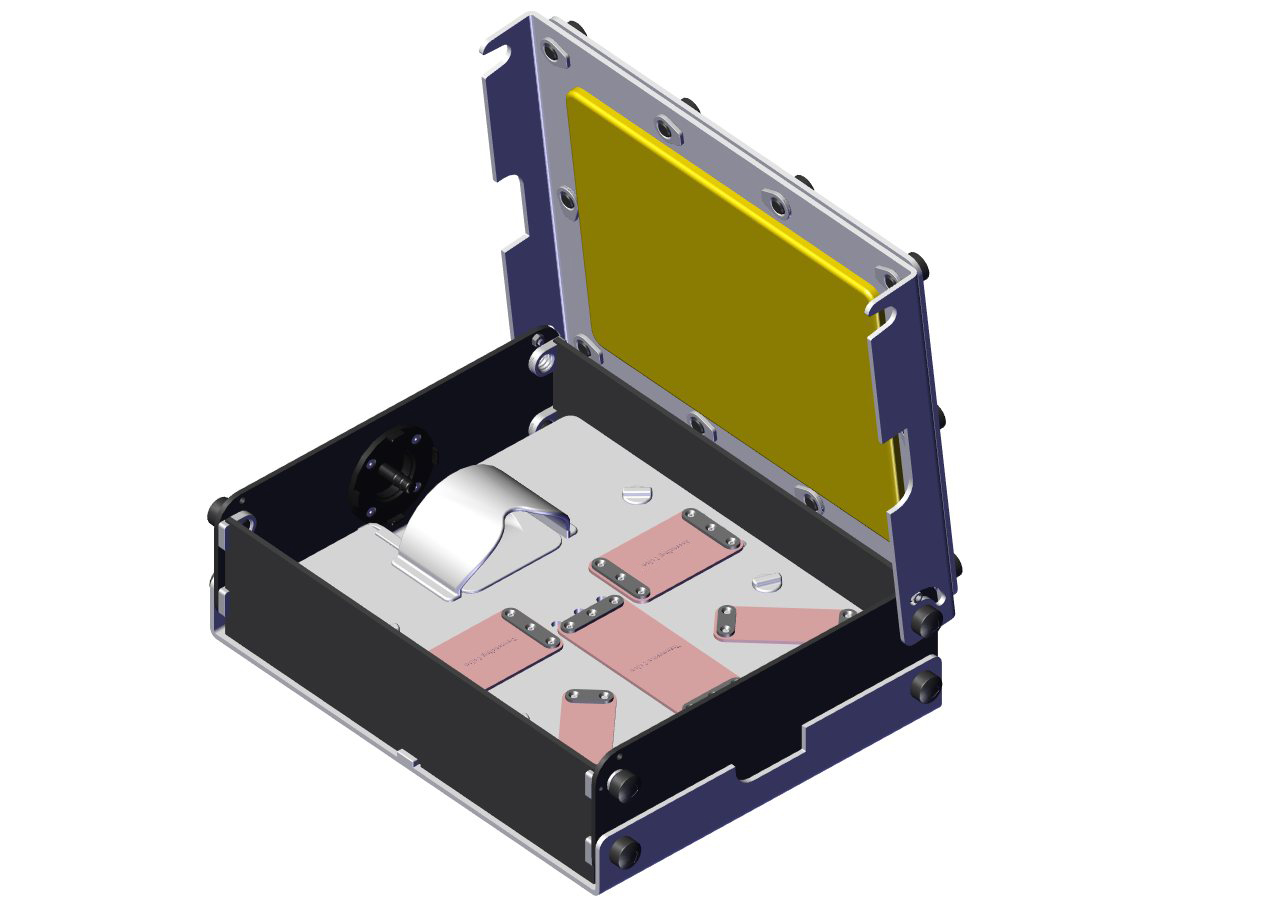
To change configurations, several components must first be removed, as shown in the following steps.
Step 25
Unscrew the 2x 0000594 Lock nuts as shown in the diagram.
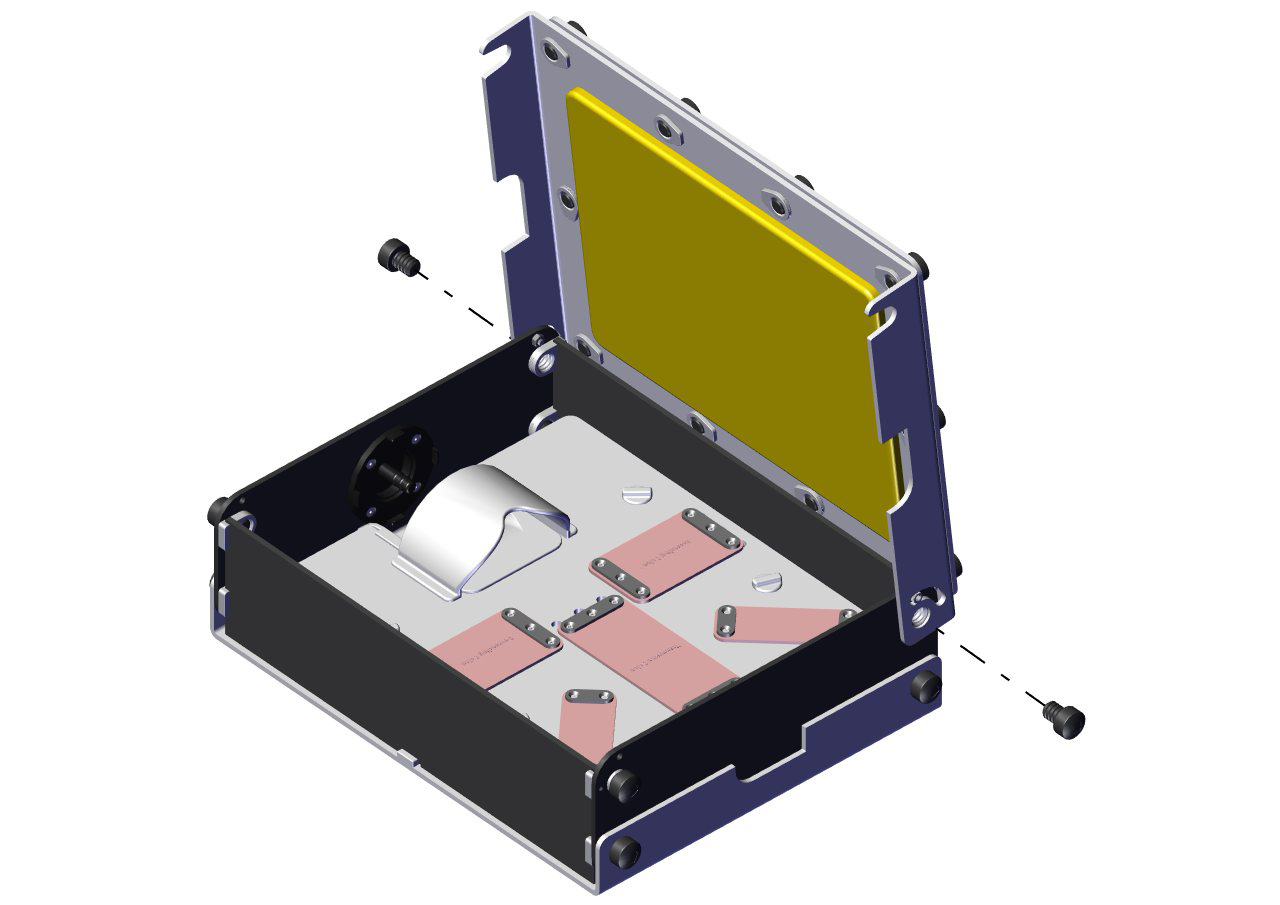
Step 26
Remove the 00002603 Top cover.
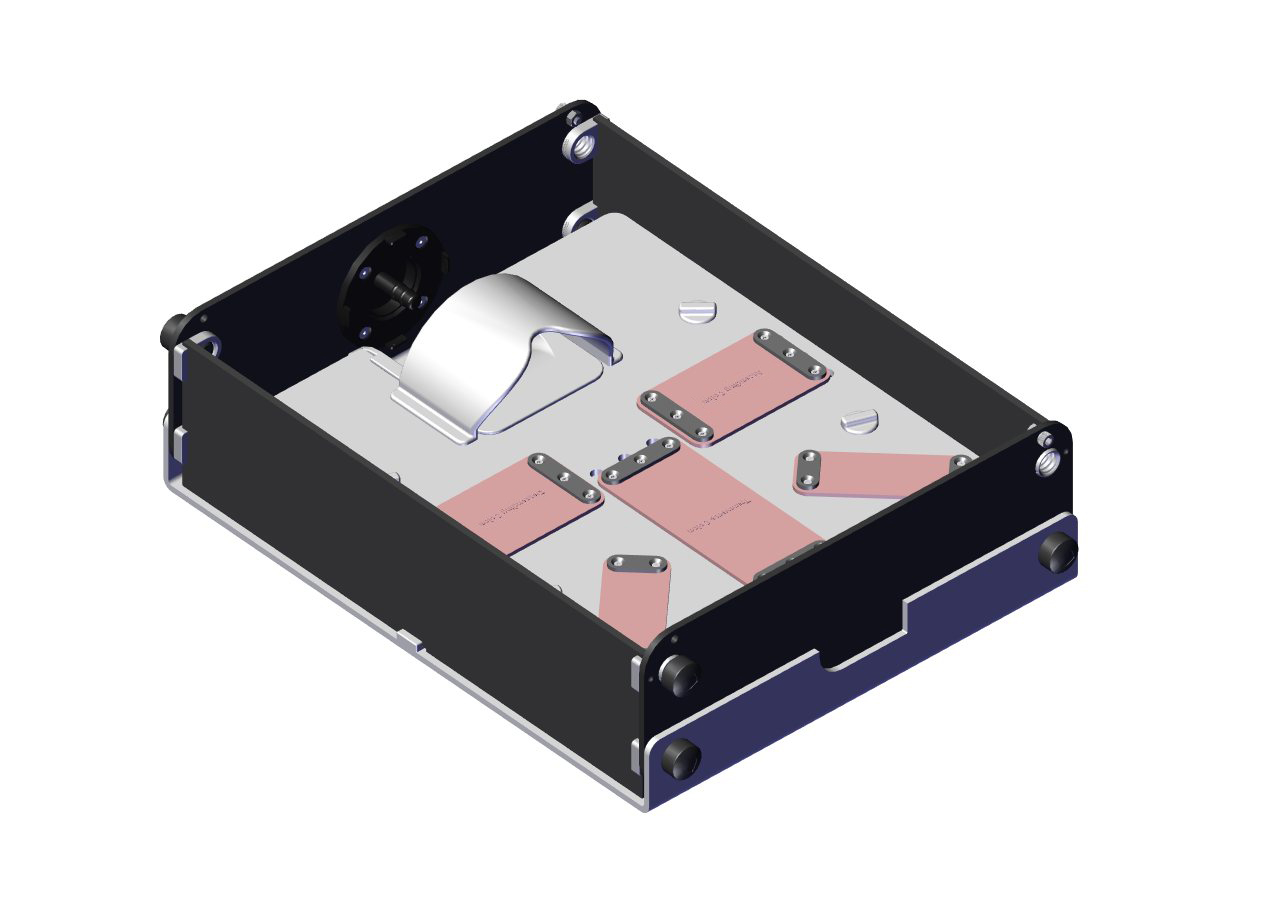
Step 27
Remove the 2x 00002756 side panels.
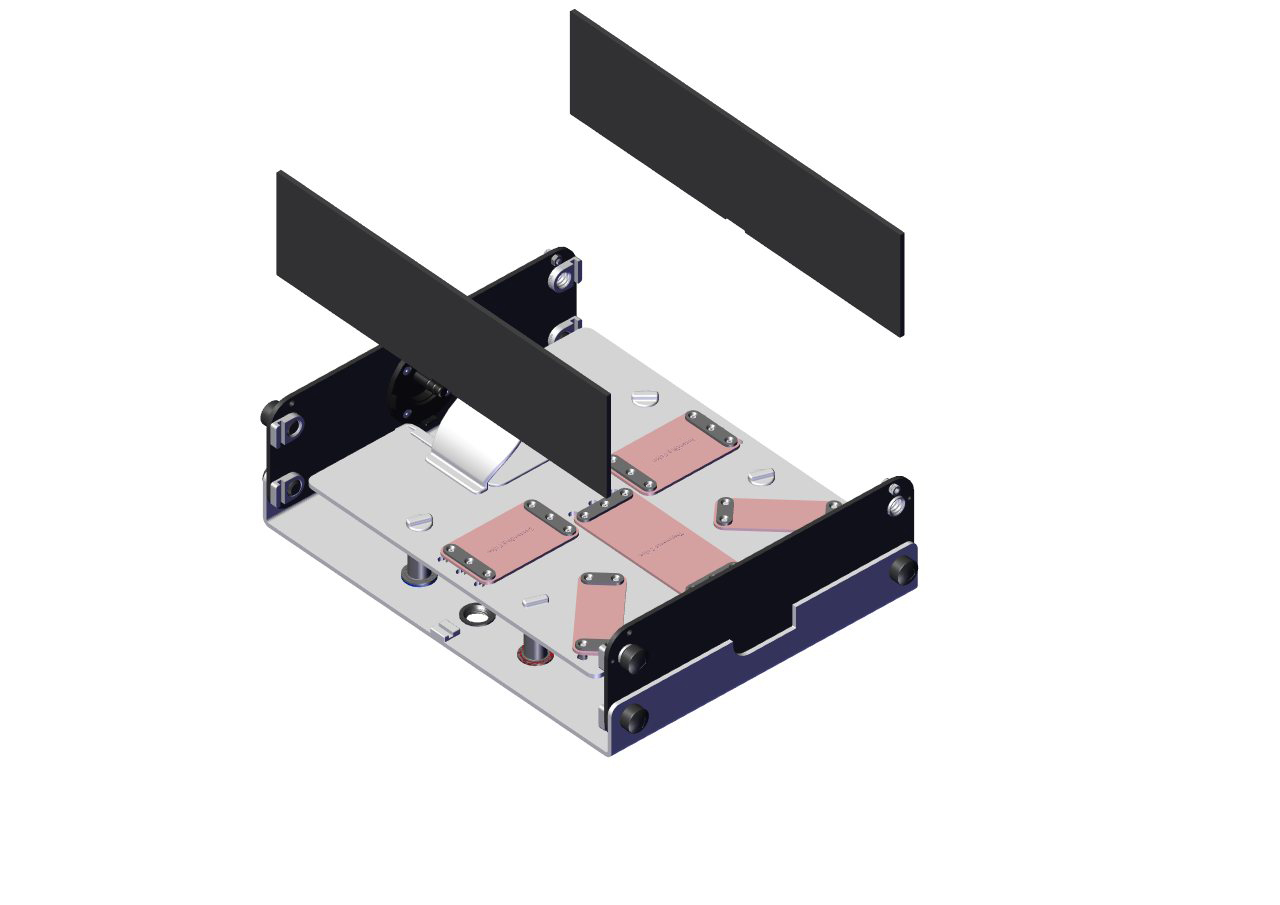
Step 28
Locate the pillar thumbnail screws.
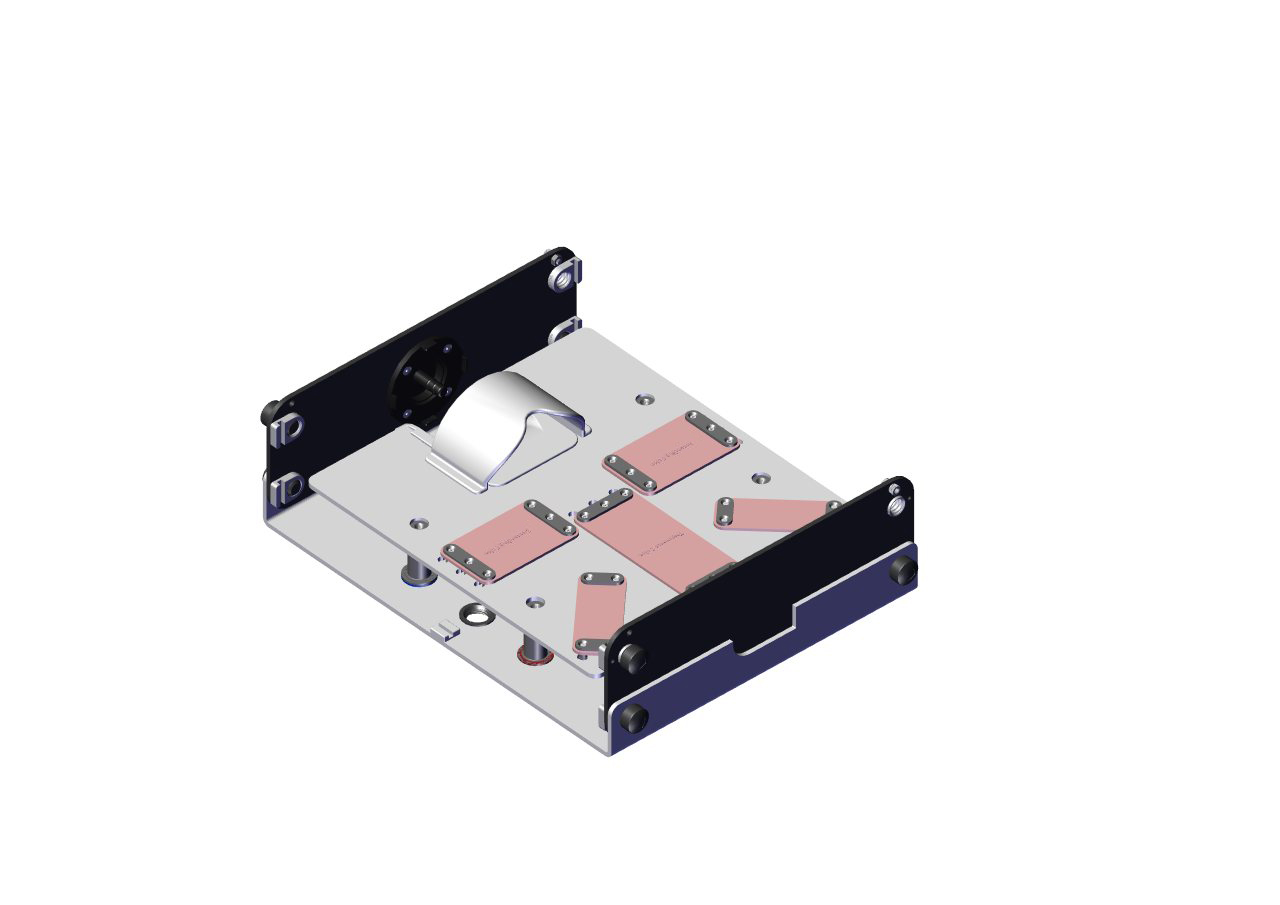
Step 29
Remove the pillar thumbnail screws.
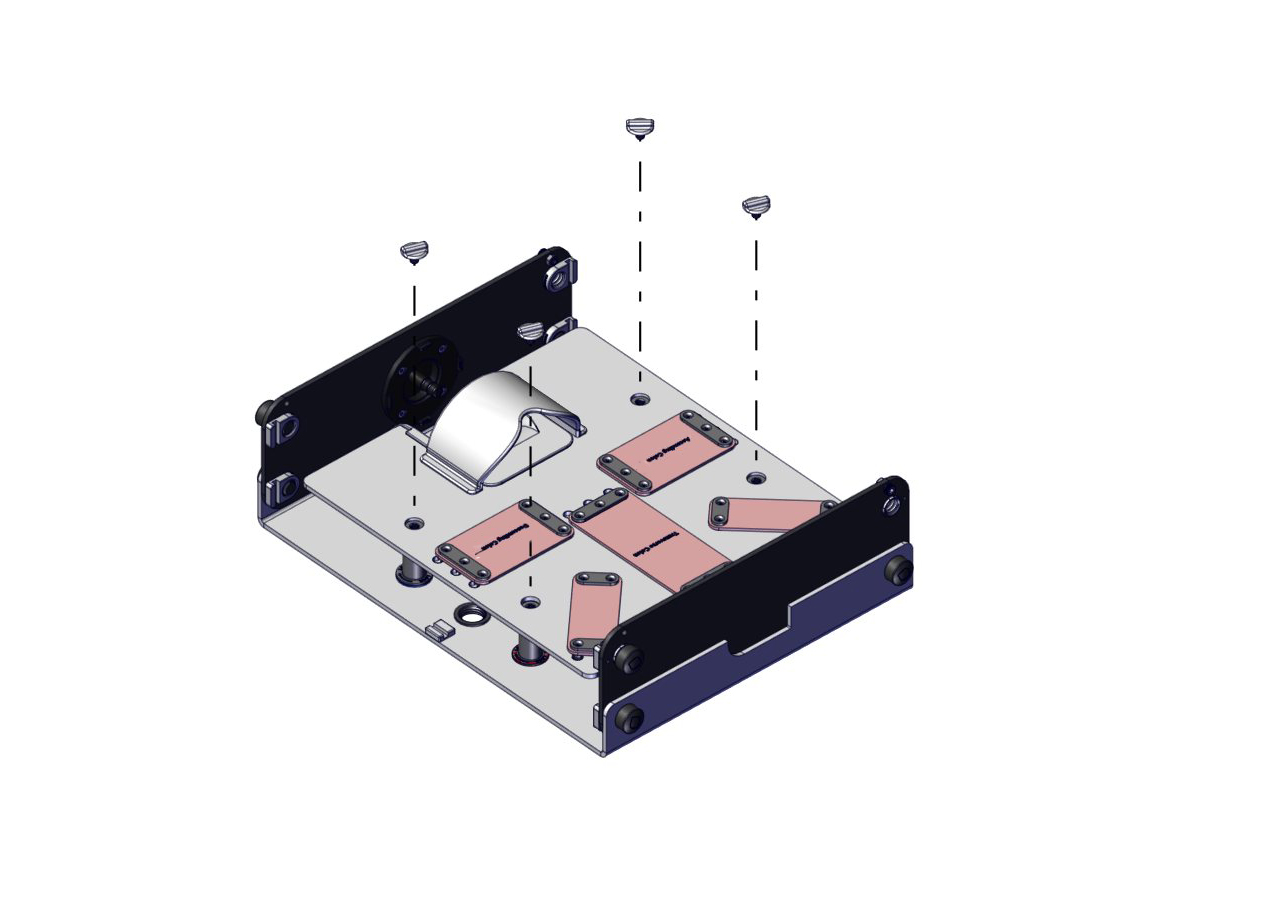
Step 30
Remove 00002828 Modular tissue mounting plate.
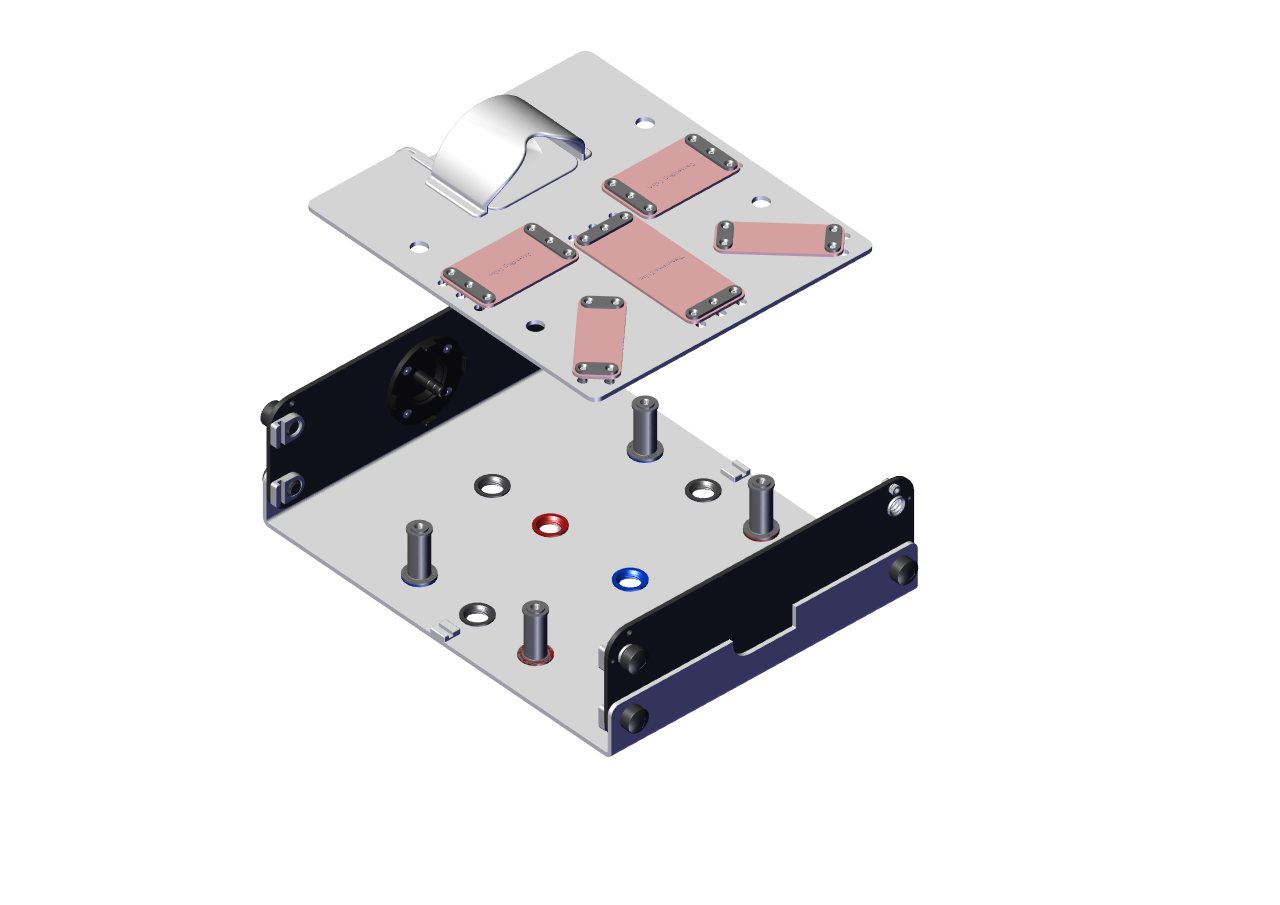
Step 31
Unscrew and remove 4x 00002890 Pillars.
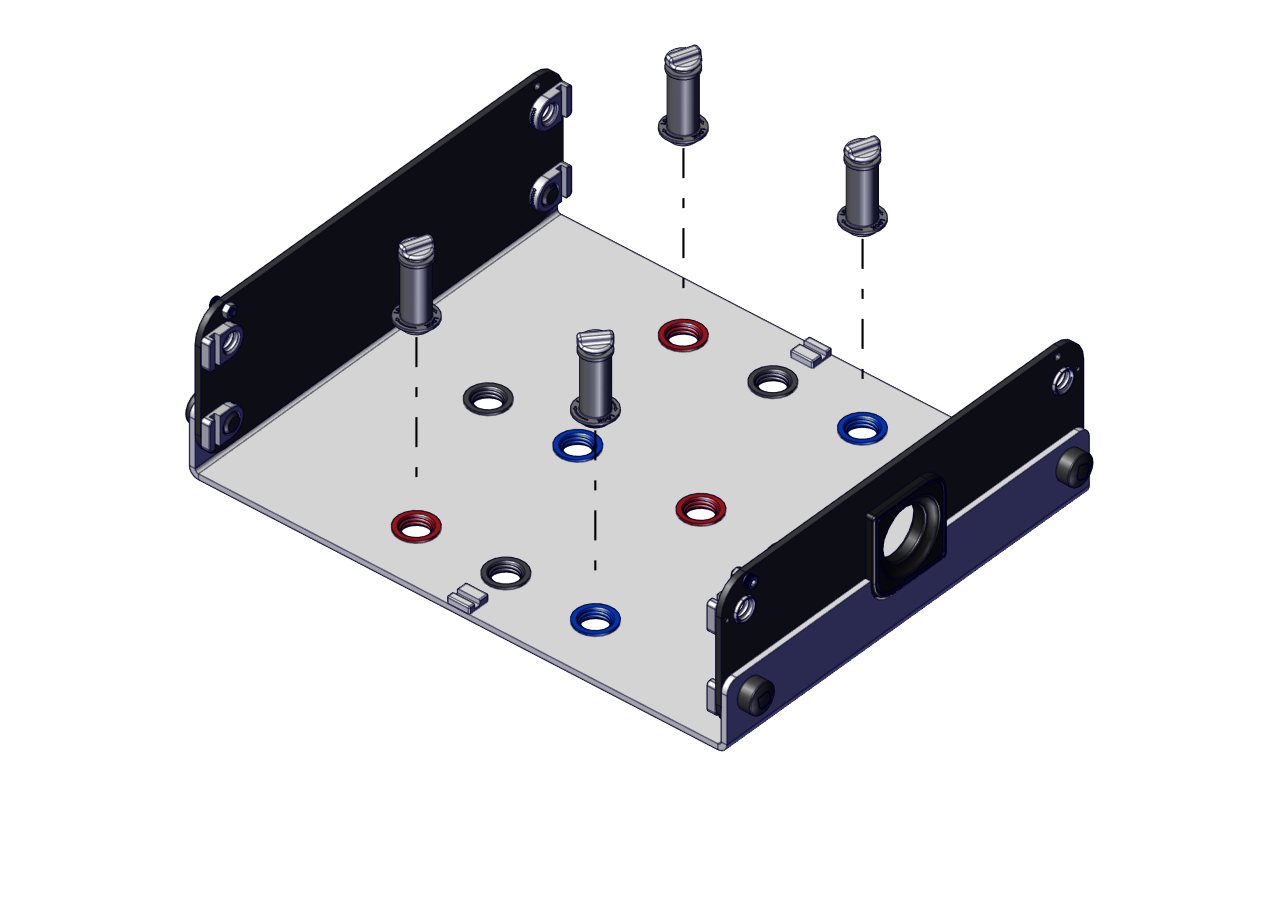
Step 32
Rotate the EndoAR base so that the blind end with no hole is now at the front of the simulator box.
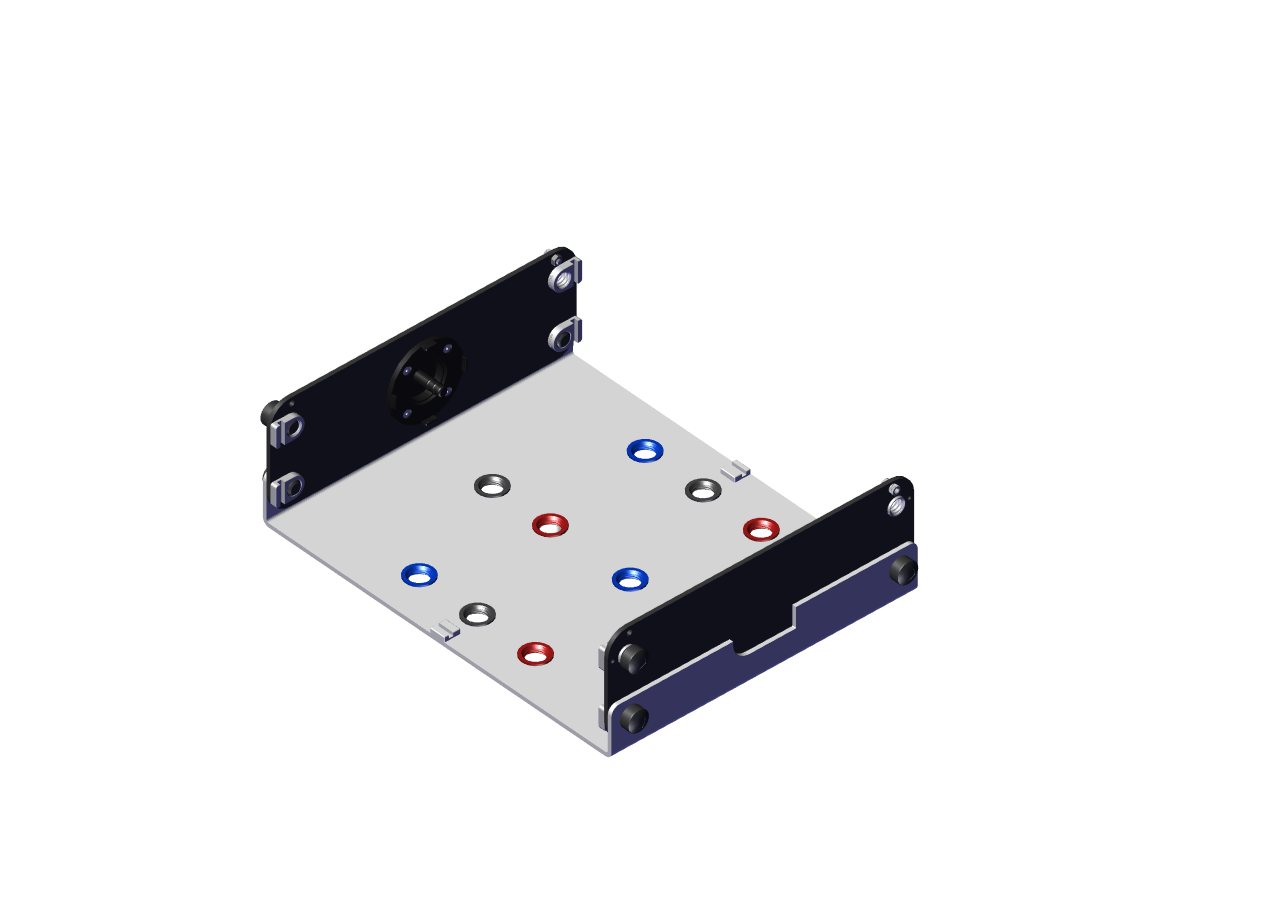
Step 33
With the blind end of the simulator facing you attach the 00002784 Best Box front bracket and screw to the base of the simulator with 1x 00002650 Male base lock screw.
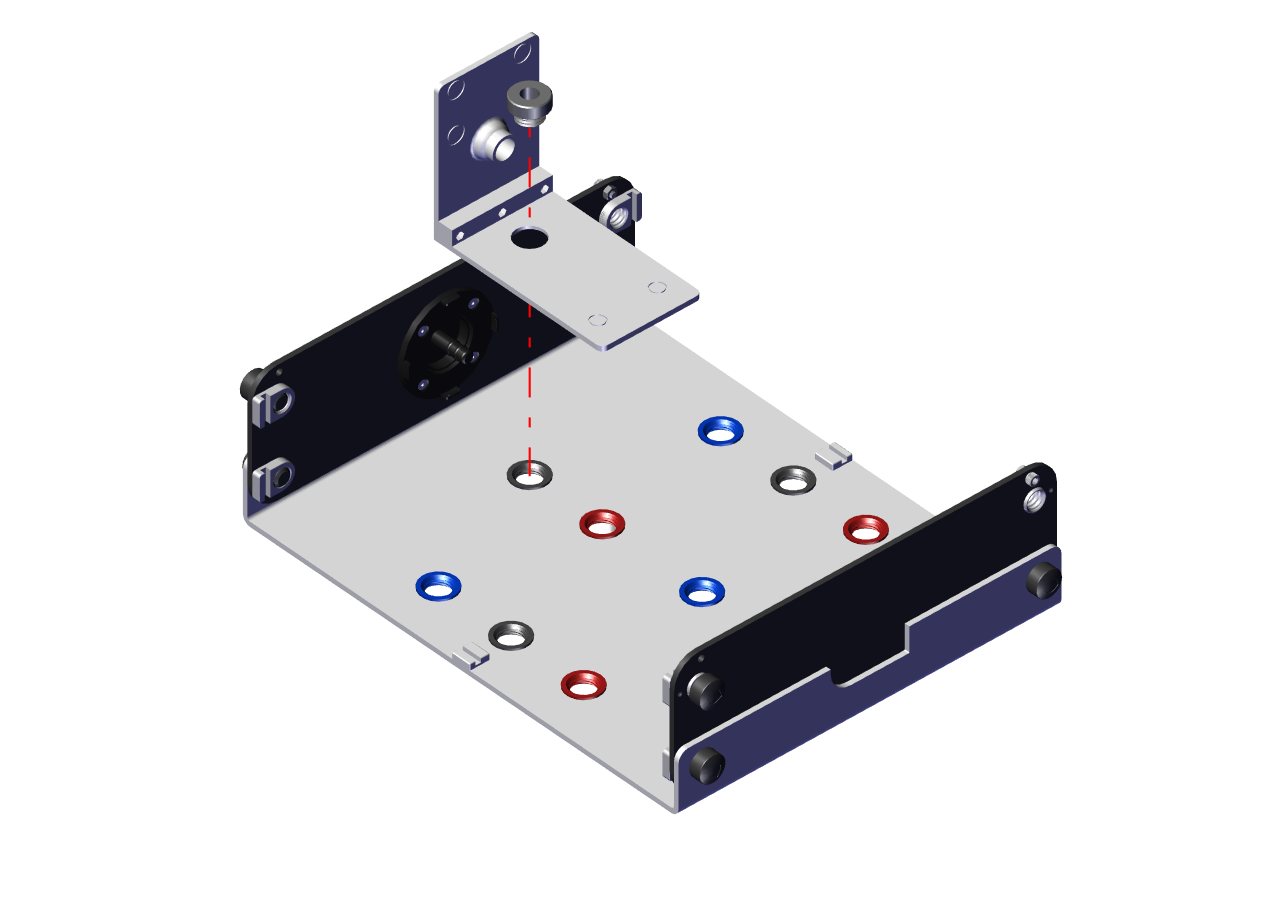
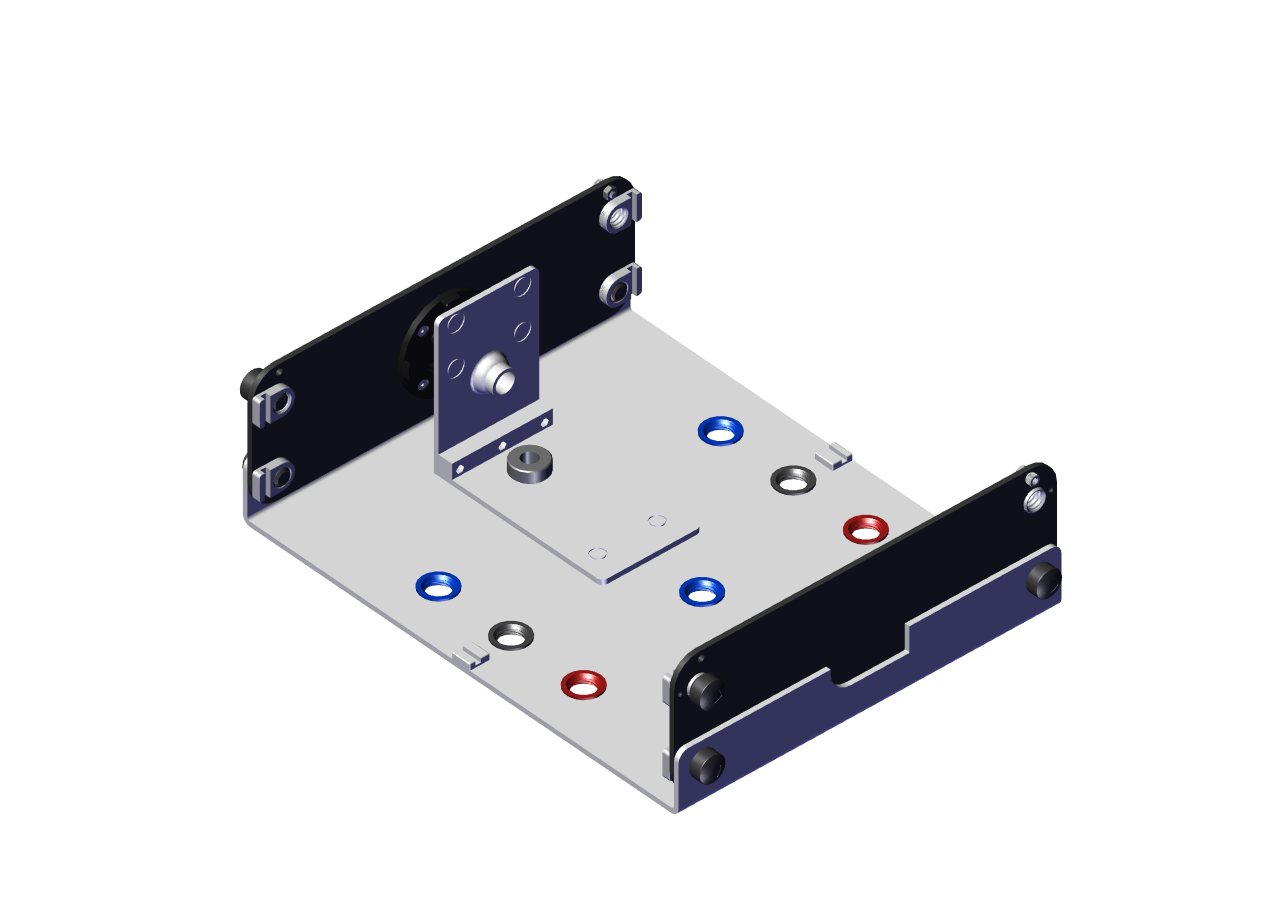
Step 34
Secure the 00002650 Male base lock screw in place hand-tight.
Step 35
Repeat this process with the 00002695 Best Box rear bracket now ensuring you screw the second 00002650 Male base lock screw into the blue circle in the base of the simulator.
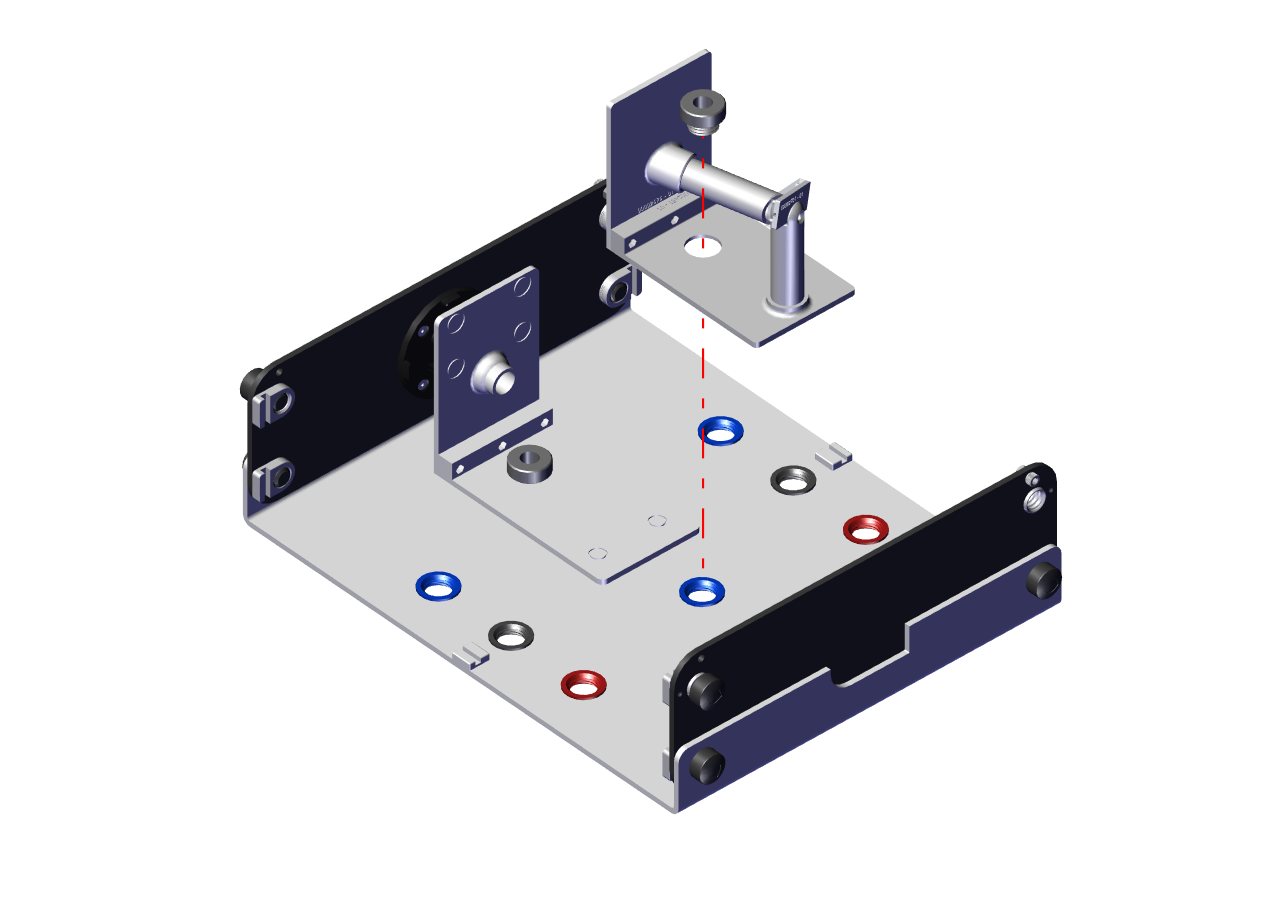
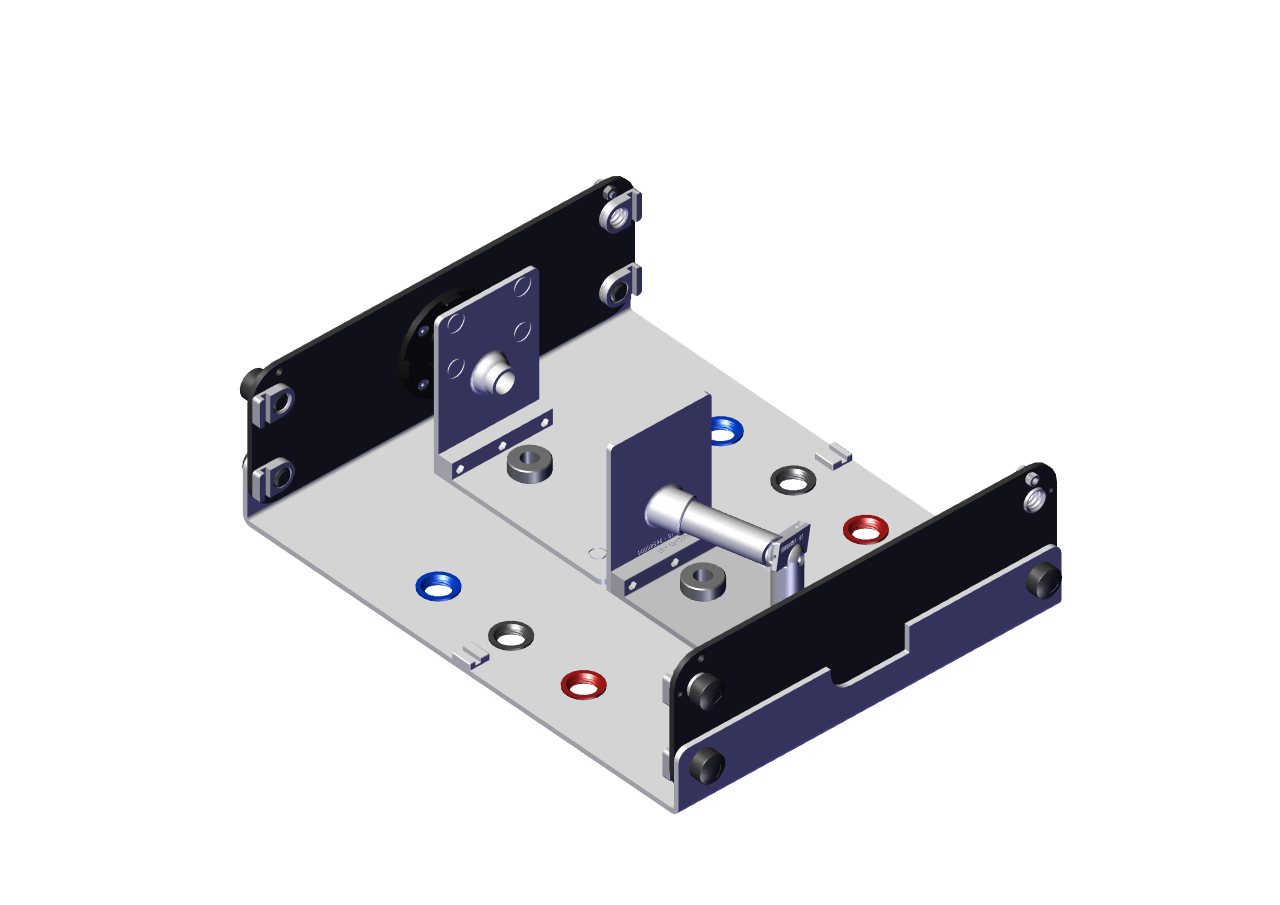
Step 36
Hand tighten the 00002650 Male base lock screw to secure the 00002695 Best Box rear bracket.
Step 37
Slot the side 2x 00002756 side panels in place back in place.
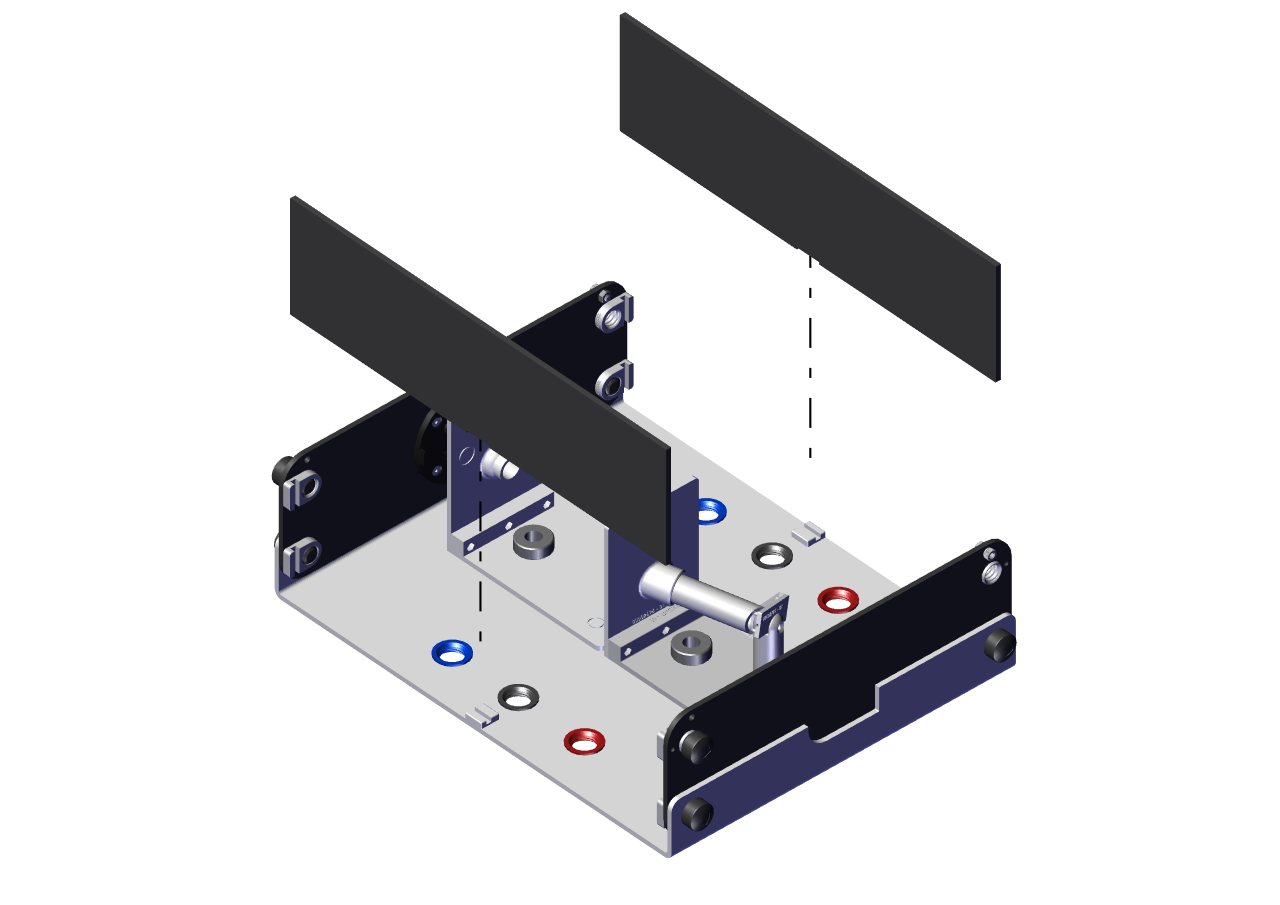
Step 38
Ensure both side panels are correctly fitted and the simulator enclosure is fully assembled.
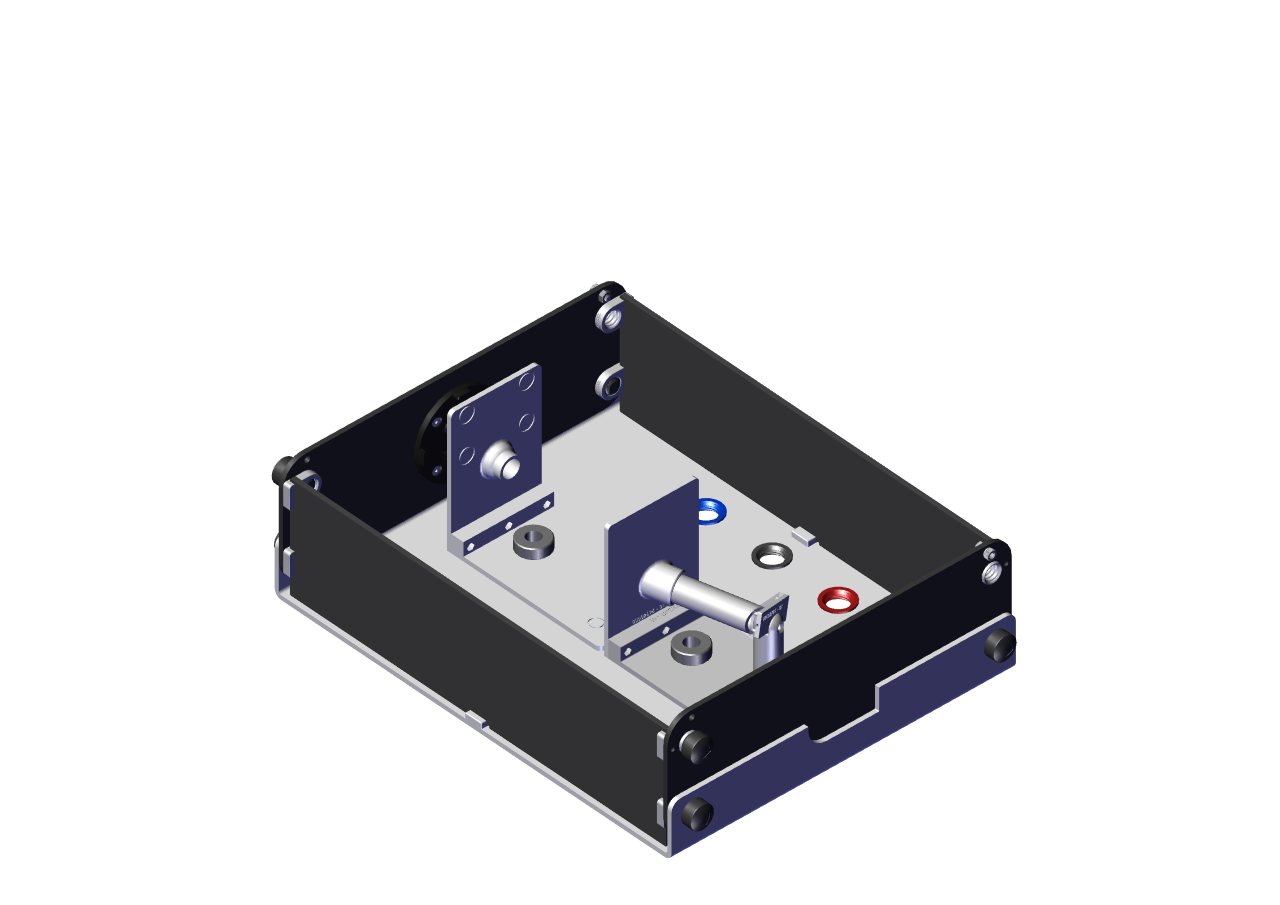
Step 39
Rotate the simulator so that the front of the EndoAR is facing you.
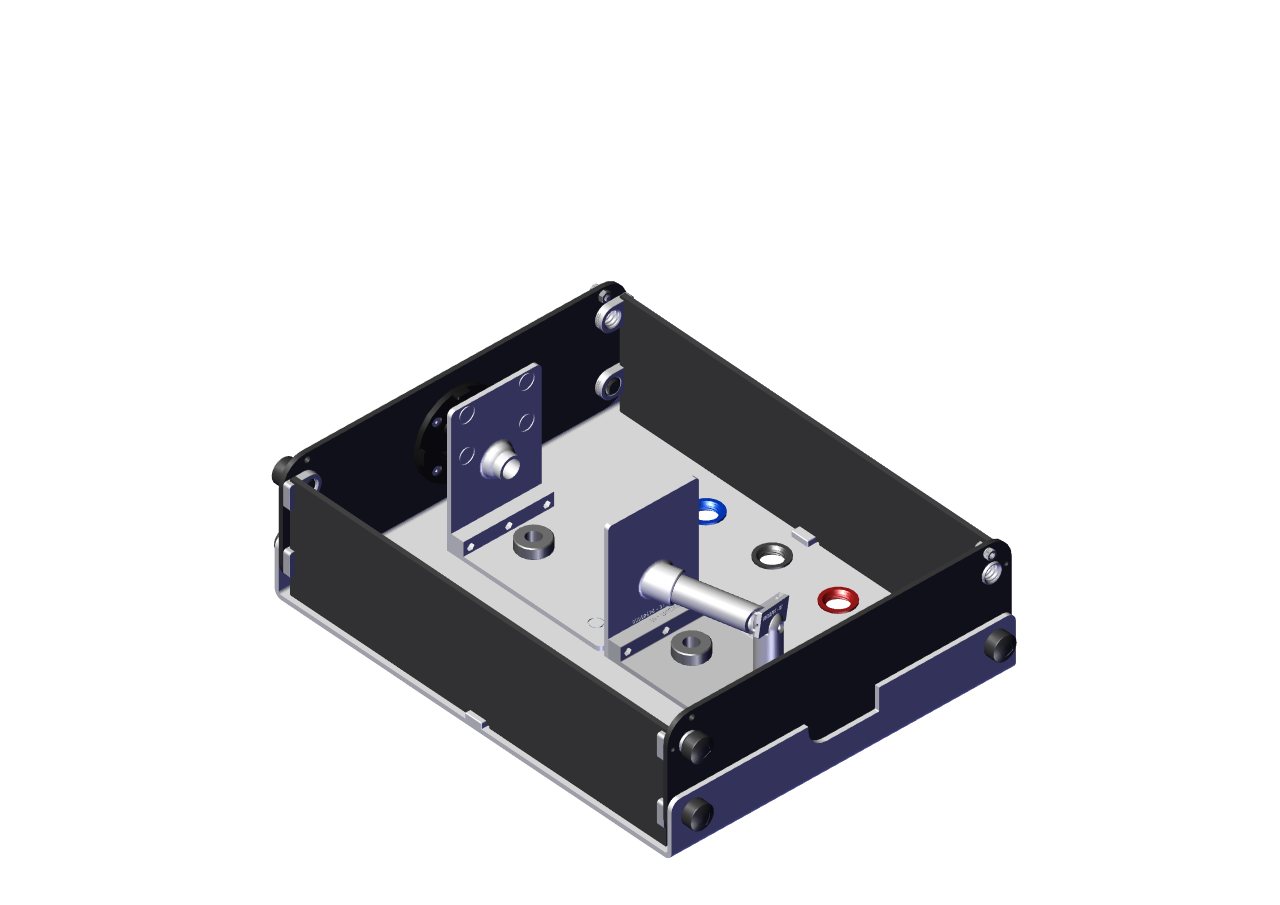
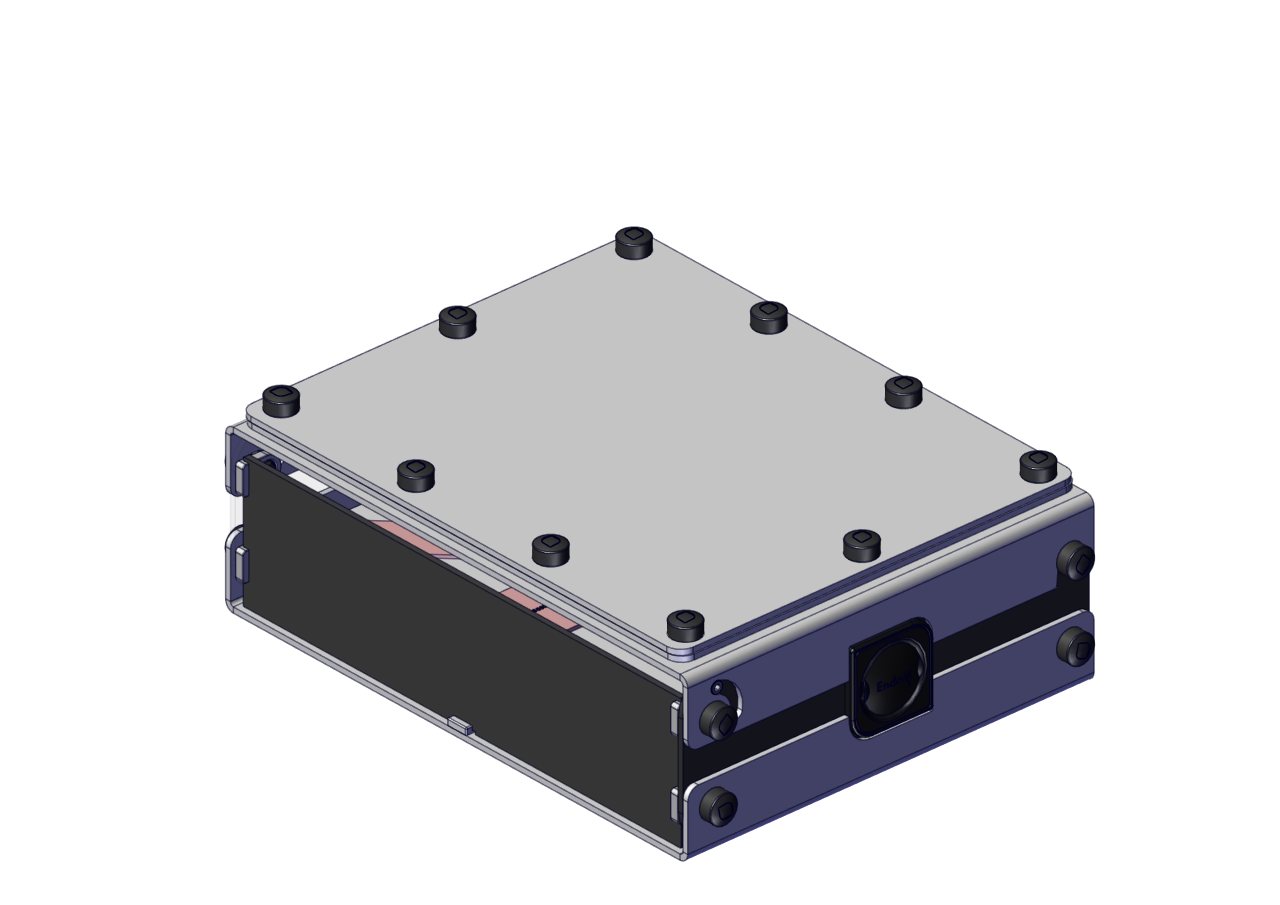
Step 40
Remove the 10x 00000546 Lock nuts from the top cover.
Remove the skin layer and replace it with the supplied flat white cover. Refit and hand-tighten all 10 lock nuts.
Reattach the top cover as shown in steps 21-22.
Step 41
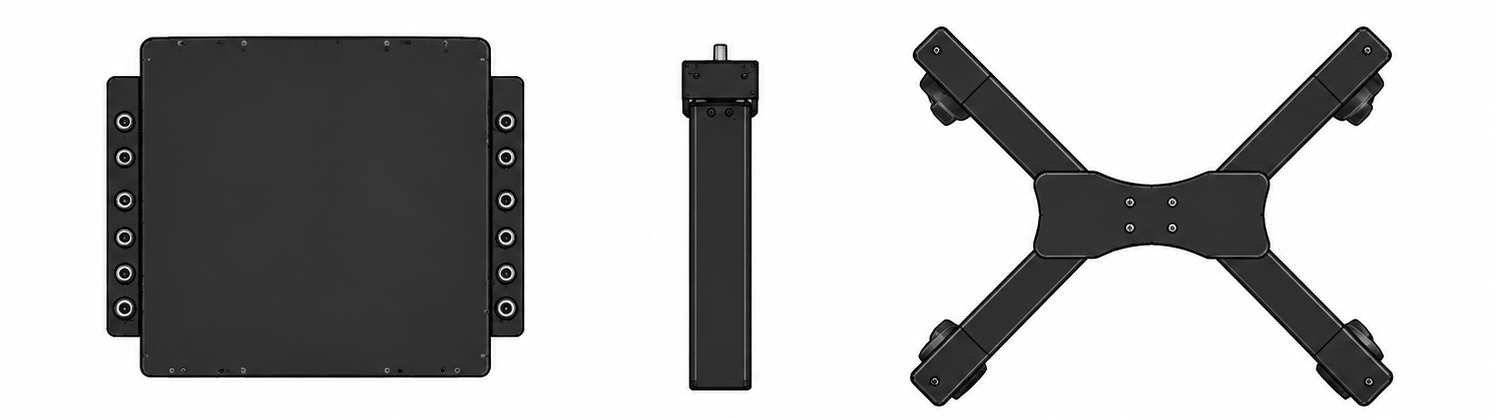
When opening your simulator it is recommended that you unpack all package contents and arrange them before starting construction. (Image only showing a few items as an example).
Step 42
Start the assembly of your cart system by screwing the 4x 00001170 M6 x 20 Button head screws into the underside of the 00000014 Leg assembly to the 00000016 Actuator. You can do this using the allen key provided.
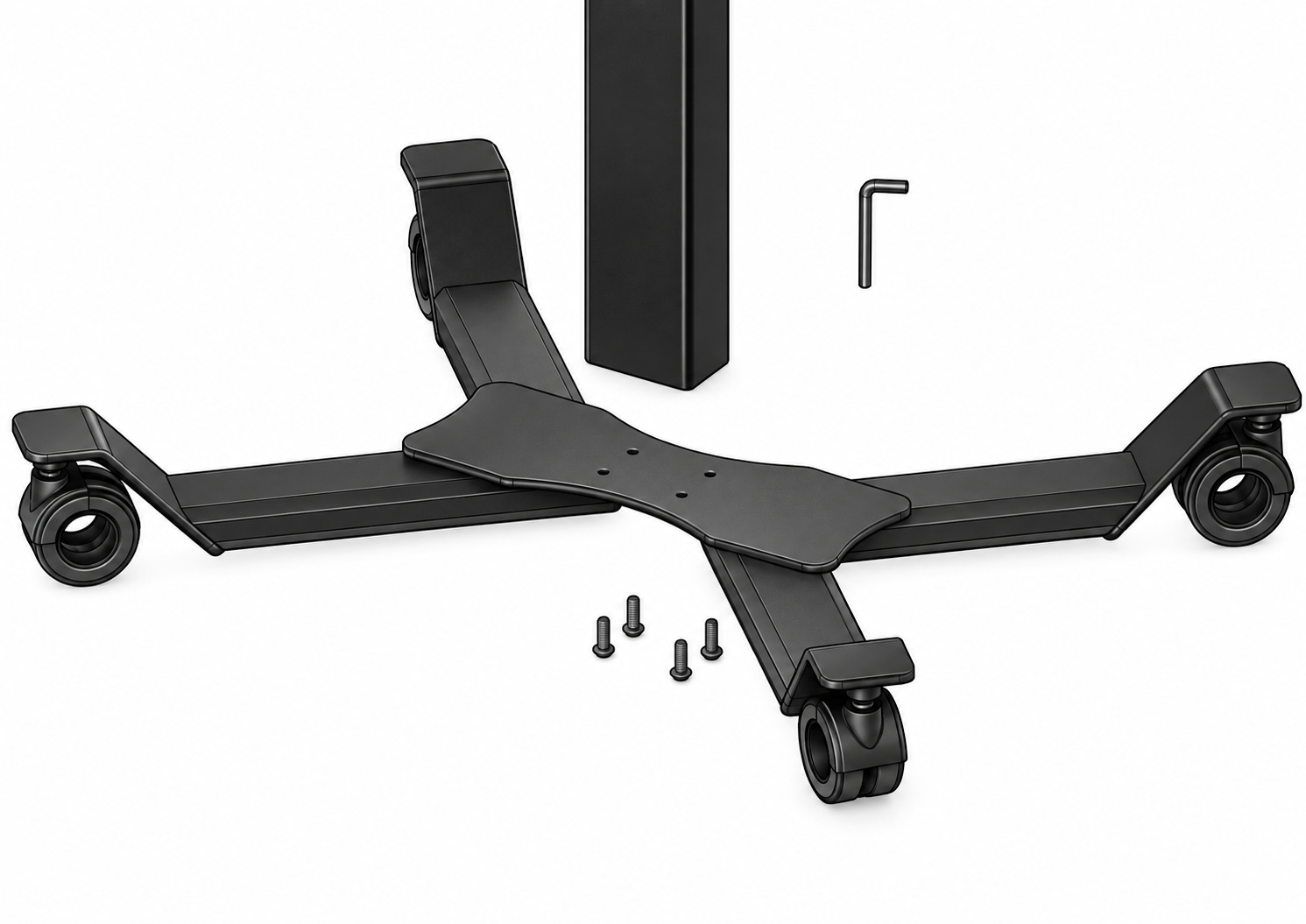
Step 43
Now that the base is attached to the 00000016 actuator you are ready to attach the 00000024 top box assembly.
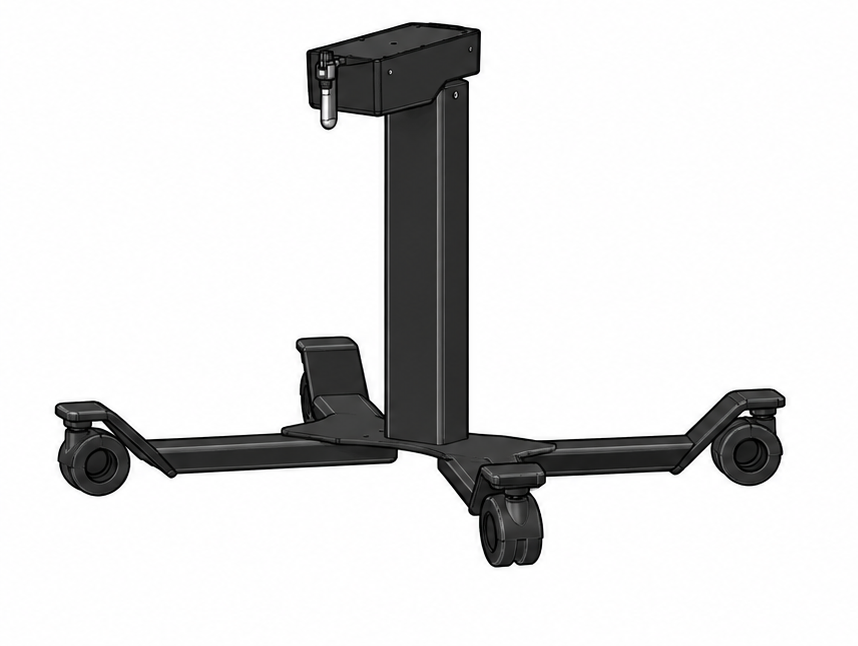
Step 44
Locate the 4x 00001170 M6 x 20 Button head screws provided to attach the top box.
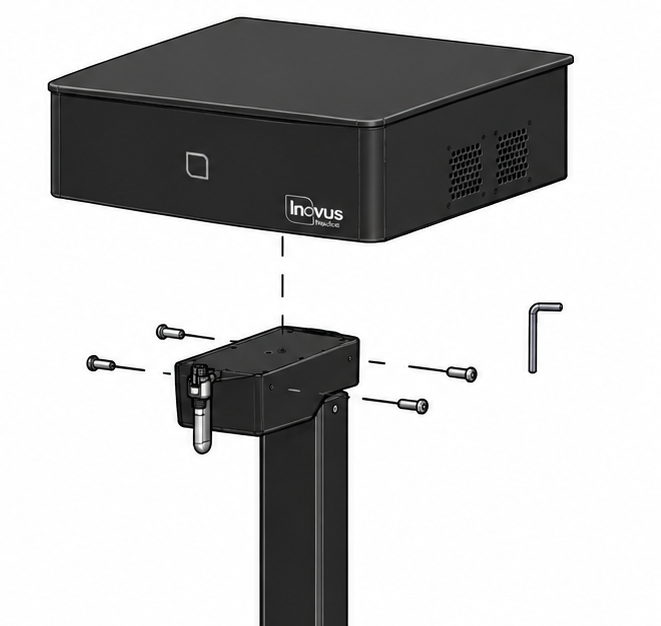
Step 45
Insert two 00001170 M6 x 20 Button head screws into the side of the cart system 00000016 Acutator and top box, screwing in place with the 00000877 allen key provided.
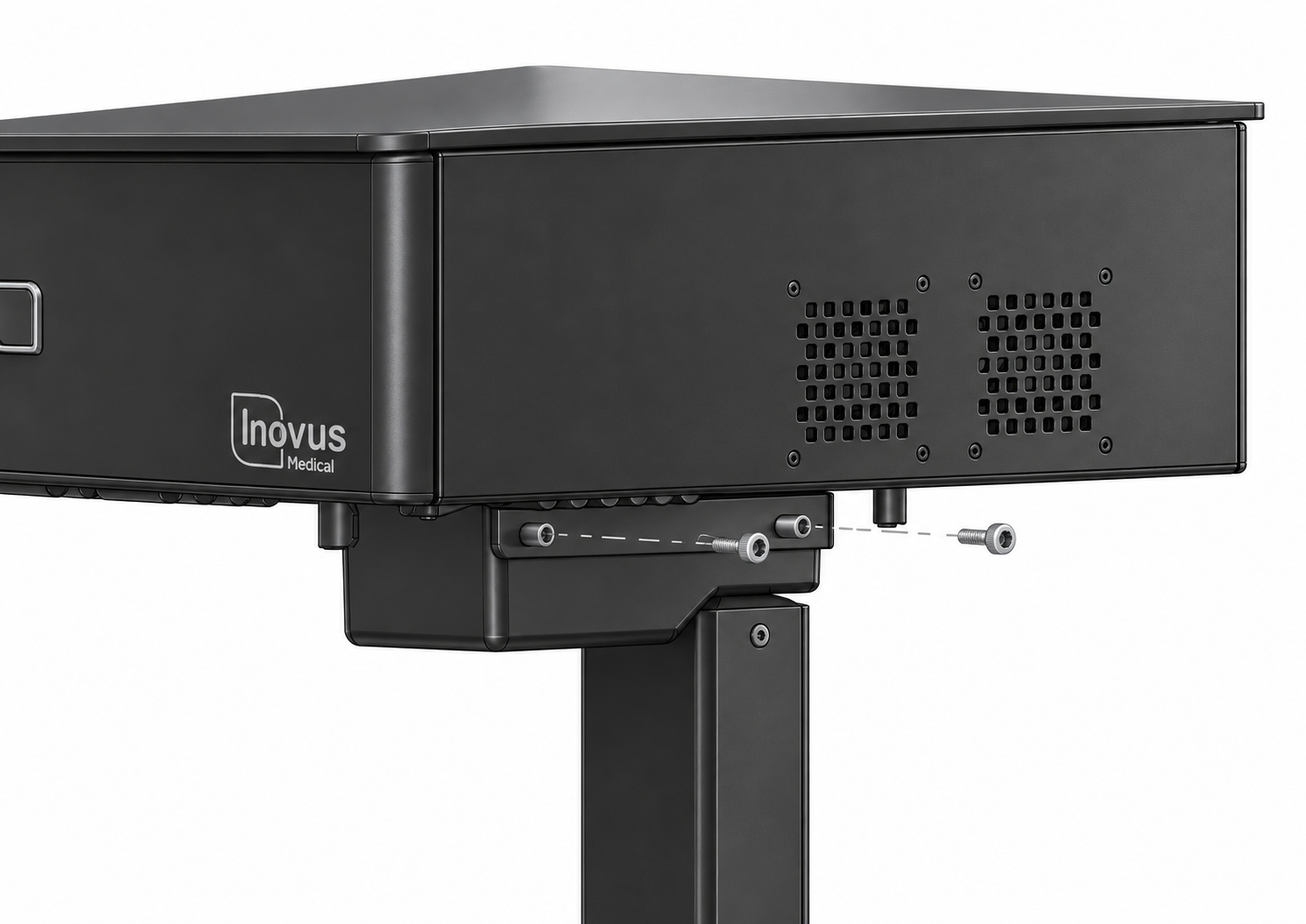
Step 46
Ensure the 00001170 M6 x 20 Button head screws are finger tightened initially whilst you move onto the next step.
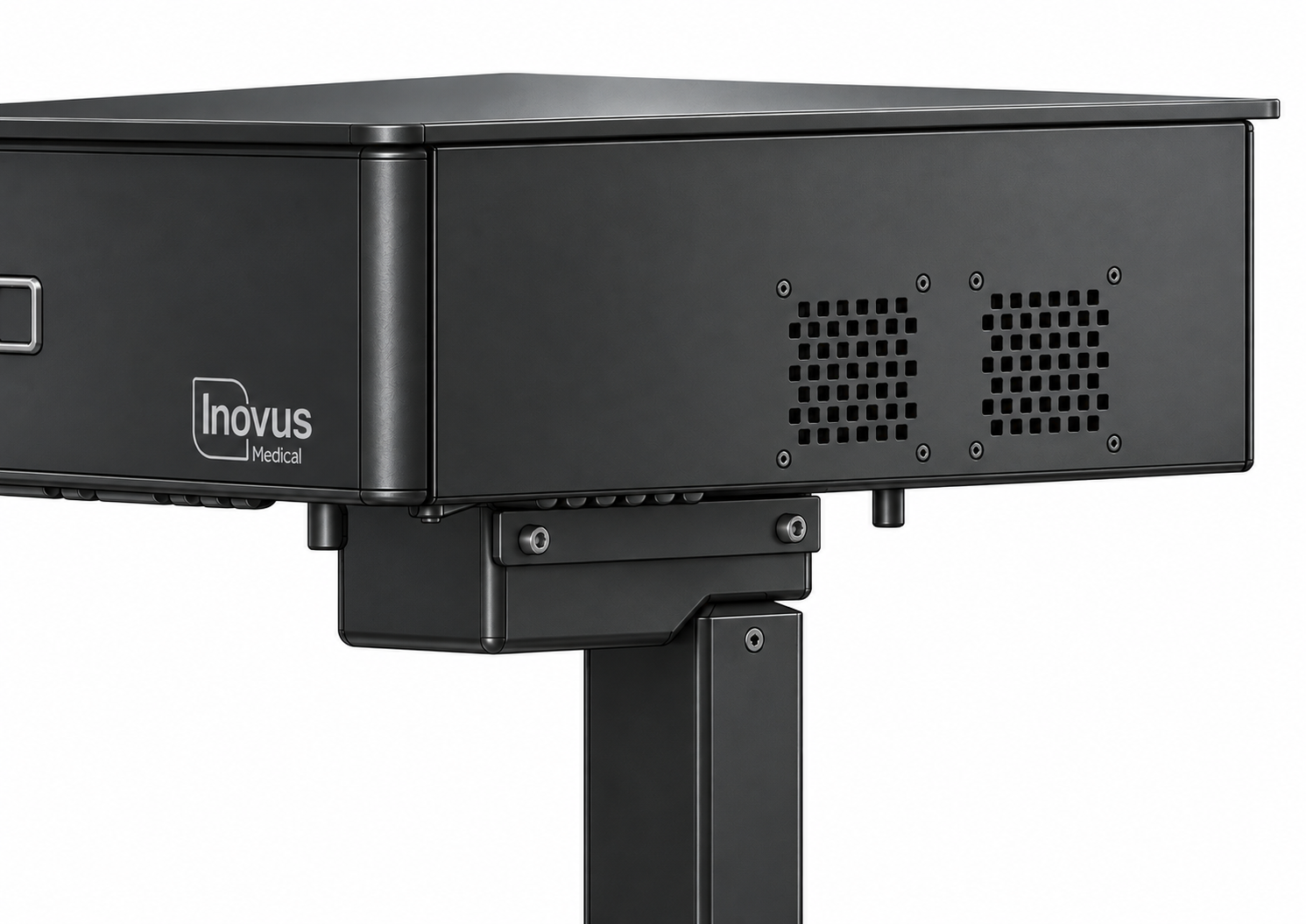
Step 47
Repeat this process on the other side of the cart system.
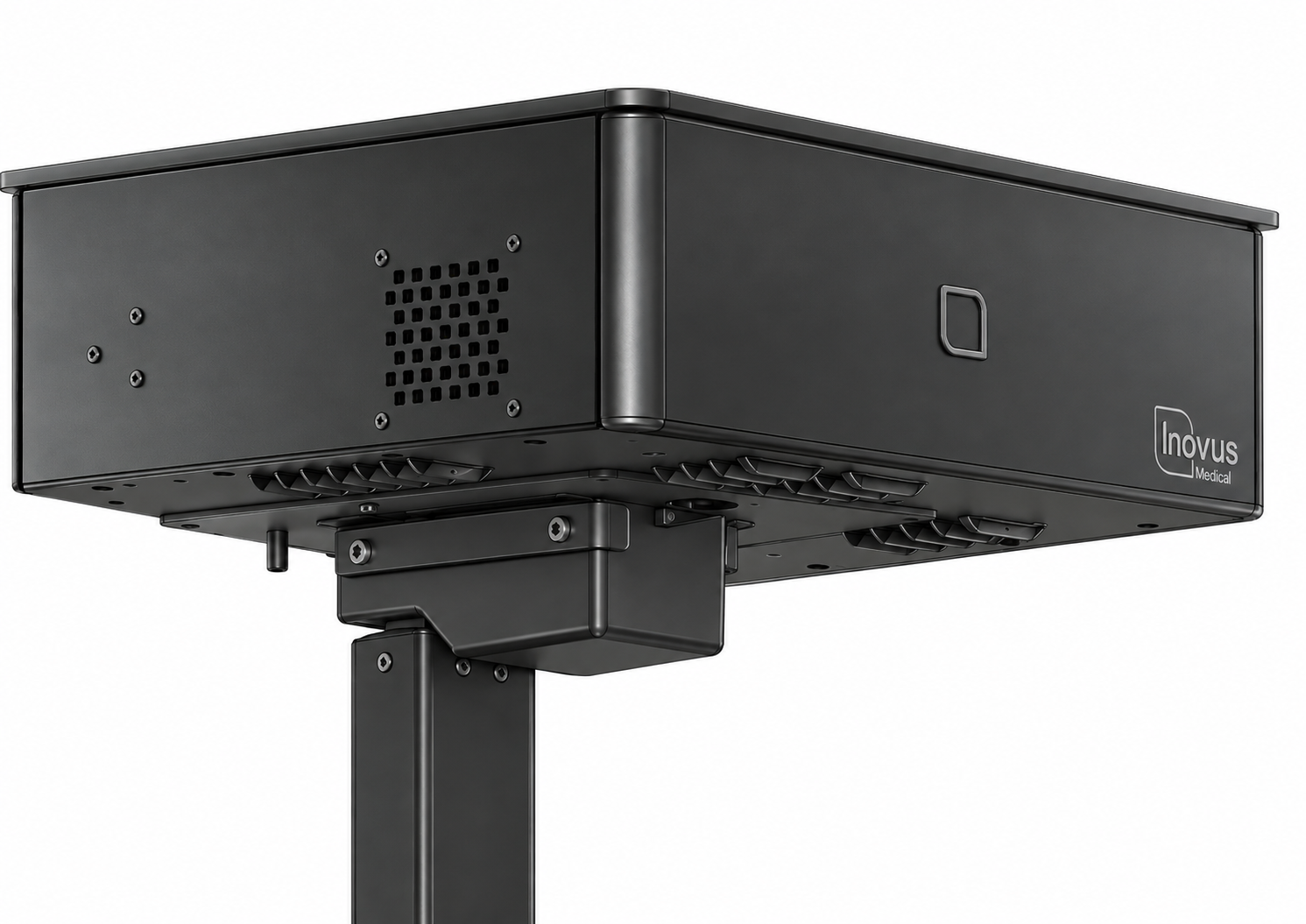
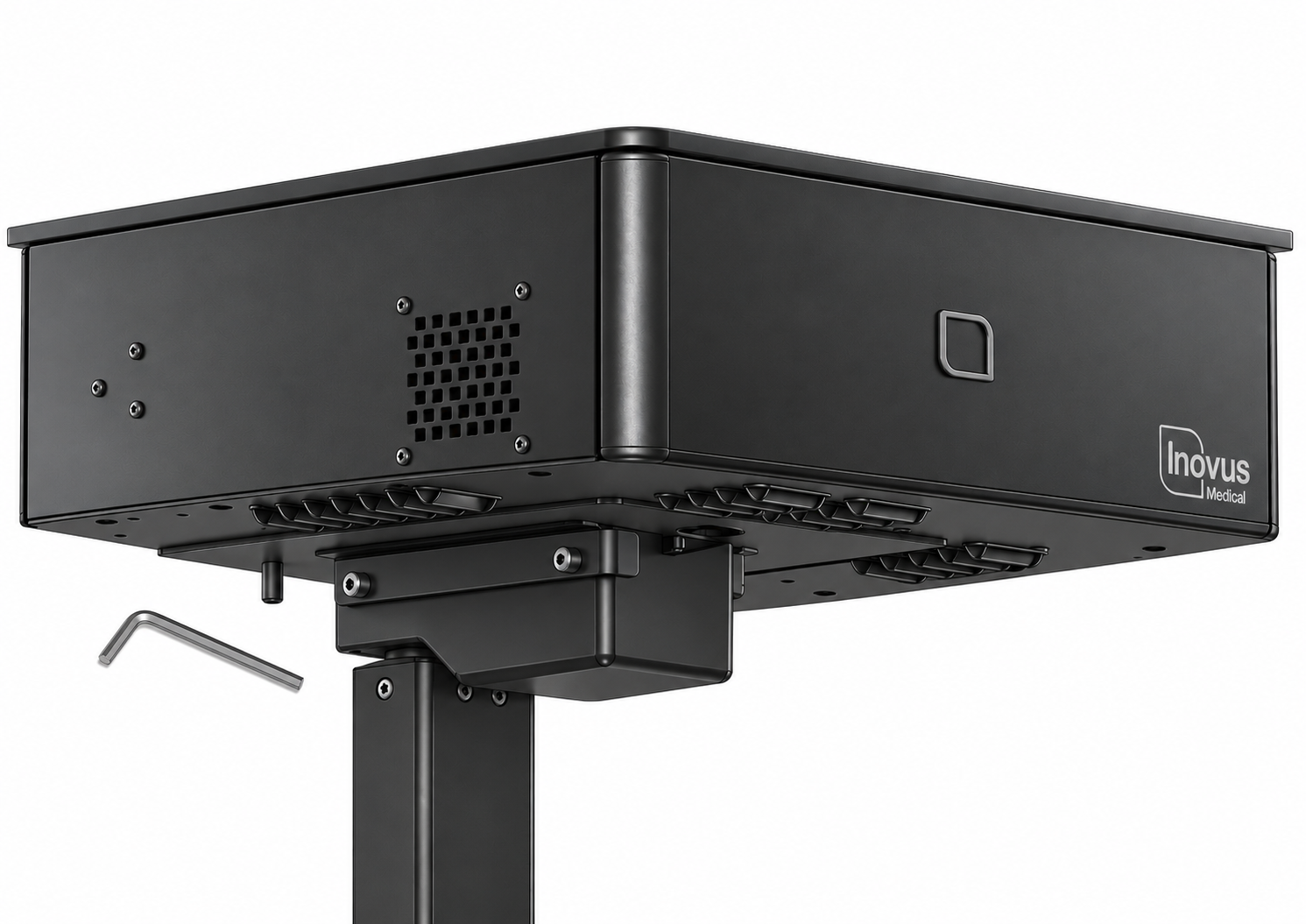
Step 48
Tighten all 00001170 M6 x 20 Button head screws with the 00000877 allen key provided. The top box of the cart system should now be securely attached to the main column.
Step 49
Locate the 00000016 Actuator lead on the underside of the cart system.
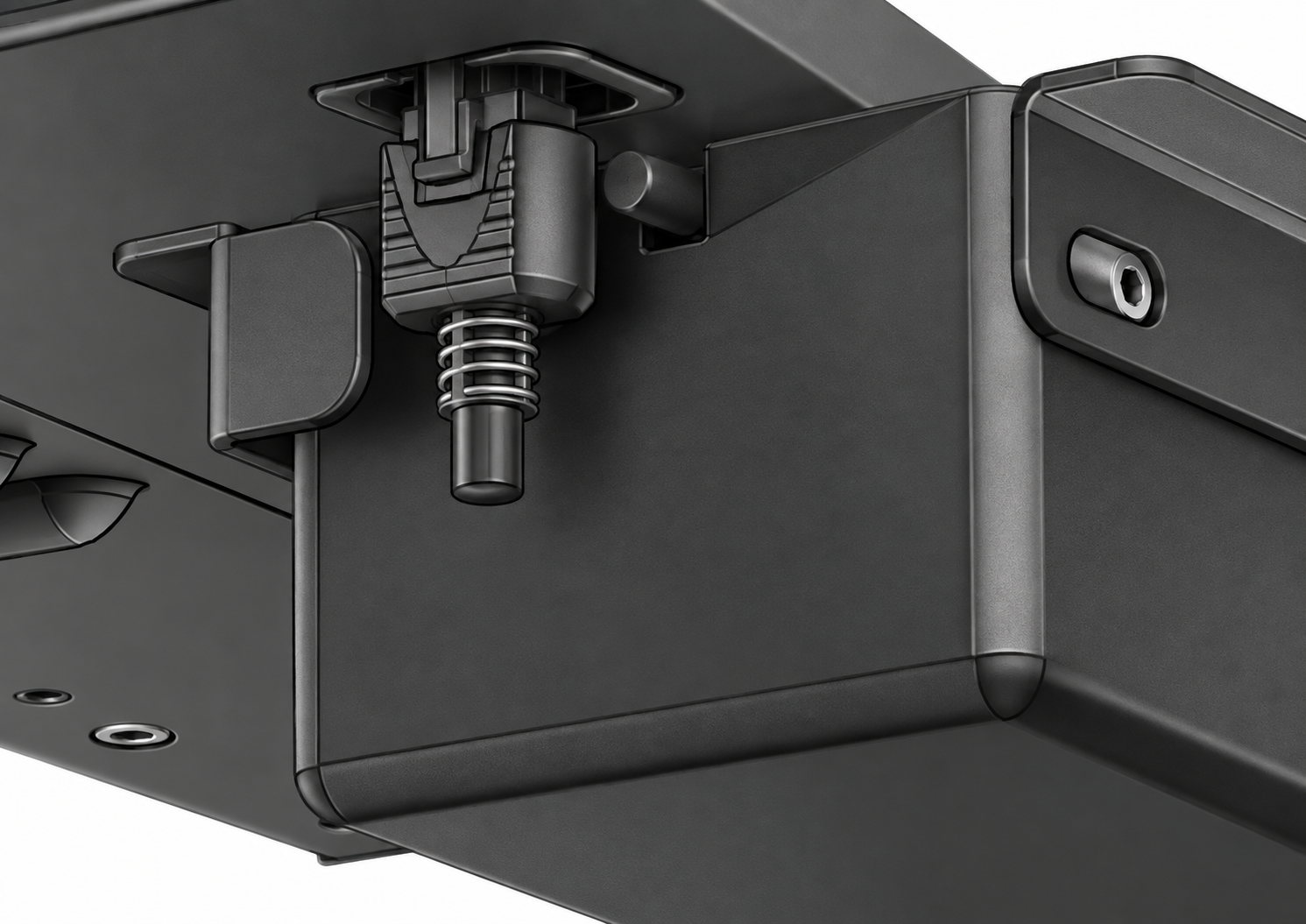
Step 50
Secure the lead in place with the connector as shown.
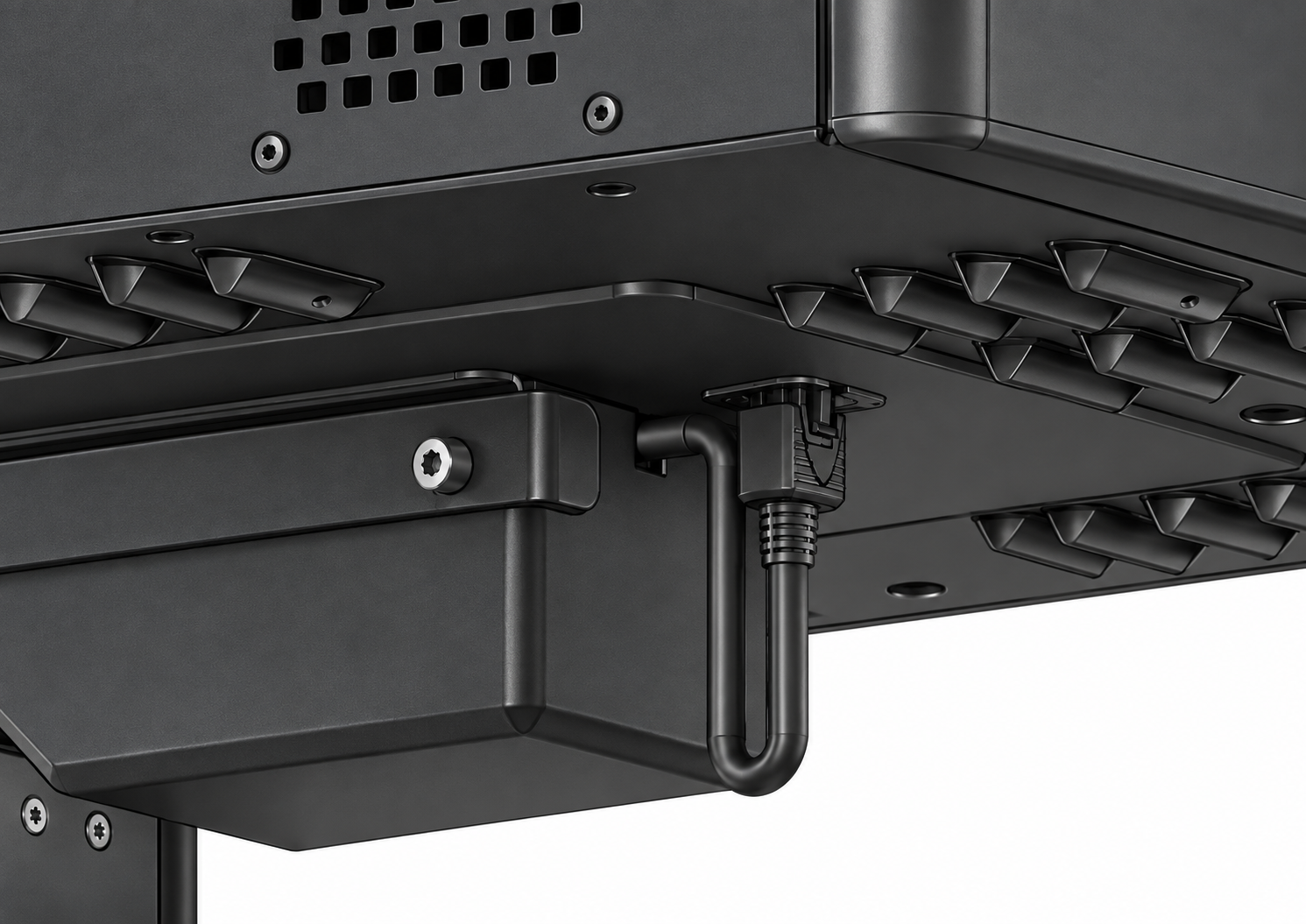
Step 51
Taking the 00000029 monitor bracket, attach to the underside of the top box of the cart system using the 2x 00001176 nuts provided.
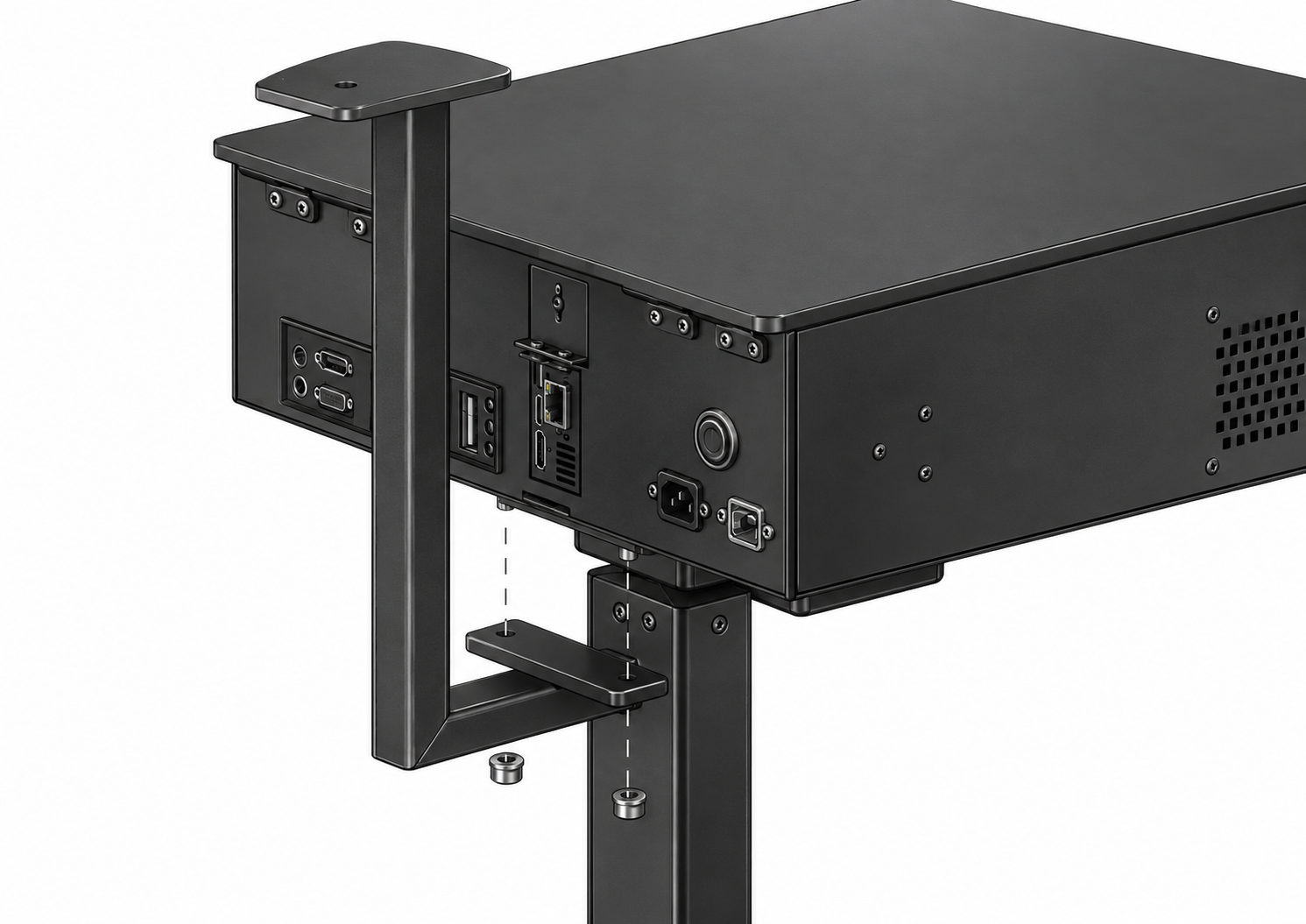
Step 52
Using the 00000483 13mm Spanner tighten the 00001176 nuts to ensure the bracket is secured in place.
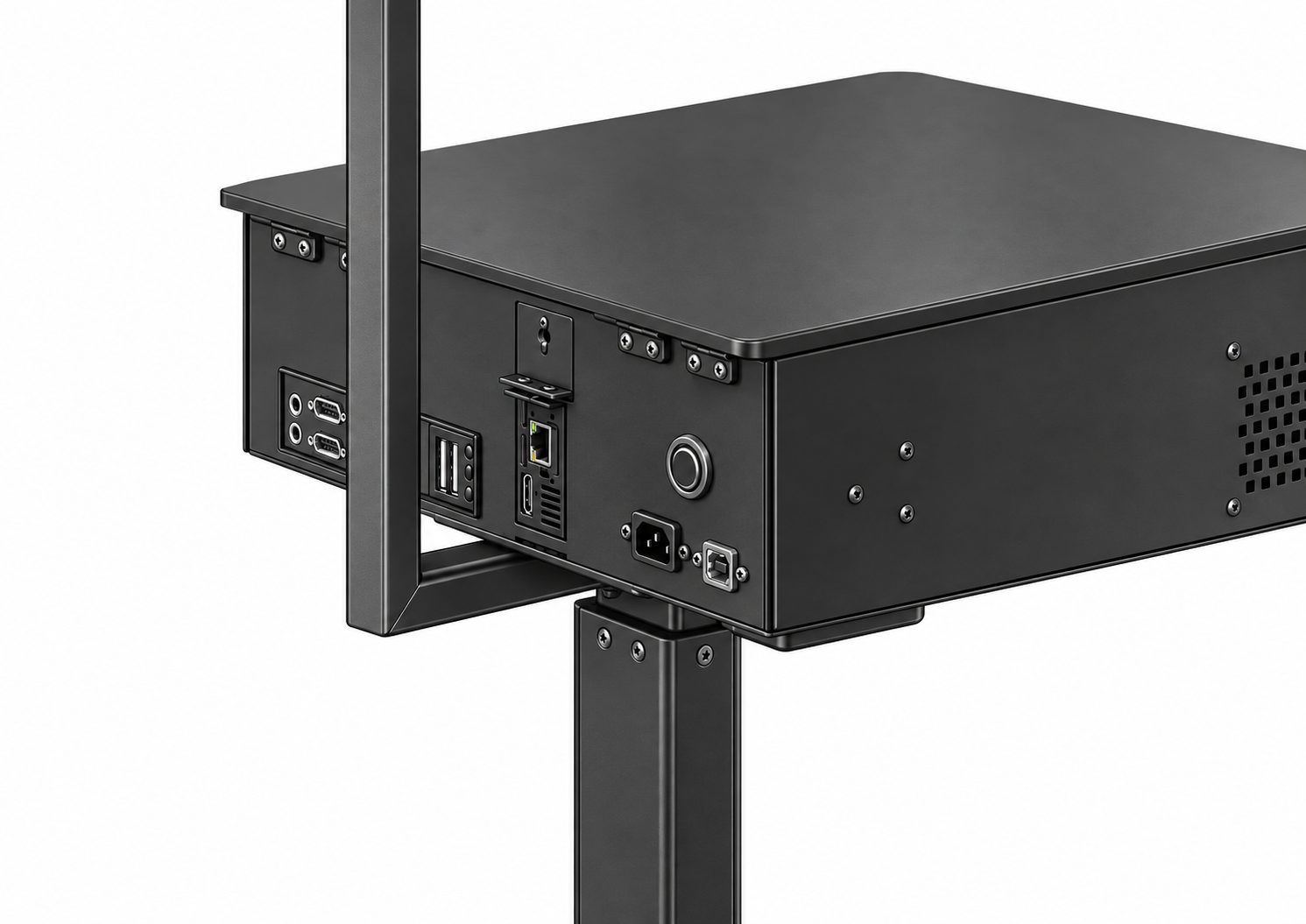
Step 53
Locate the 00000296 1x Mounting Arm. (There are further instructions included with the screen arm should you require them).
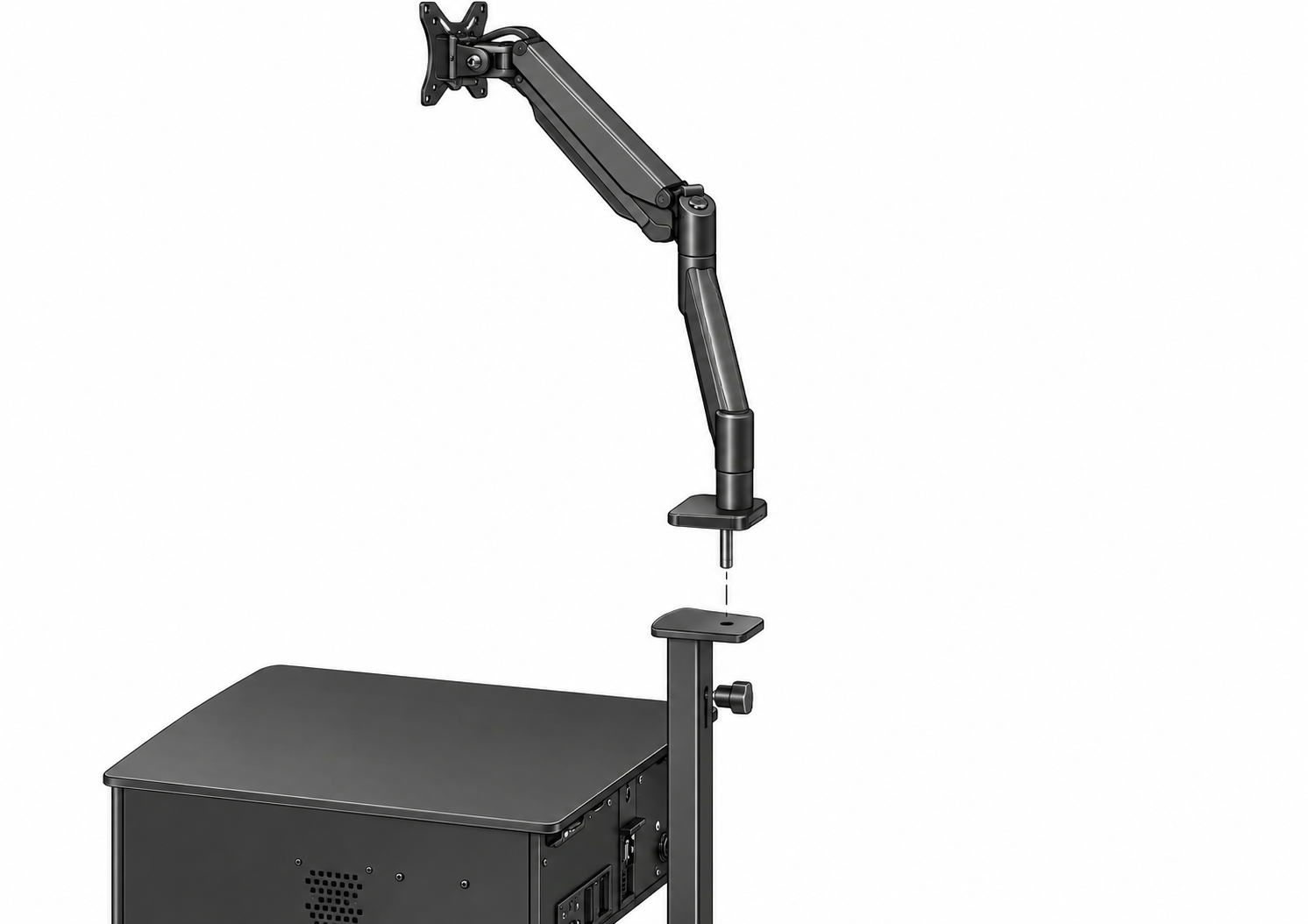
Step 54
Insert the 00000296 bolt on the base of the screen stand into the hole on the top of the 00000296 1x Mounting Arm now attached to the cart system.
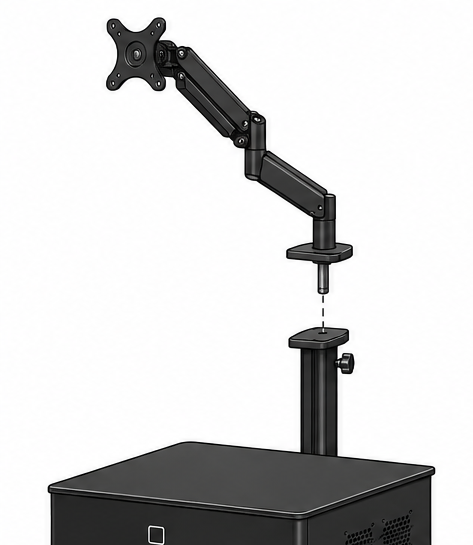
Step 55
Attach the 00002751 Endoscope bracket to the bolt on the base of the monitor arm.
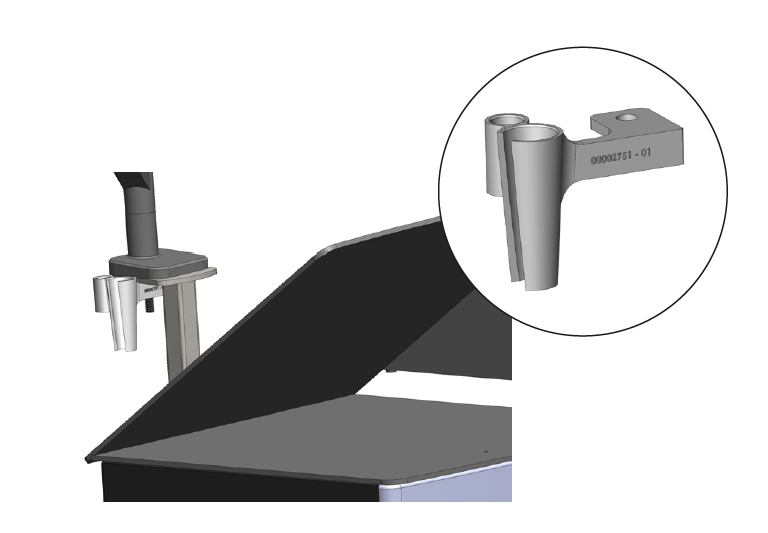
Step 56
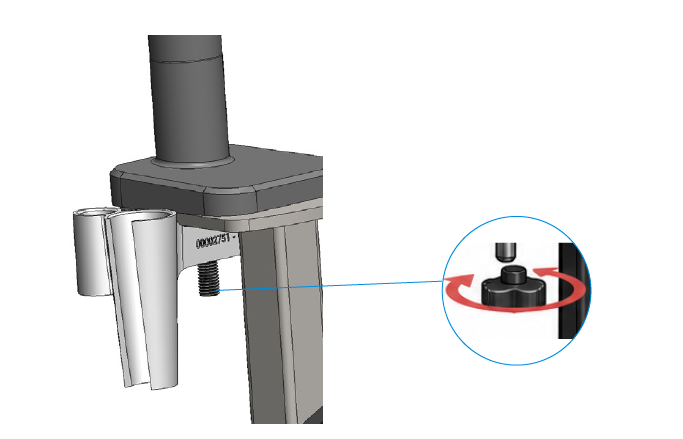
Tighten the underside of the bolt as shown. Fully tighten the handle to secure both the 1x 00000296 Mounting Arm and the endoscope camera bracket in position.
Step 57
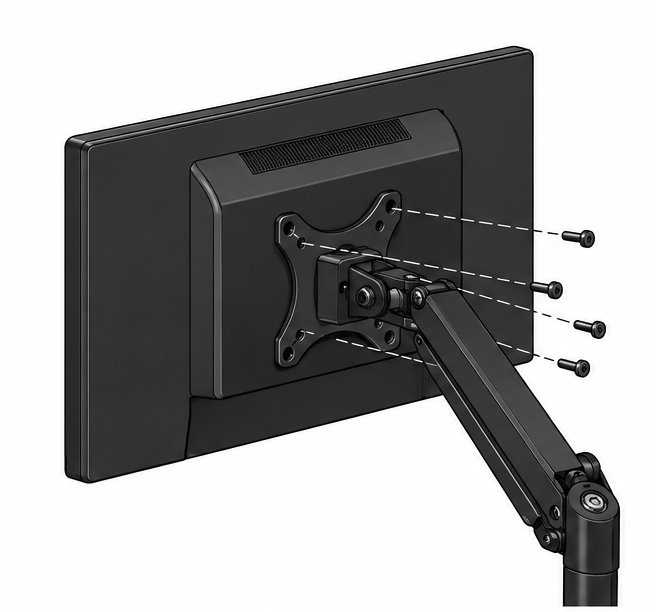
Locate 4x 00001174 M5 x 10 Button and thread through the 00001515 bracket and into the back of the 1x 00001515 Dell 24” Touch Screen. Ensure the bolts are securely tightened.
Step 58
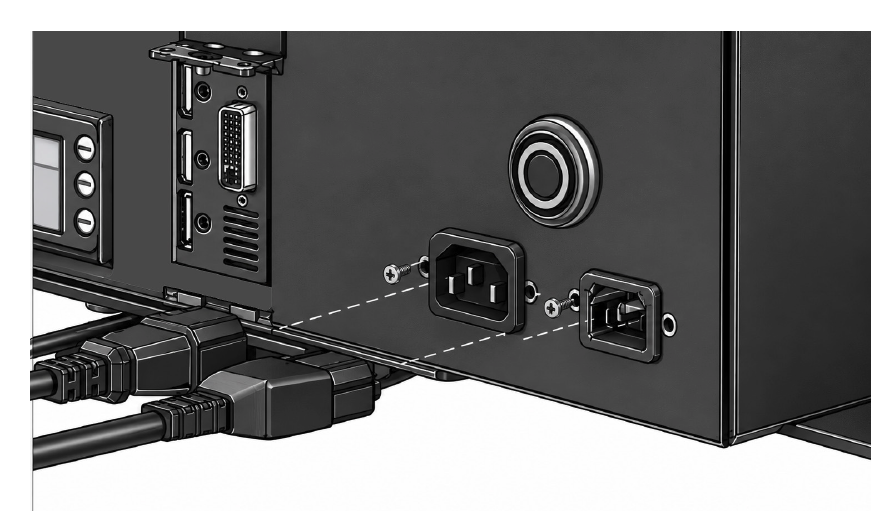
Plug the 00000779 and 00000857 power cables into the relevant ports at the back of the cart system as shown. (Please note the mounting arm is not shown here just for clarity of plug positioning)
Step 59
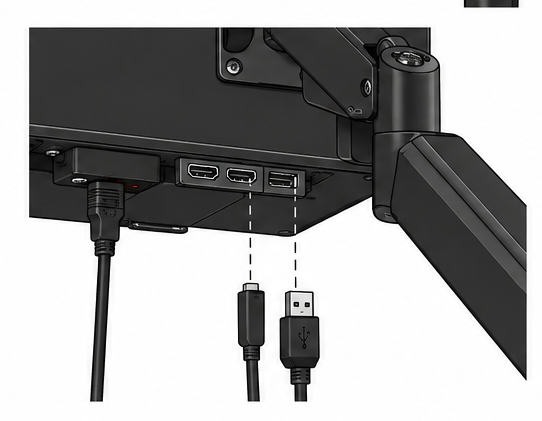
Connect the three cables 00001090, 00001525 and 00000857 to the corresponding ports on the underside of the monitor.
Step 60
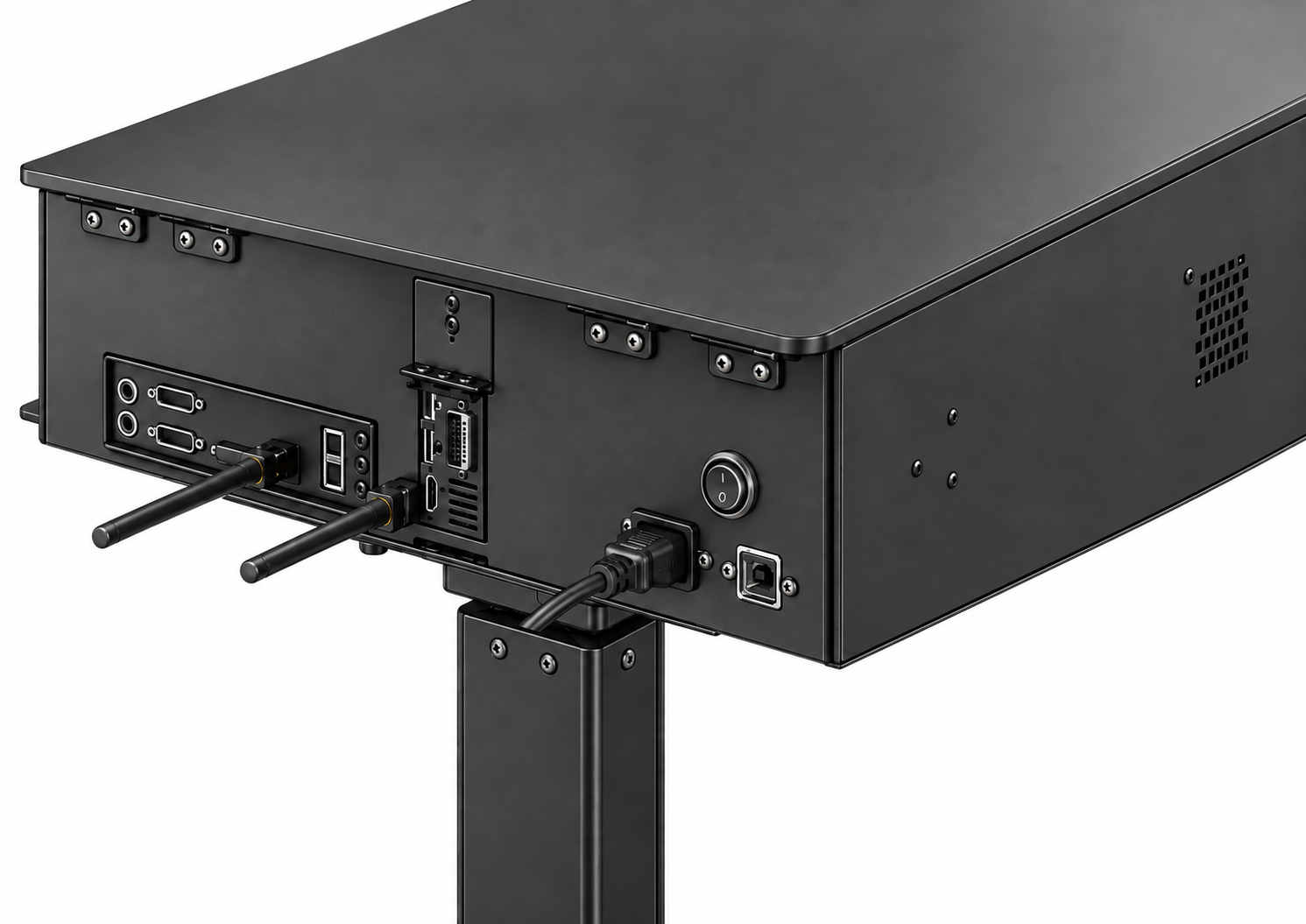
Connect the opposite ends of the three cables to the corresponding ports on the rear of the 00000024 cart system, as shown.
Step 61
Locate the 00002746 shelf components and assemble the shelf by securing the first side panel to the base.
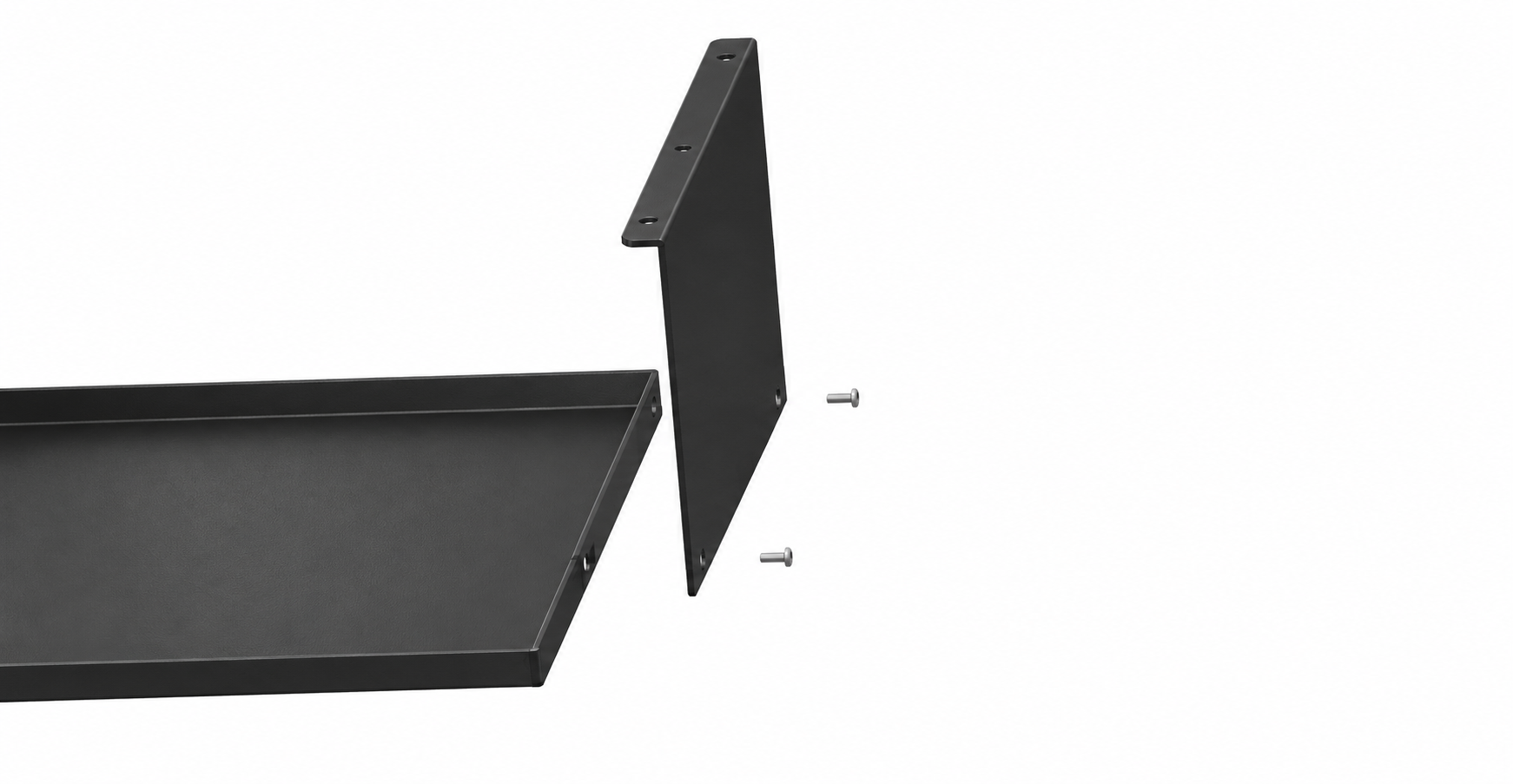
Step 62
Repeat the process to attach the second side panel.
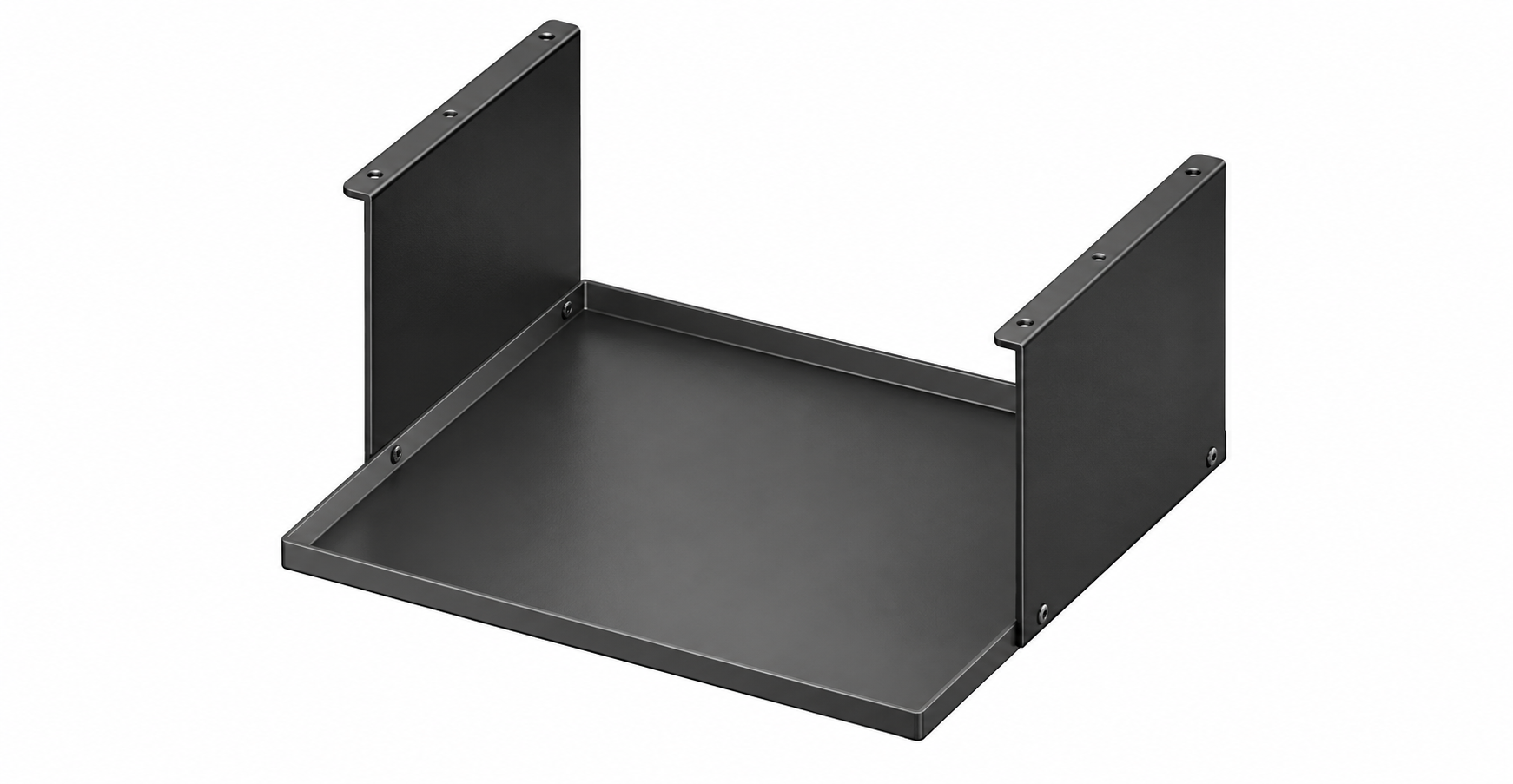
Step 63
Attach the assembled shelf and the two instrument holders to the underside of the cart system, as shown.
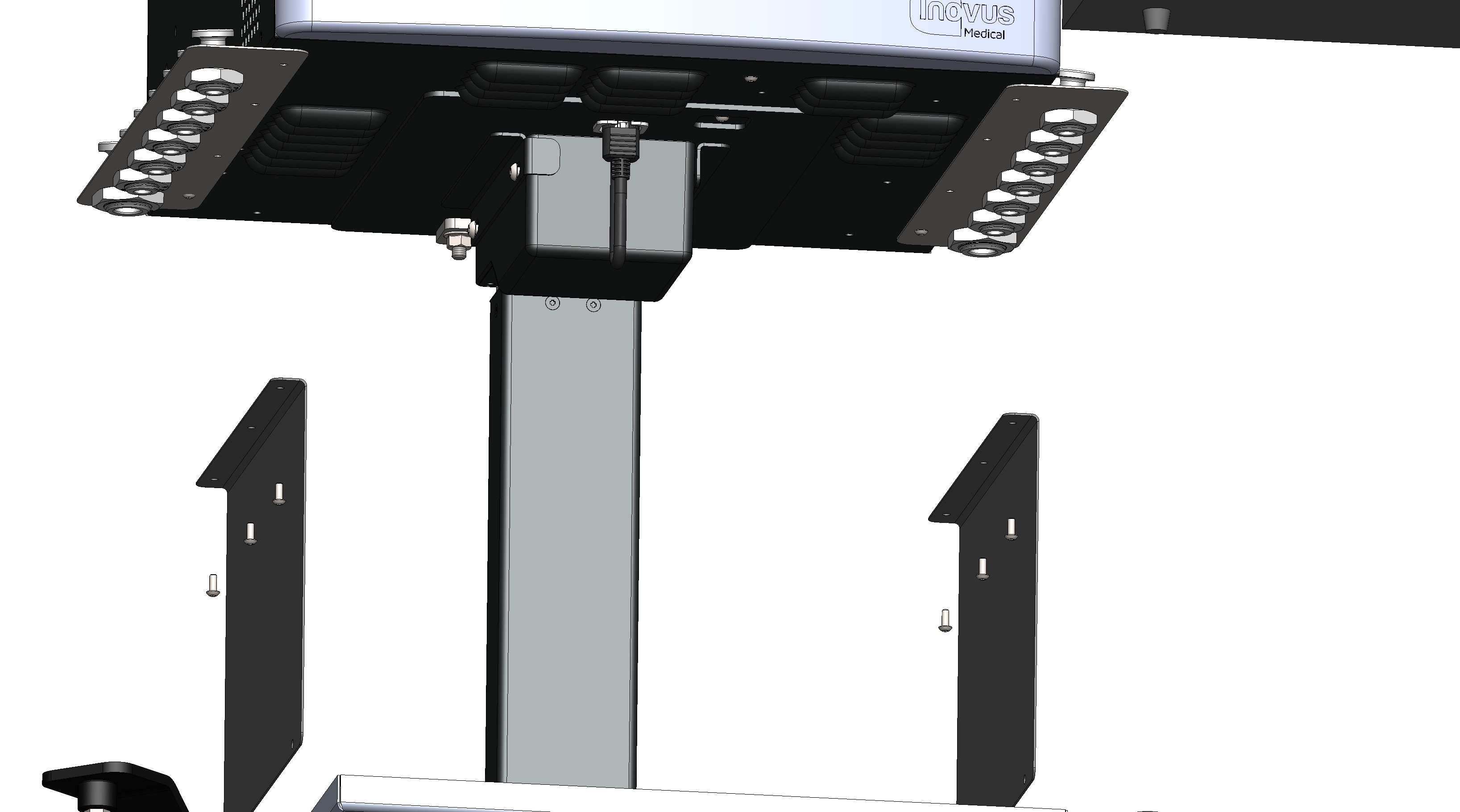
Step 64
The cart system is now complete.
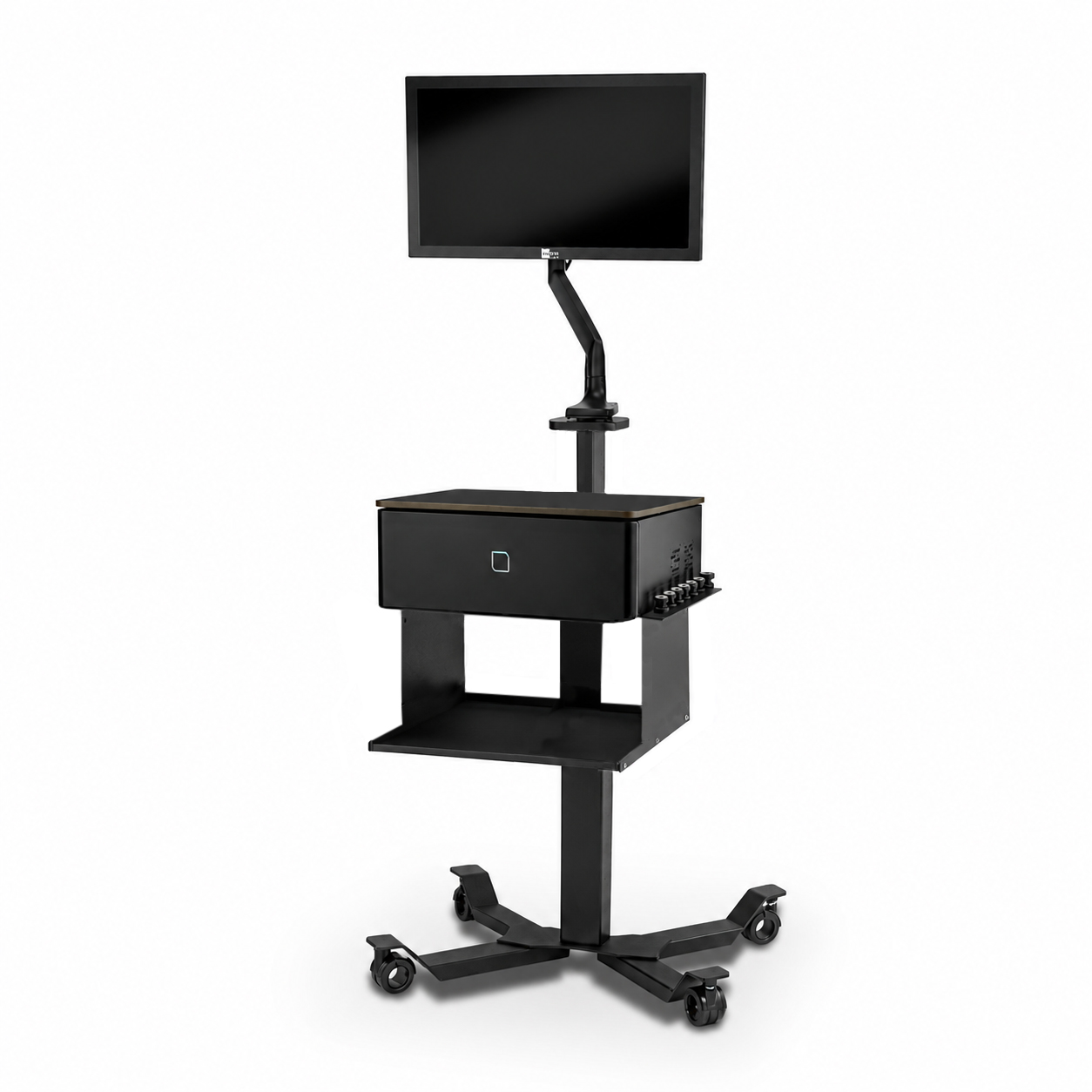
Step 65
Fill the bottle with water making sure not to overfill, the bottle has max and min indicators to guide you.
Attach the irrigation tube from the top of the bottle to the socket on the side of the endoscope.
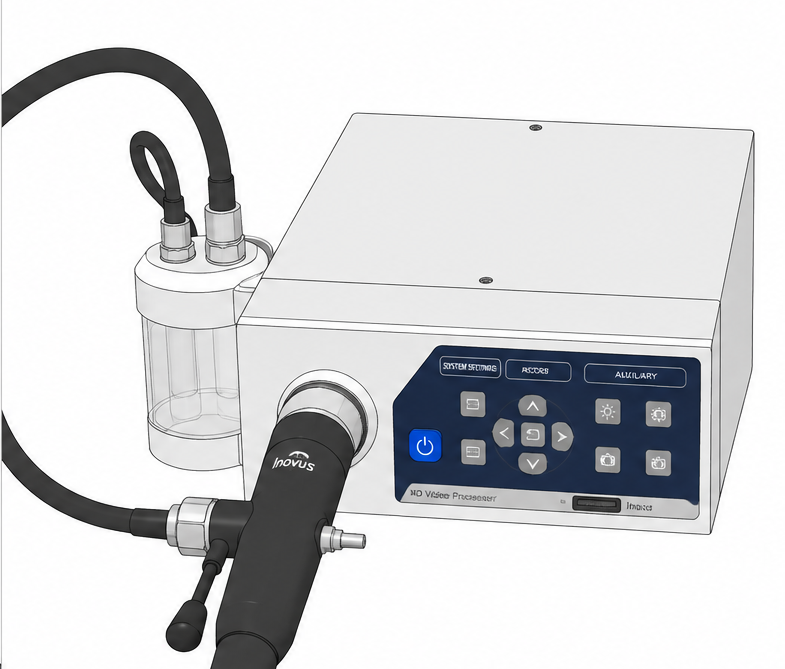
Step 66
Place the EndoAR simulator box on top of the 00001527 cart system.
Connect the 00002610 endoscope to the front of the control unit, then place the endoscope into the endoscope bracket.

Step 67
Connect the 00000779 power cables to an electrical supply, then turn on the control unit using the power switch located on the rear of the unit.
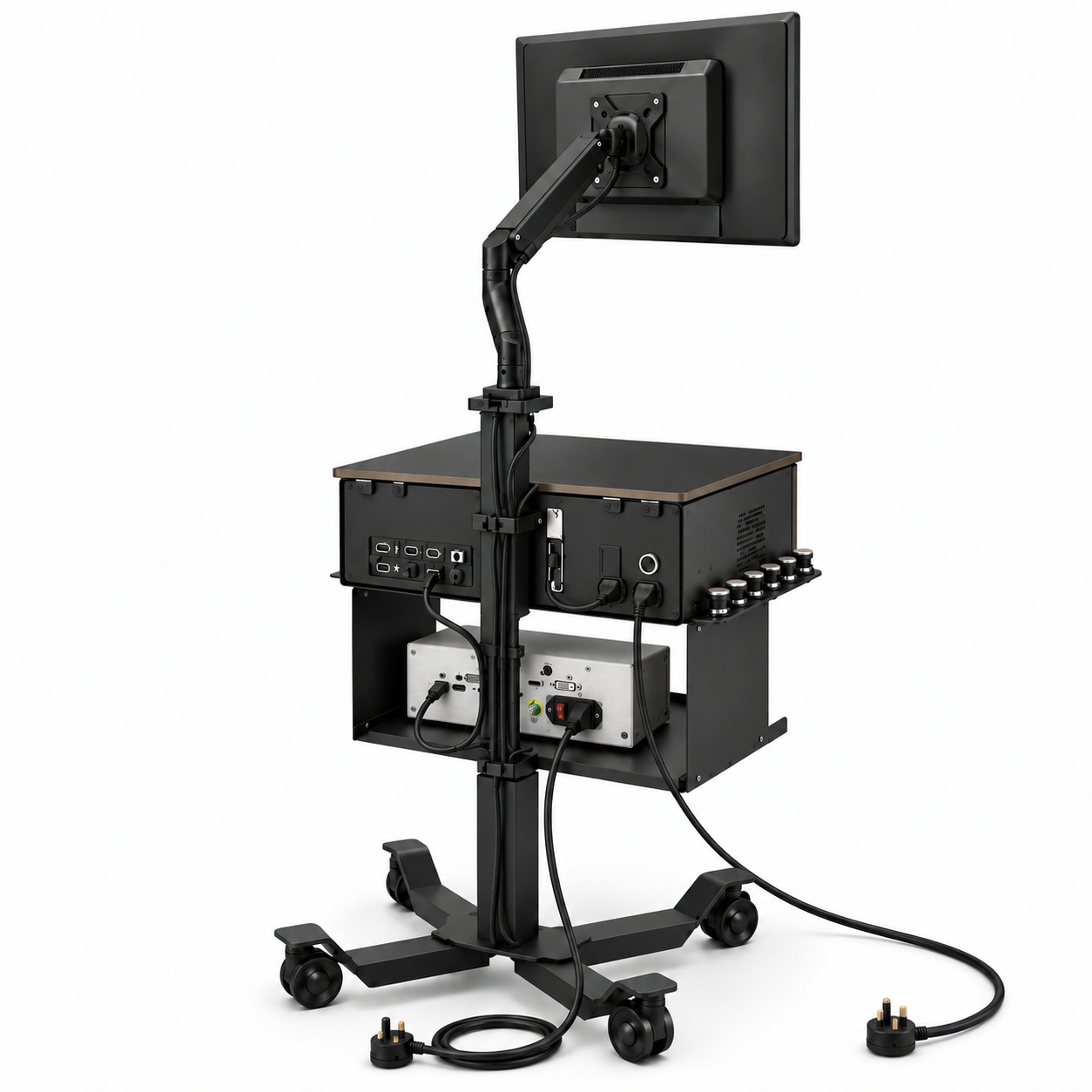
Step 68
Press the front button to power up the EndoAR pro.
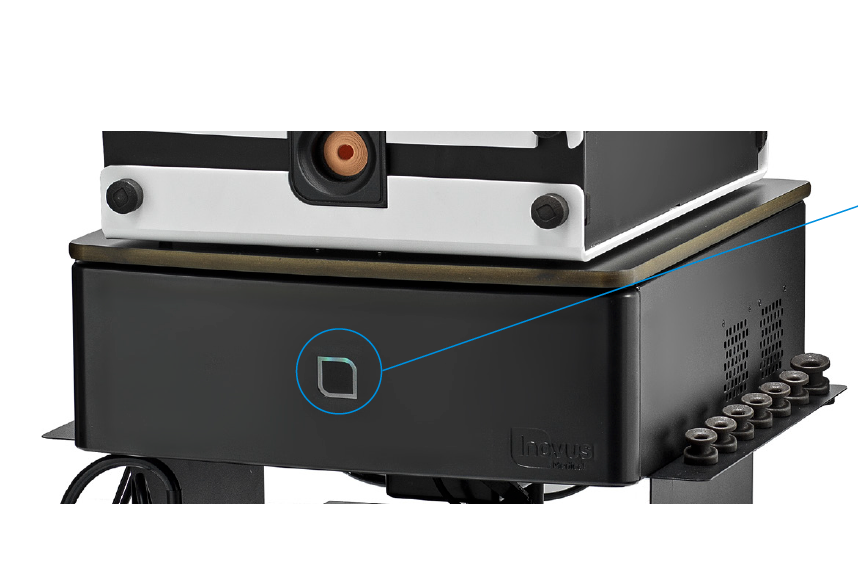
Downloads
Community Discussions (0)
Real-world experiences from other users around this article.
Did this solve your problem?