
SupportBack to inovusmedical.com
SupportBrowse articlesCommunity DiscussionsSign in
Support

Self-service technical support, hardware setup guides and Totum user guides from the Inovus Medical team.

Back to inovusmedical.com

Support

  • Support Center
  • Browse articles

Policies

  • Warranty Information
  • Returns & Refunds
  • Delivery Information
  • Customs Information

Legal

  • Privacy Policy
  • Terms of Use
  • Cookies

© 2026 Inovus Medical Ltd. All rights reserved.

Support Center

Hardware
  • How do I clean my simulator?
  • I am using QuickTime player for Mac to run my camera and the image is inverted (flipped round), how do I fix this?
  • I've purchased a Pyxus HD or Pyxus HD Move simulator and cannot get the camera to work (Mac and Windows users)
  • I've purchased a Pyxus HD or Pyxus HD Move simulator but can't access or log on to LapSkills, what should I do?
Product Videos
Software
  • I have an issue with the Totum software
  • The camera is black or not showing in Totum, how do I fix it?
  • Consumable drawdowns
  • What do Totum credits mean?
  • Why are some models worth more Credits?
Accounts
Downloads
Assessments
Groups
Connections
Permissions
Administration
Policies
  • Customs Information
  • Delivery Information
  • My order has arrived damaged or with a missing item
  • Returns & Refunds
  • Warranty Information
Support CenterSoftware
Guide

Consumable drawdowns

Draw down Totum credits to request consumable models.

Overview
Easy•3–5 mins
Credit Bundle#credits#drawdownsUpdated 18/10/2026

1. Go to Drawdowns – Totum

2. Click Totum Credit Icon

Click the Totum Credit icon in the top right.
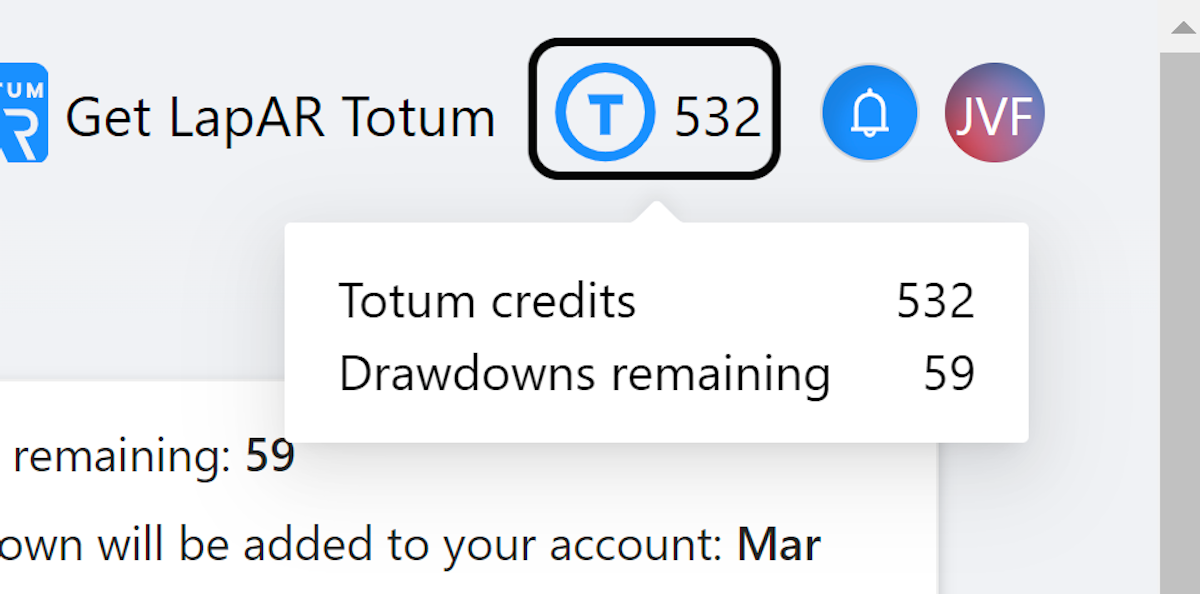
Click the totum credit icon in the top right

3. Increase Model Count

Click the plus icon to increase the number of models you would like to draw down.
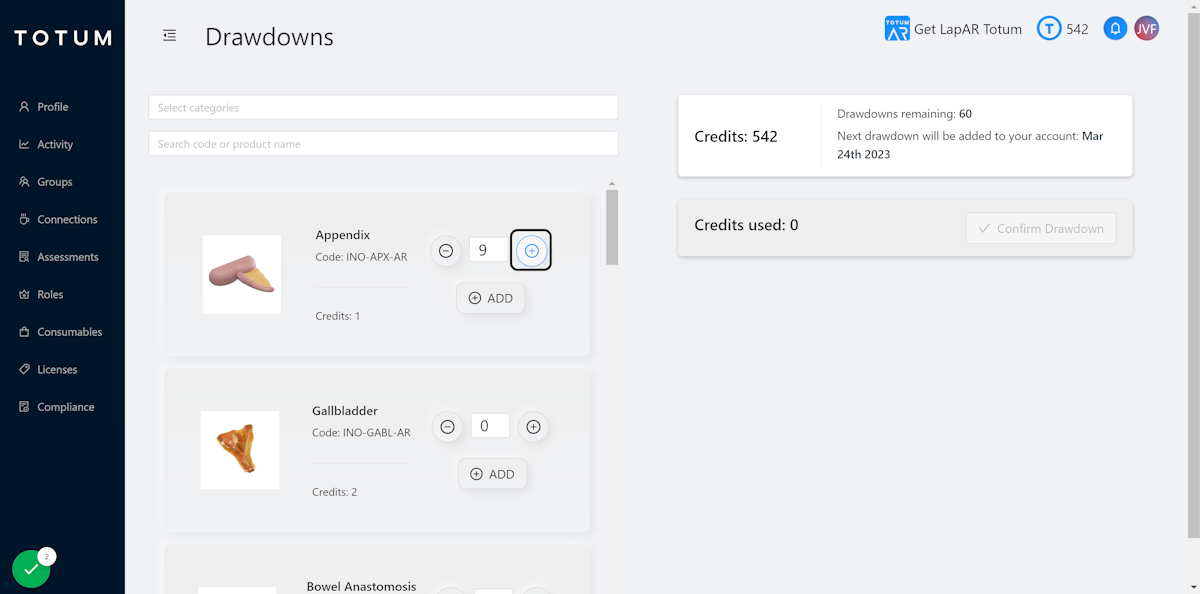
Click the plus icon to increase the number of models you would like to draw down

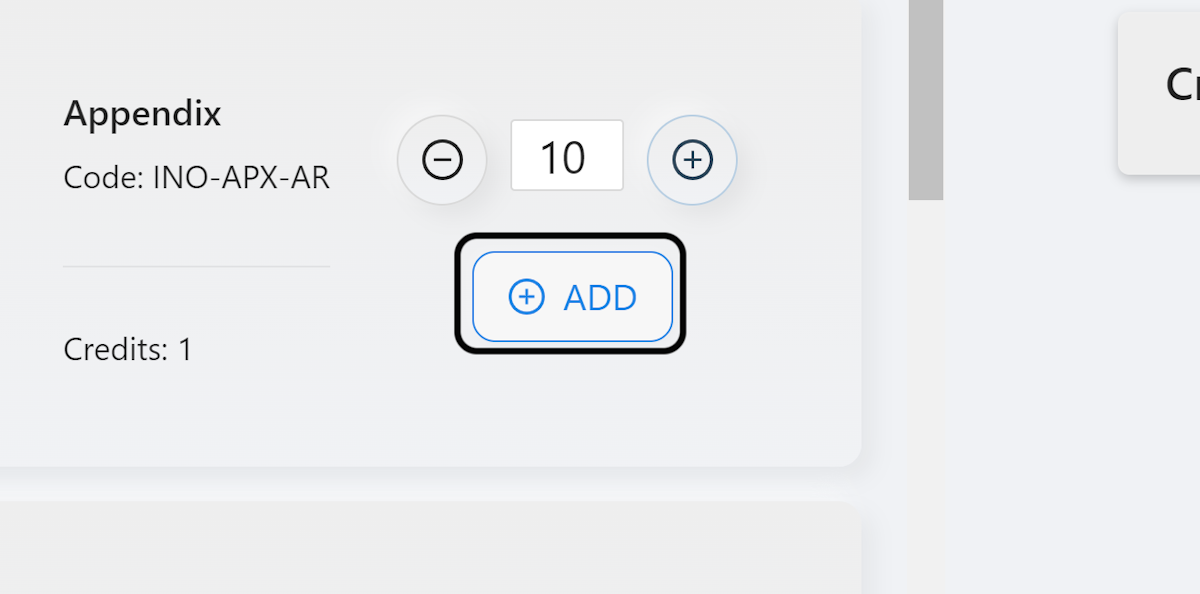
4. Click on ADD

Click on ADD

5. Items in Checkout

Items will now appear in the checkout area.
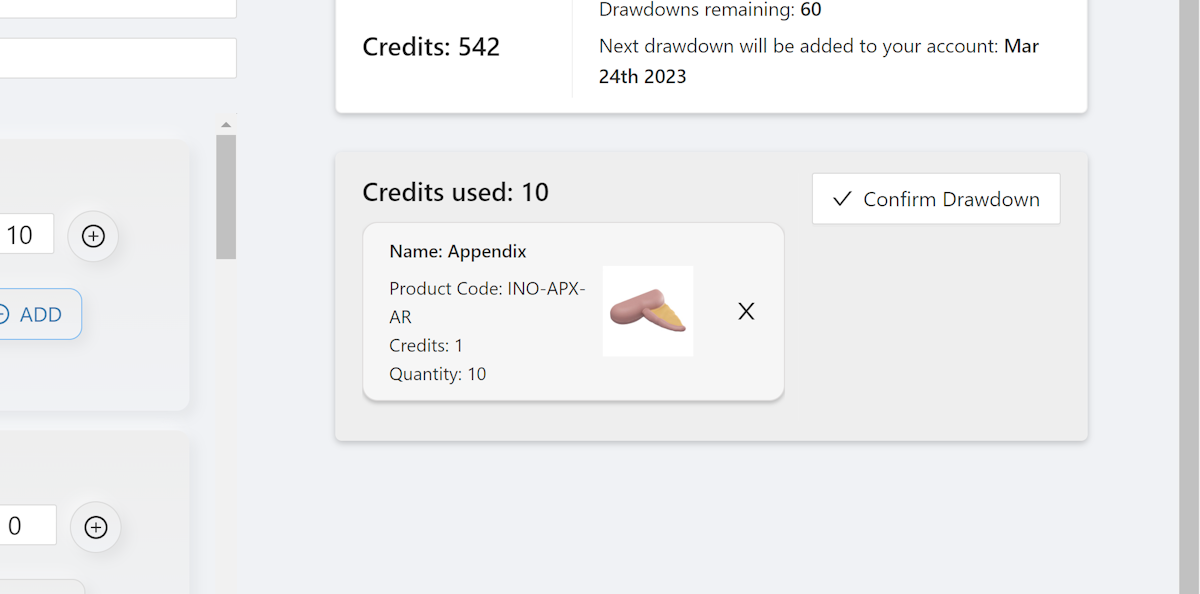
Items will now appear in the checkout area

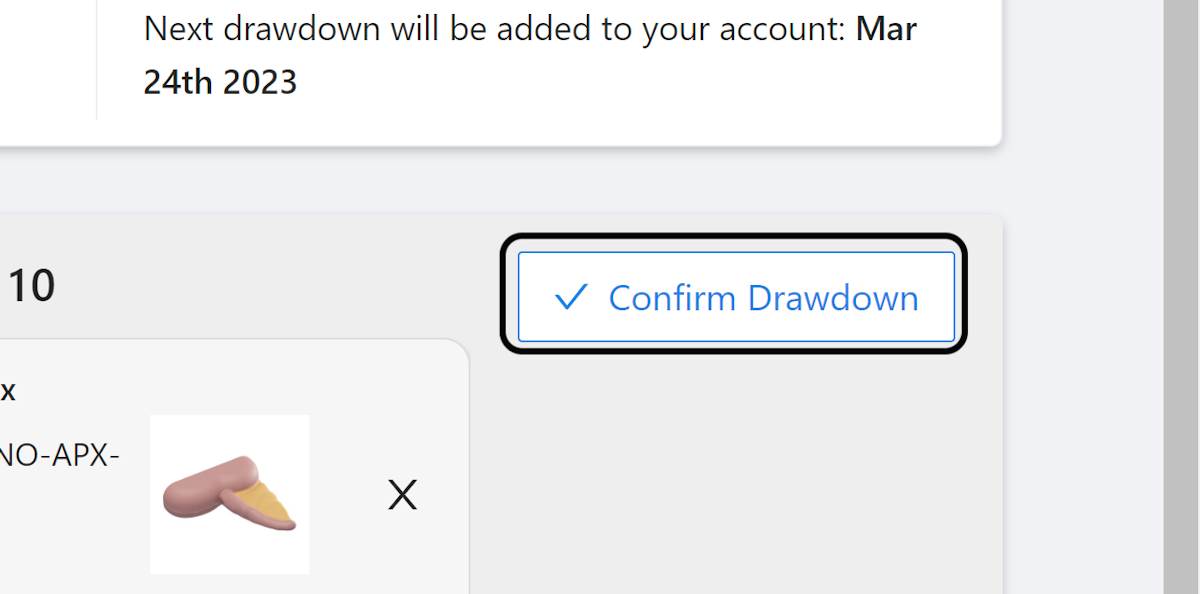
6. Click on Confirm Drawdown

Click on Confirm Drawdown

7. Drawdown Request Accepted

You will see a notification that reads ‘Thanks, drawdown request accepted’.
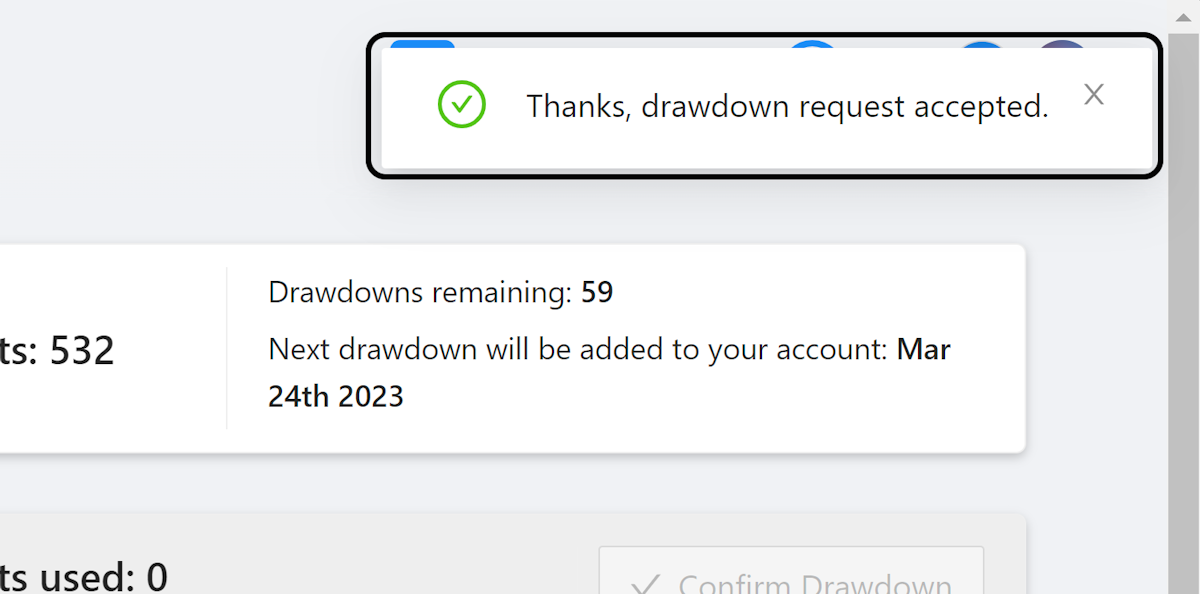
You will see a notification that reads 'Thanks, drawdown request accepted'.

8. Receive Confirmation Email

You will also receive a confirmation email.
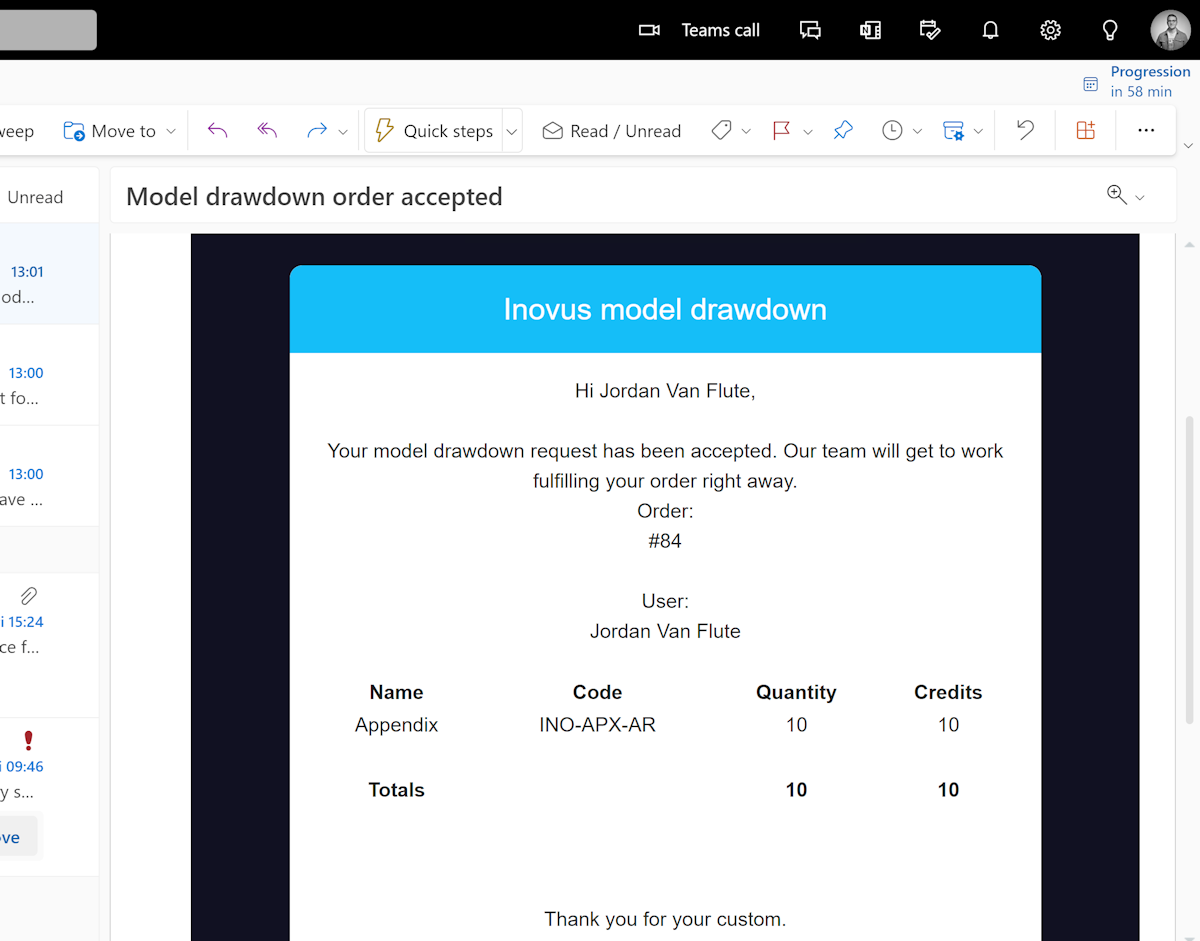
You will also recieve a confirmation email

Related articles

FAQ

What do Totum credits mean?

What Totum credits are and how they're issued each year.

1 min EasyCredit Bundle
FAQ

Why are some models worth more Credits?

Why credit cost varies by model.

1 min EasyCredit Bundle

Community Discussions (0)

Real-world experiences from other users around this article.

Explore Community Discussions→·Ask a Question

Did this solve your problem?

Contents

  • 1. Go to Drawdowns – Totum
  • 2. Click Totum Credit Icon
  • 3. Increase Model Count
  • 4. Click on ADD
  • 5. Items in Checkout
  • 6. Click on Confirm Drawdown
  • 7. Drawdown Request Accepted
  • 8. Receive Confirmation Email